Anti-China sentiments are causing a furor in India amidst rising tensions on the Indo-China border, and Chinese apps are facing the brunt of it. India recently banned over 59 Chinese apps, and TikTok was one of them. Leveraging the situation, a newly made-in-India TikTok alternative named ‘Chingari’ has emerged and is receiving heaps of praise.
The app has raked in more than 1 million downloads in just 15 days. Chingari was originally launched in 2018 by two developers hailing from Odisha and Karnataka, but the popularity of the app has recently surged.
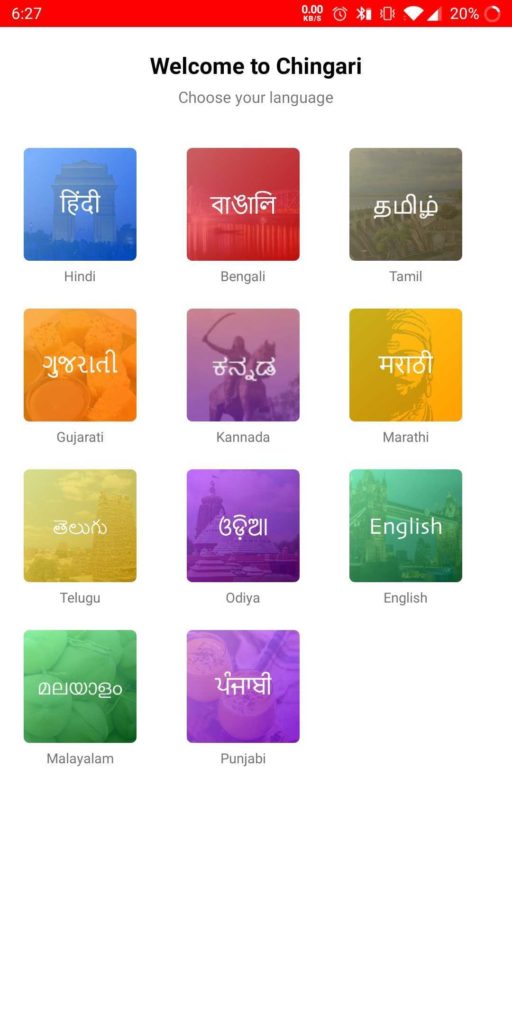
According to the developers of Chingari, the app has 2.5 million downloads to date, with around 1 million downloads in just the past 15 days. The app is available in several vernacular languages, including Hindi, Bangla, Marathi, Gujarati, Punjabi, and other regional languages. It is seen as the app’s most significant advantage over TikTok and other video-making apps.
Sumit Ghosh, one of the developers behind Chingari says, “This is the only social application developed in India which is a complete rival to the TikTok app. The app is vernacular and available in multiple languages, including regional languages.”
The user interface of the app is more or less similar to TikTok, as users need to scroll through their feed to watch entertaining and informative videos. As per the description of the app on Google Play Store, 10,000+ creators are creating content on the platform every day.
This is not the first time an Indian TikTok alternative is making headlines. Earlier, an app called ‘Mitron‘ also managed to gain 5 million downloads, cashing in on anti-China sentiments. However, it was later revealed that the app is a rebranded version of a Pakistani app and an Indian purchased the source code for $34. It was briefly removed from the Google Play Store for violating Google’s spam and minimum functionality policies.
Chingari has yet to prove its mettle in the country, but the rising uproar over boycotting Chinese products and apps could favor it.
A few days ago, Indian intelligence agencies presented a list of Chinese apps to the government urging lawmakers to ban the app. Now, India has finally acted upon it and decided to ban 59 Chinese apps that include popular apps like TikTok, Helo, UC Browser, Shareit, and more.
These Chinese apps have been banned by the Ministry of Electronics and Information Technology (MeitY) of India citing it as threat to country’s sovereignty, integrity and national security.
Complete list of Chinese apps banned by India today
Tiktok
Shareit
Helo
UC Browser
Baidu map
Shein
Clash of Kings
DU battery saver
Kwai
Likee
YouCam makeup
Mi Community
CM Browser
Virus Cleaner
APUS Browser
ROMWE
Club Factory
Newsdog
Beutry Plus
WeChat
UC News
QQ Mail
Weibo
Xender
Cache Cleaner DU App studio
DU Cleaner
DU Browser
Hago Play With New Friends
Cam Scanner
Clean Master – Cheetah Mobile
Wonder Camera
Photo Wonder
QQ Music
QQ Newsfeed
Bigo Live
SelfieCity
Mail Master
Parallel Space
Mi Video Call – Xiaomi
WeSync
ES File Explorer
Viva Video – QU Video Inc
Meitu
Vigo Video
New Video Status
DU Recorder
Vault- Hide
QQ Player
We Meet
Sweet Selfie
Baidu Translate
Vmate
QQ International
QQ Security Center
QQ Launcher
U Video
V fly Status Video
Mobile Legends
DU Privacy
Why did India ban Chinese apps?
MeitY says the government investigated the apps after receiving several complaints from the public domain against apps that allegedly harvested Indian user data. The ban is applicable to apps on both iOS and Android devices as well as any non-mobile counterparts.
Moreover, these Chinese apps were allegedly found siphoning data in an organized manner and sending it to servers outside the country. The government says that this step will likely put an end to such data theft by malicious apps.
What’s your opinion on this? Do you think it’s right to ban an app based on its country of origin? Leave your comments below!
One of the coolest iOS 14 features that Apple added this year is the Sound Recognition option in the Accessibility Settings. The new feature is meant to detect various types of sounds that people might miss out on due to hearing issues or simply when they aren’t paying attention.
To name a few, this iOS 14 feature can recognize sounds like running water, doorbell, cats, dogs, someone shouting, car horns, alarms, and sounds of some household appliances.
Now, while testing the sound recognition feature, I almost forgot that it’s not enabled by default on iOS 14 and ended up wasting some water (I compensated by saving water somewhere else).
Since Sound Recognition is an accessibility feature, probably that’s the reason it’s disabled by default as a lesser number of people will use it. But it does work when active. Anyway, let’s talk about how you can kick start the feature.
How to turn on ‘water running’ notifications on iOS 14?
As I just mentioned, the Sound Recognition feature is buried deep inside the Settings app. And getting it to work can be tedious if you haven’t downloaded the iOS 14 Developer Beta.
You can read our detailed post on how to get the iOS 14 beta build on your supported iPhone. Once you’re done, follow the steps mentioned below.
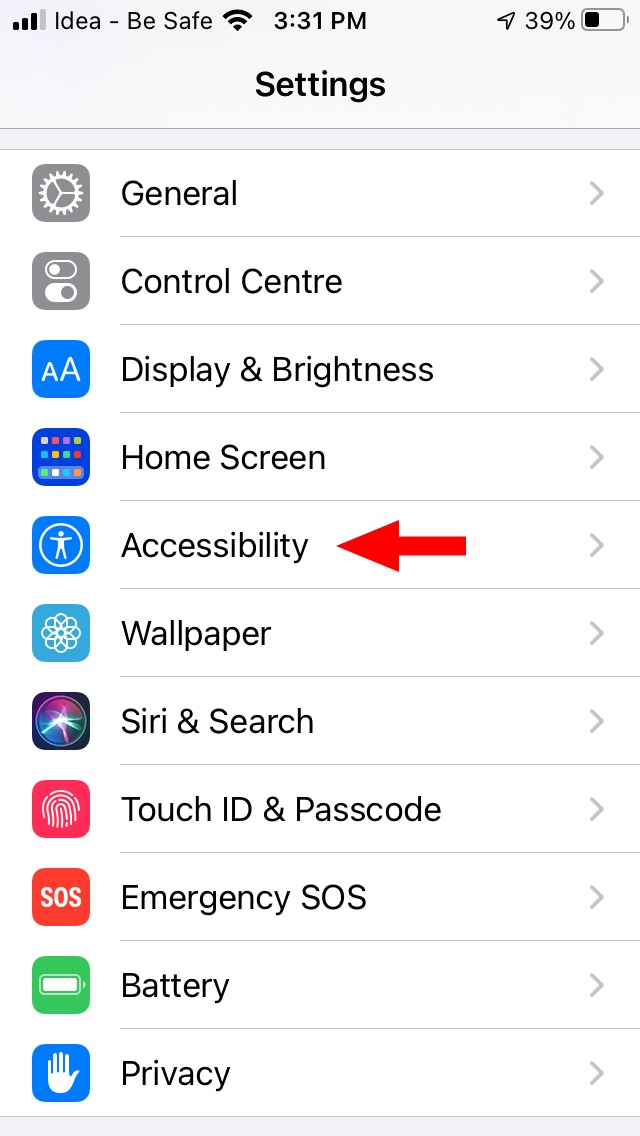
On your iPhone, go to Settings > Accessibility.
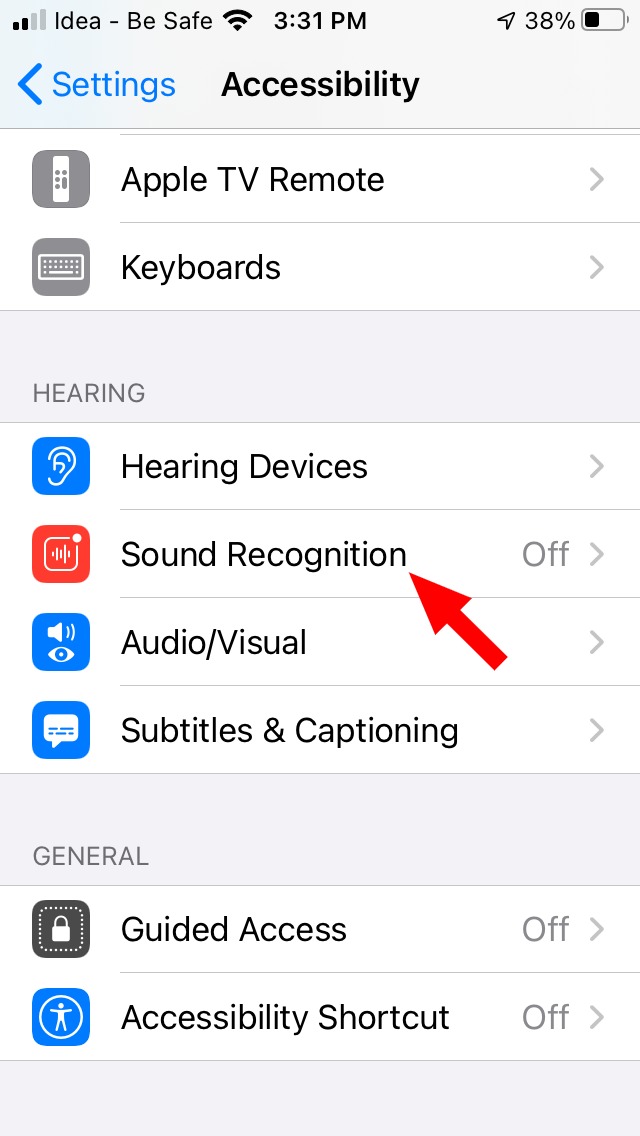
Scroll down and tap on Sound Recognition.
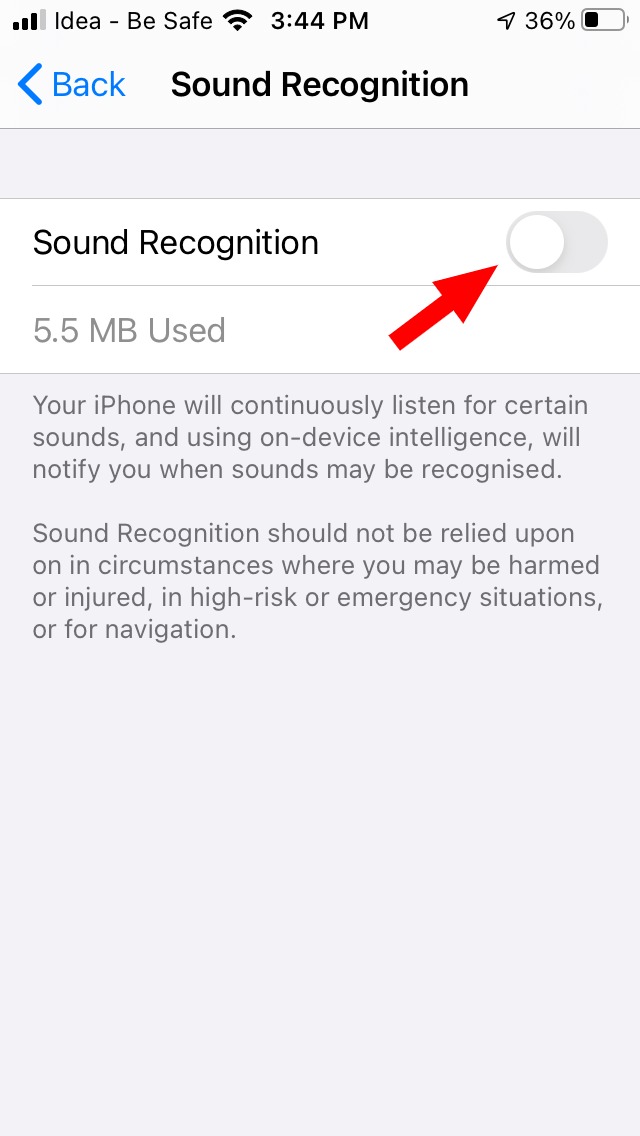
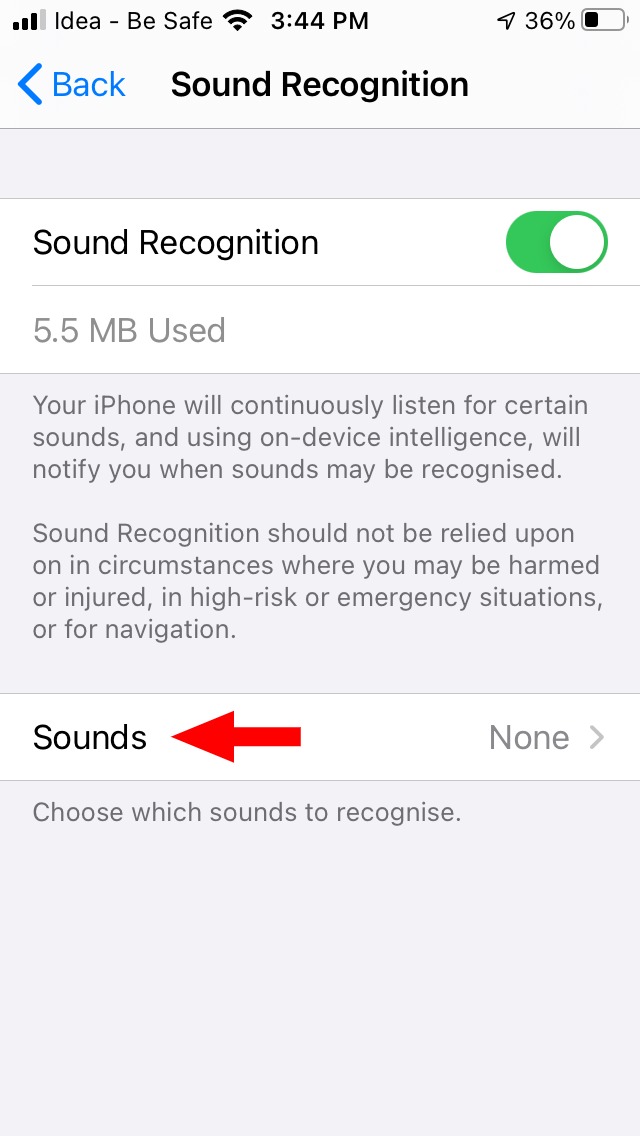
Tap on the toggle button to enable the Sound Recognition feature.
Tap on the Sounds option that appears next.
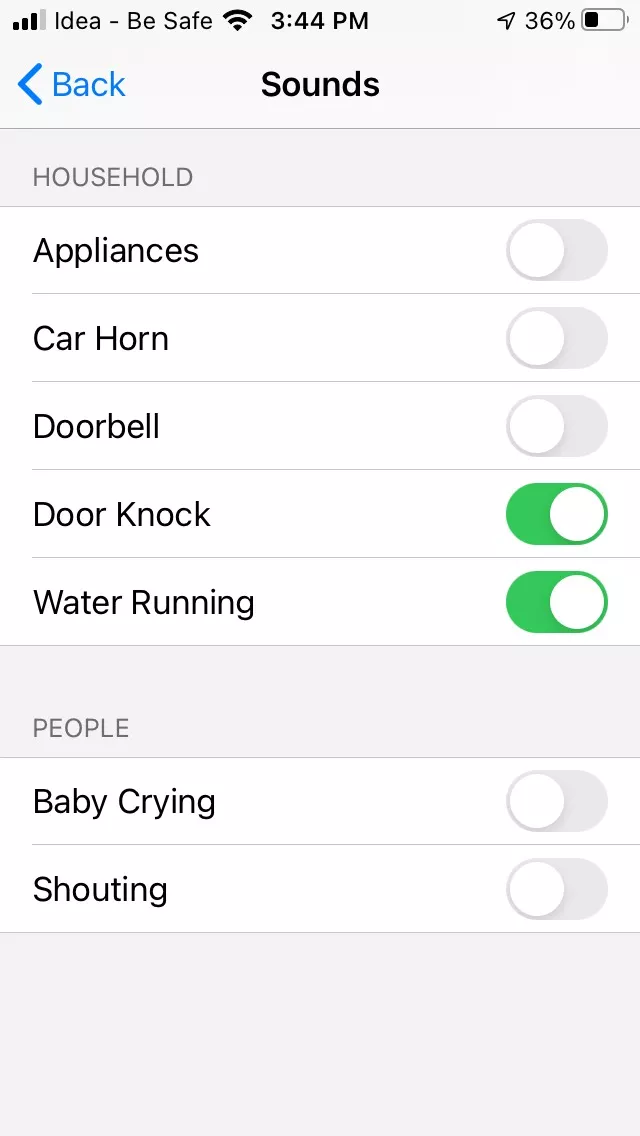
On the next screen, you can select what type of sounds you want your iPhone to recognize. In this case, it’s the Water Running and Door Knock toggle buttons.
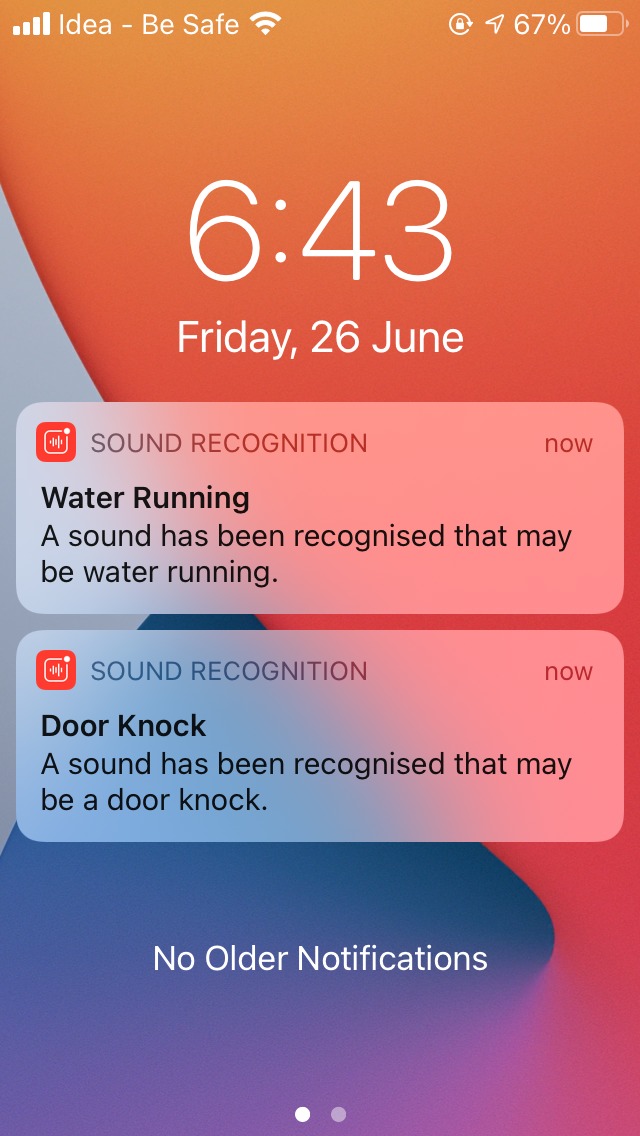
Once you’re done, you’ll start receiving notifications for different sounds in some time.
Now, as far as the experience is concerned, I think the Sound Recognition feature is still in the budding stage. There were many times when it confused some other sound to that of water and displayed the water running notification.
In order to decipher the sounds, the processing is done on the device itself, and so you don’t need an internet connection all the time. Also, given the error rate, you shouldn’t completely rely on Sound Recognition, especially when there is an emergency.
Overall, it’s a cool addition to iOS 14, and these days when we have a lot of spare time, it would be fun to play around with it for a while.
Unlike LTS (Long Term Support) or point release, a rolling release is a development cycle that continuously pushes new changes or package updates to the operating system. You can directly pull the latest updates without any need to download and install the new release version.
Unfortunately, one of the most popular Linux distributions, Ubuntu, does not provide such an edition. Whenever a new Ubuntu version releases, you always need to download and set it up to get all the new updates. Here comes the Rolling Rhino — a tool that lets you convert your normal Ubuntu desktop into a Rolling Release.
Rolling Rhino To Create Own Ubuntu Rolling Release
Rolling Rhino is a new command-line tool developed by Ubuntu Desktop head Martin Wimpress. It turns Ubuntu’s daily build image into a “rolling-release” and keeps track of all changes in devel series.
Once you convert your Ubuntu Linux system into a rolling release, the system always syncs with the Ubuntu Development Branch of subsequent series. Hence, you get access to all the new changes and packages without downloading the new Ubuntu ISOs.
Moreover, Rolling Rhino does not just work for Ubuntu desktop, but you can also transform other official Ubuntu flavors into a rolling release. If you don’t know, Ubuntu currently has seven official variants such as:
Kubuntu
Lubuntu
Ubuntu Budgie
Ubuntu Kylin
Xubuntu
Ubuntu MATE
Ubuntu Studio
Watch a live development of Rolling Rhino by Martin Wimpress:
Things You Need To Know Before Using Rolling Rhino
Before you hop on using the tool, let me discuss what you need to know. Currently, Rolling Rhino cannot detect PPAs or desktop meta-packages. You have to migrate your PPAs (if using) and fix any issues on your own that may occur while using unstable repos from the development branch.
If you use Rolling Rhino, you’re highly bound to get bugs or errors from new changes or packages. This is why Martin states that Rolling Rhino is intended for Ubuntu developers and experienced Ubuntu users.
How To Use Rolling Rhino?
Rolling Rhino does not support any normal or LTS version of Ubuntu. Hence, you first need to download and install the daily build image of the Ubuntu desktop. Then, create an Ubuntu rolling release using Rolling Rhino.
For complete details, head over to the Rolling Rhino repository and see how to run it.
Pop!_OS shell is a new auto-tiling window manager developed by Pop!_OS dev team. Pop shell was first introduced and shipped by default in the latest long-term Ubuntu-based Pop!_OS 20.04. It is simply a GNOME extension running on top of the GNOME shell.
You can use it for navigation and management of windows on GNOME desktop fully through the keyboard. Hence, in this article, I’ll guide you to install Pop!_OS shell on Ubuntu Linux and turn your GNOME desktop into a tiling window manager.
How To Install Pop Shell Window Tiling Extension On Ubuntu 20.04?
1. Install Dependencies
Before installing the Pop shell GNOME shell extension, you first need to have three important tools pre-installed:
GNOME Shell 3.36
TypeScript 3.8
GNU Make
If you’re using Ubuntu 20.04 with GNOME, you’ll already have GNOME Shell 3.36. Make tool is also mostly pre-loaded in every Linux distribution. If not, install make along with TypeScript.
sudo apt install node-typescript make
2. Download or Clone Pop!_OS Shell Repository
Currently, Pop shell extension is not available on the official GNOME extension site. Hence, you need to download Pop!_OS shell repository and install it using source code.
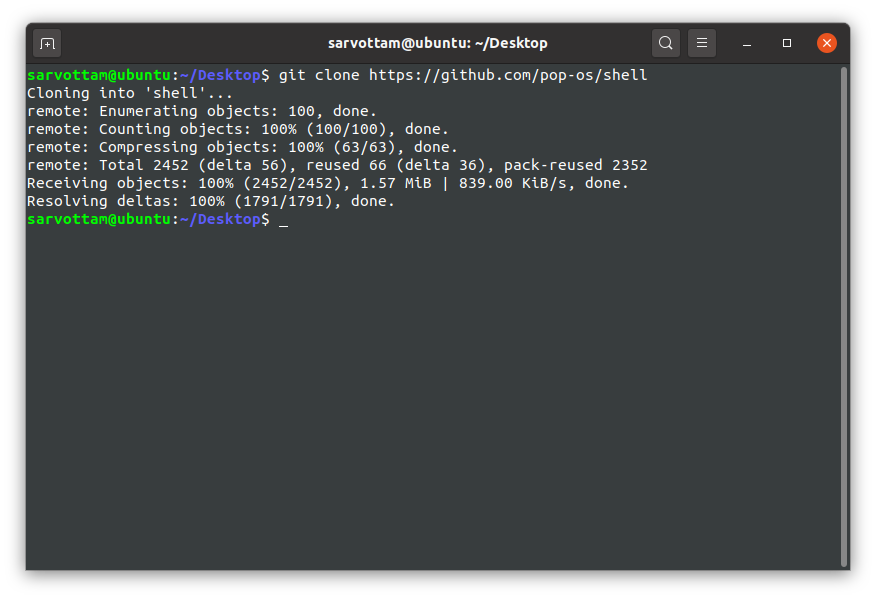
You can either download the repo directly from GitHub or clone it from the command line by running the command:
git clone https://github.com/pop-os/shell
Clone Pop Shell GitHub Repository
3. Install Pop Shell Extension
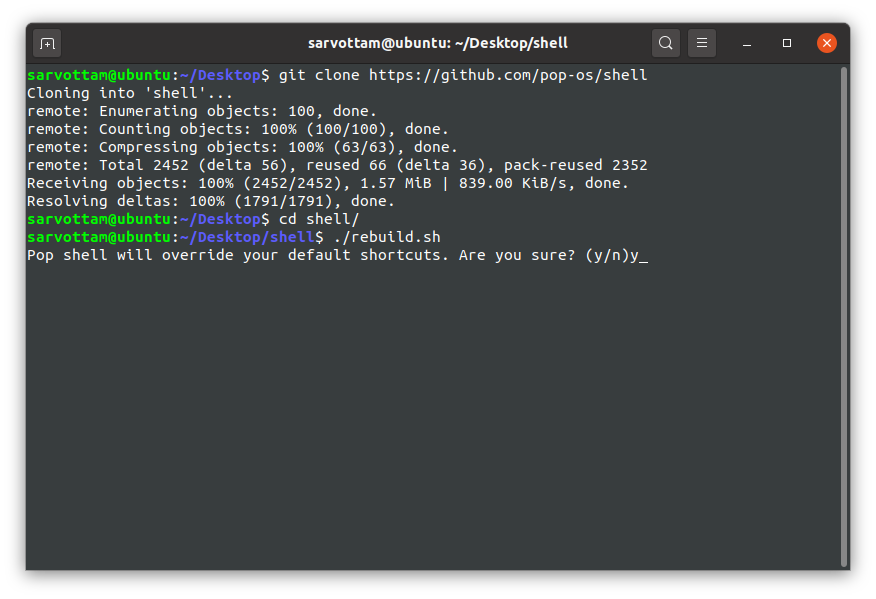
Once you download the repo, move to the shell directory:
cd shell
Then, run the command to transpile the TypeScript source code and install Pop!_OS shell extension:
./rebuild.sh
Build source code to install Pop shell extension
Here, if you want to override your default keyboard shortcuts, type ‘y’ or else ‘n.’ Later, you can also reset modified shortcuts to default.
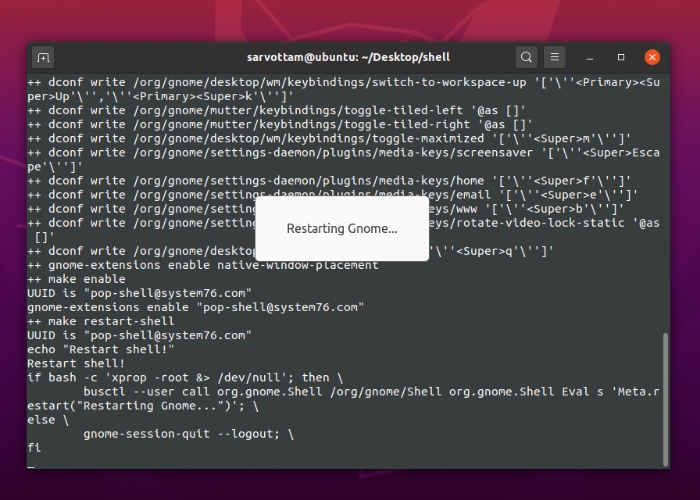
As you’ll notice here the process of transpiling the TypeScript source code into GJS-compatible JavaScript sources, it will install Pop shell extension and modifying the default keyboard shortcuts in GNOME.
Pop shell extension installed
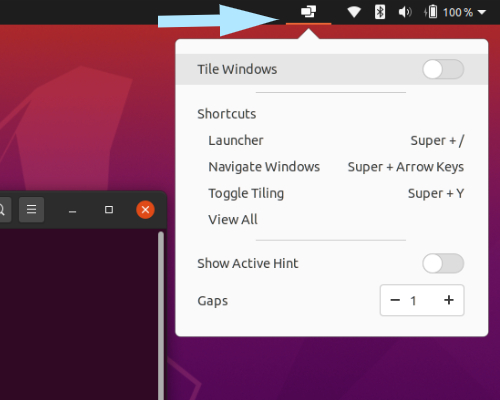
In the end, the process of installation may not be finished. However, if you notice a tiling logo in the top right corner of your GNOME desktop panel, you can finish the process using CTRL+C and start using Pop Shell tiling manager.
Pop Shell Tiling manager
How To Use Pop Shell On Ubuntu?
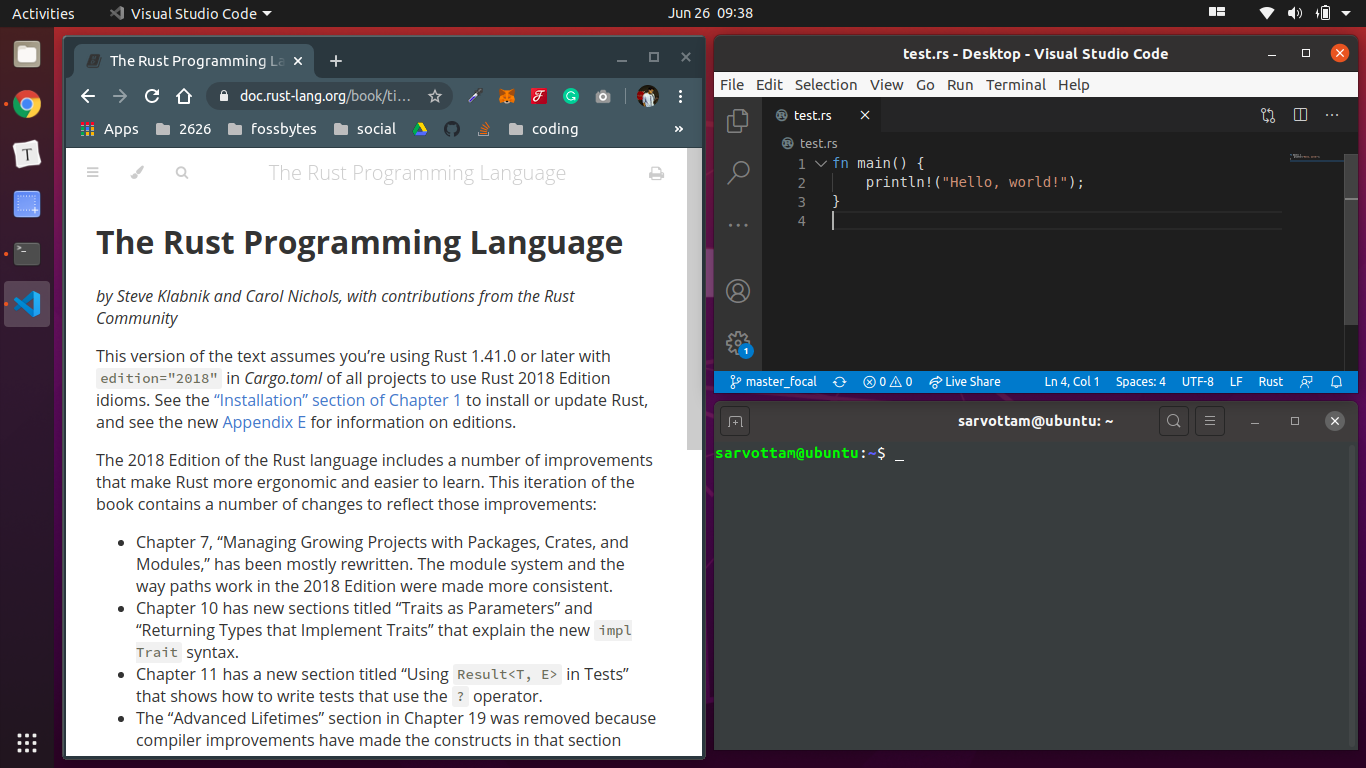
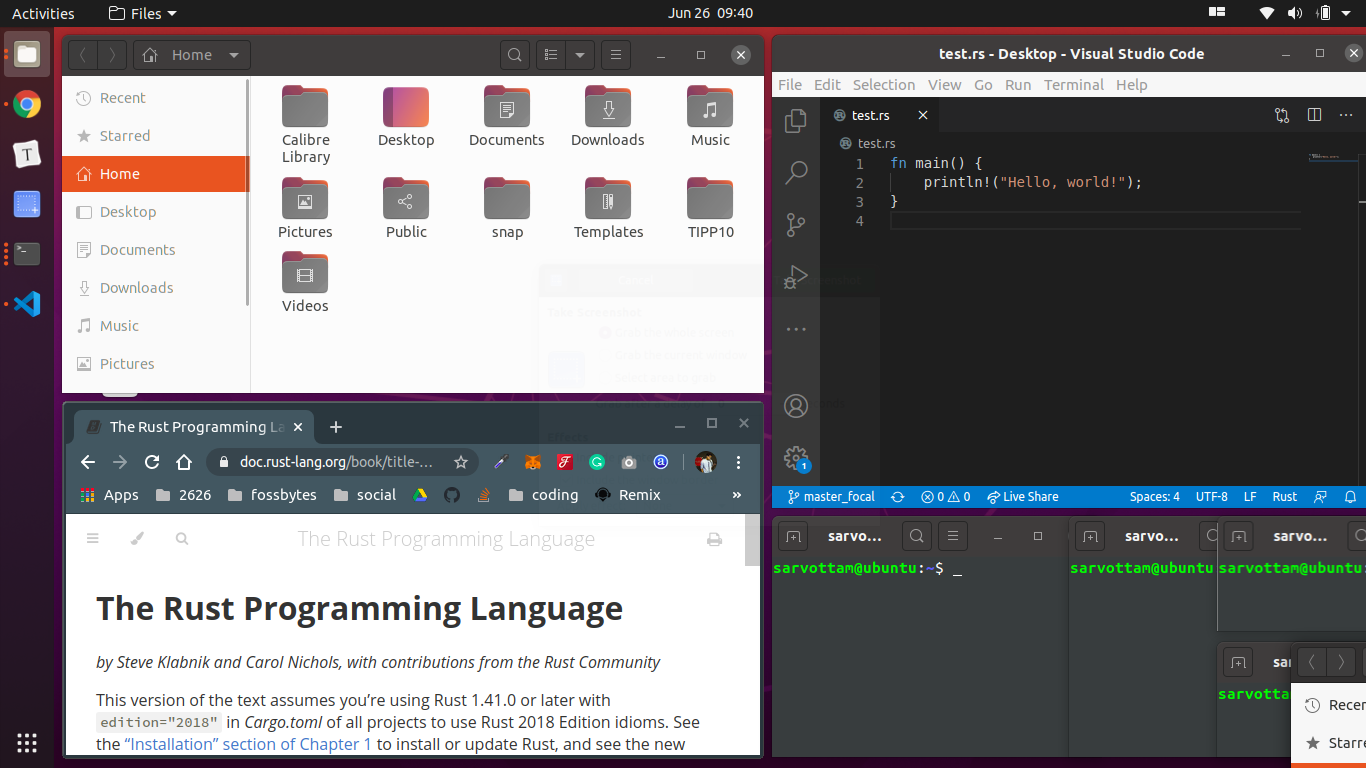
Now you’ve successfully installed the Pop shell extension, you can enable auto-tiling mode (disabled by default) from the top panel by toggling Tile Windows to ON. As soon as you click on toggle, you will notice all windows split into a grid of columns and rows.
Pop Shell running
While the extension is ON, if you open a new window, Pop shell fits it in the Fibonacci sequence in the existing grid structure.
Pop Shell auto tiling in the Fibonacci sequence
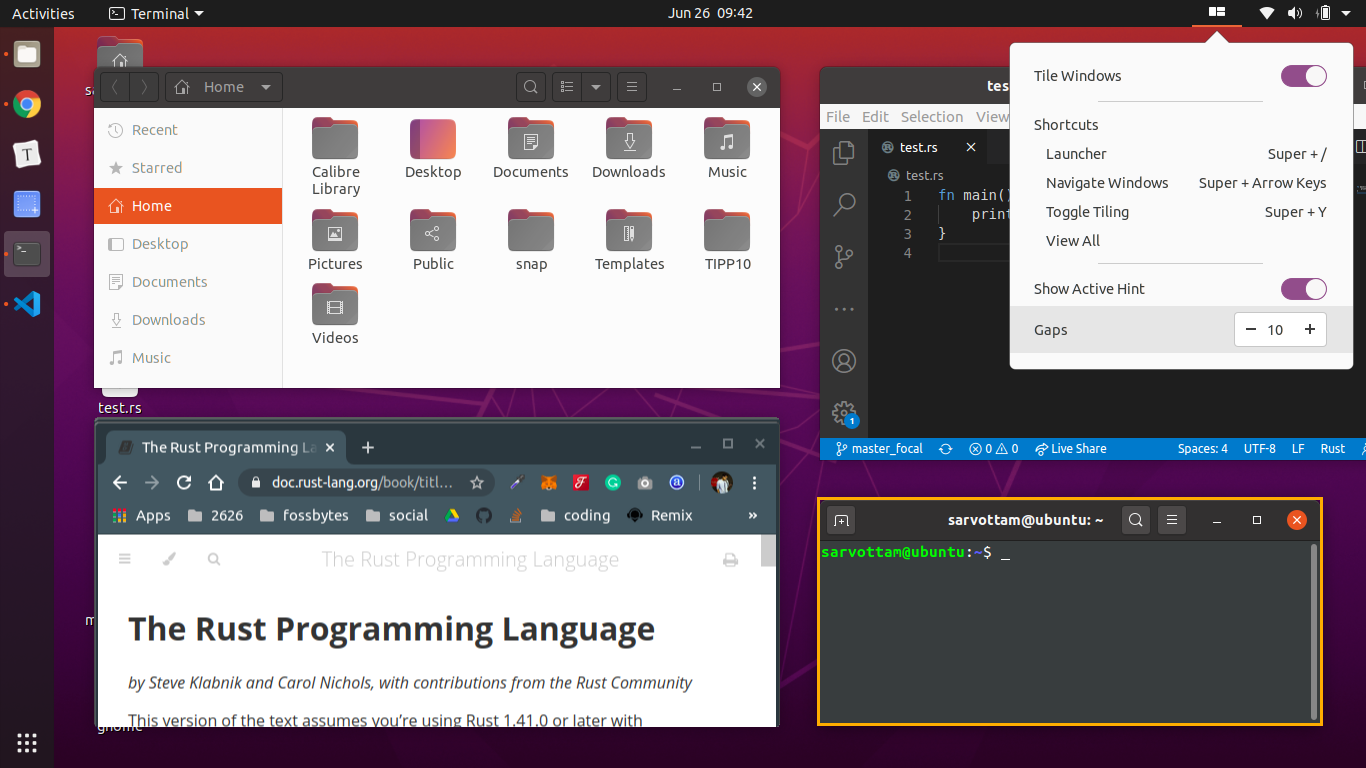
Pop shell also offers other customization options. For instance, you can toggle ‘Show Active Hint’ to highlight the active windows and also expand the gap between windows.
Pop Shell Gap and Active Window
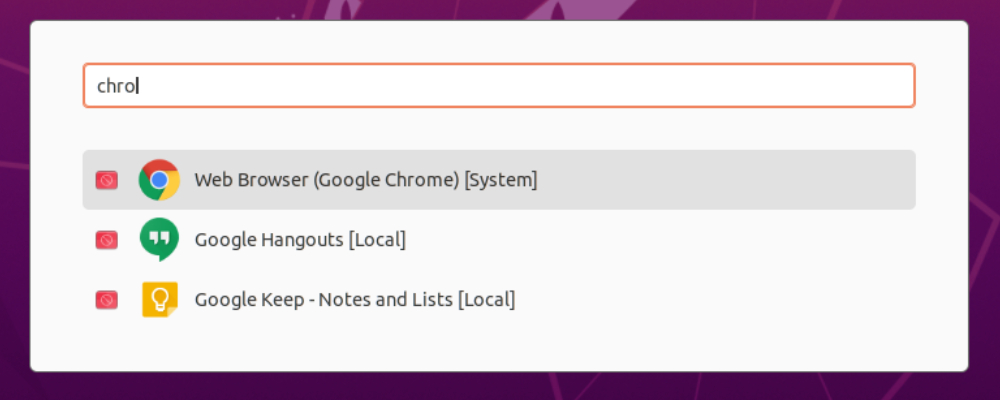
Furthermore, you can activate the launcher with Super + / to browse in the system and open applications.
Pop Shell Launcher
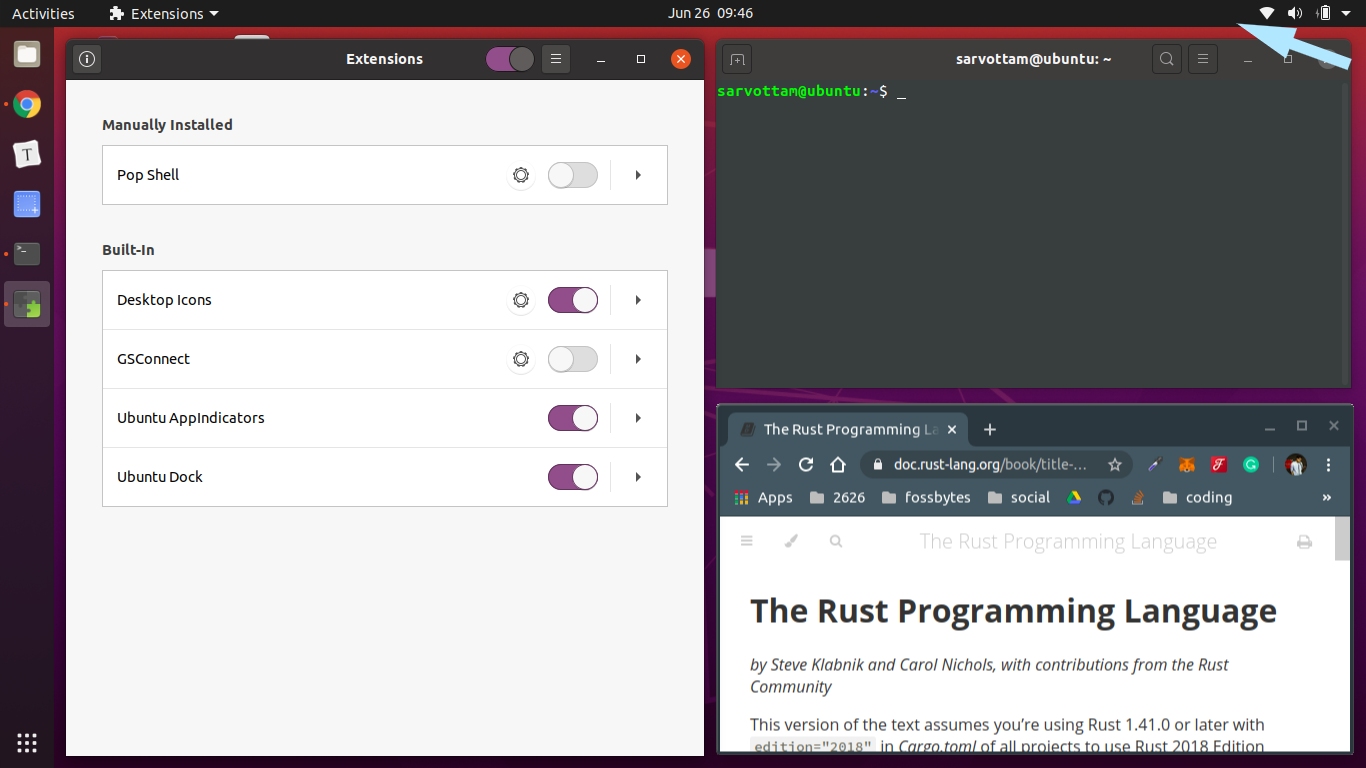
Now if you don’t want to use Pop shell, you can disable it by switching off the auto-tiling mode. You can also directly disable the Pop shell tiling window extension from the GNOME extensions that will hide it from the panel.
Pop Shell Extension Disabled
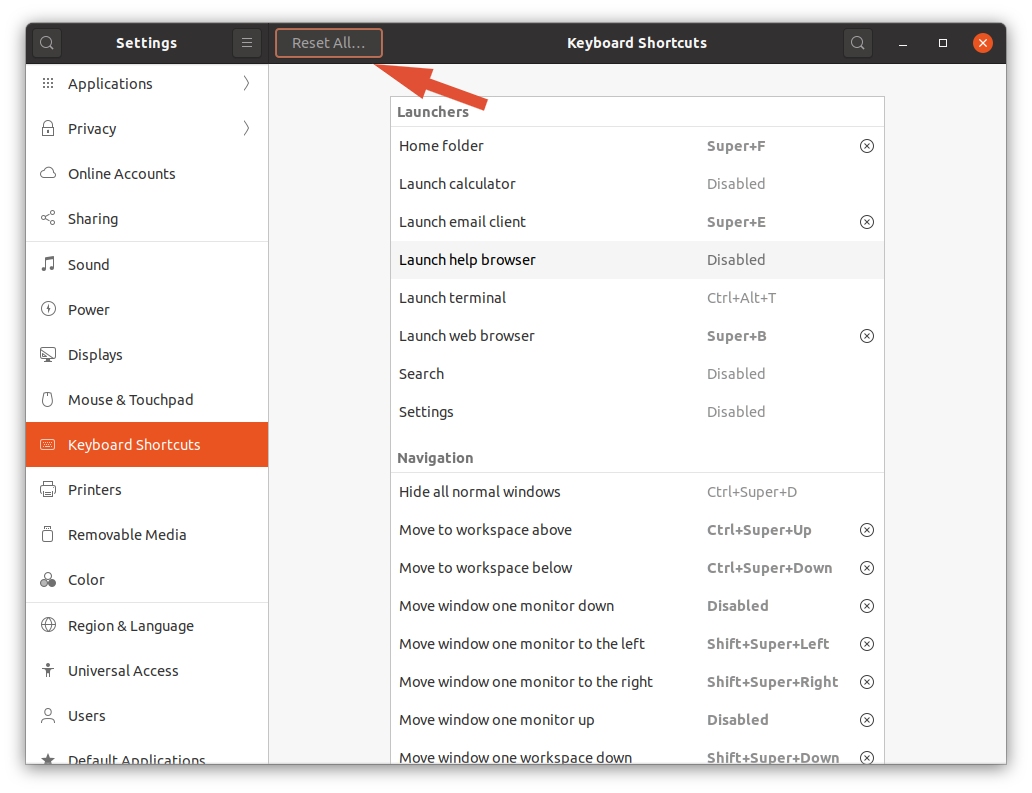
Lastly, since Pop shell overrides several default GNOME keyboard shortcuts, you can either individually modify shortcuts or reset all at once to default from Settings -> Keyboard Shortcuts -> Reset All.
Reset Keyboard Shortcuts
How To Install Pop Shell Keyboard Shortcuts?
Now, coming to an important aspect of Pop Shell — Keyboard Shortcuts — that makes it easier to use. Pop shell is a keyboard-driven layer that you can control fully without using a mouse. For each operation, like switching between windows and activating launcher, Pop shell provides several keyboard shortcuts.
Initially, you may not remember all shortcuts. Hence, you can install Pop Shell Shortcuts dialog that contains a full list of available shortcuts.
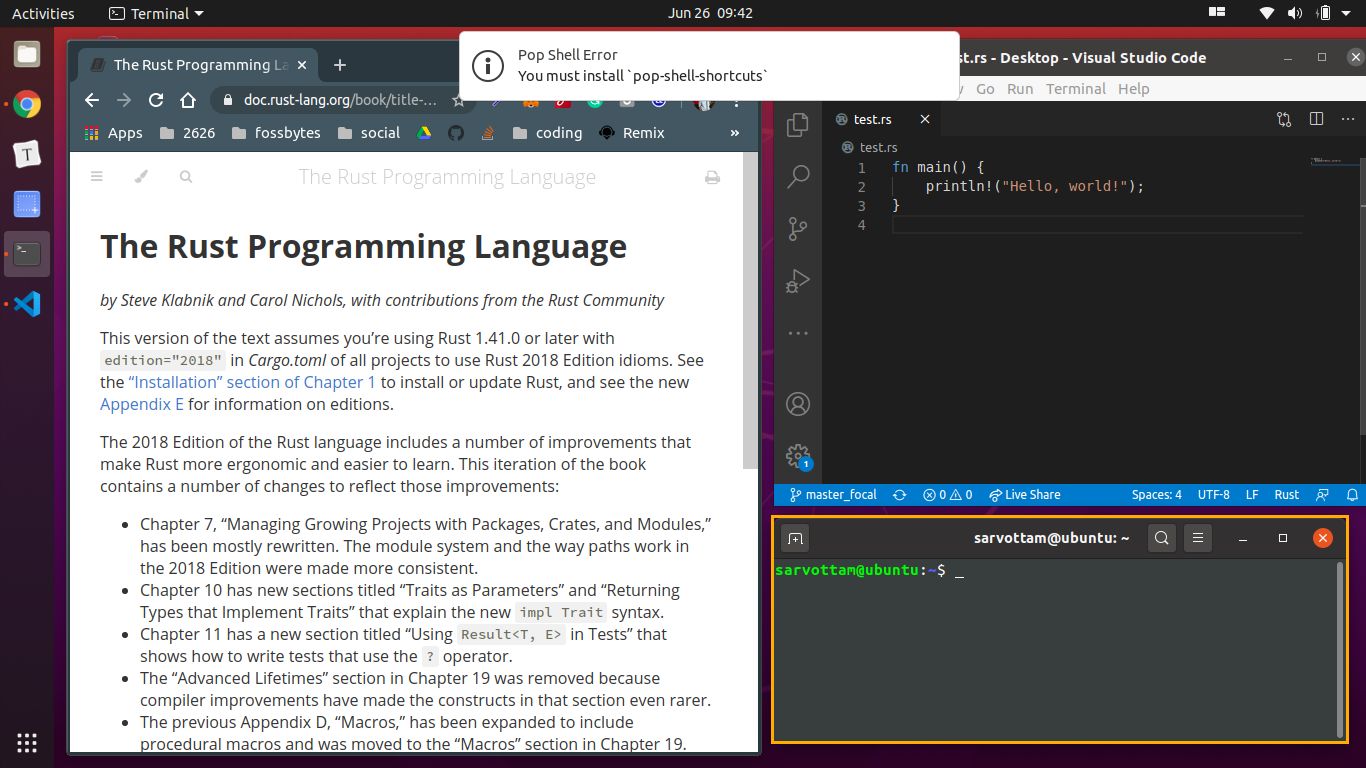
Pop Shell Shortcuts Error
If you want to install Pop shell Keyboard Shortcuts, you first need to have dependencies installed. Then, clone the shell-shortcutsrepository and build the source code to get Shortcuts dialog.
sudo apt install cargo rustc libgtk-3-dev
git clone https://github.com/pop-os/shell-shortcuts
cd shell-shortcuts
make
sudo make install
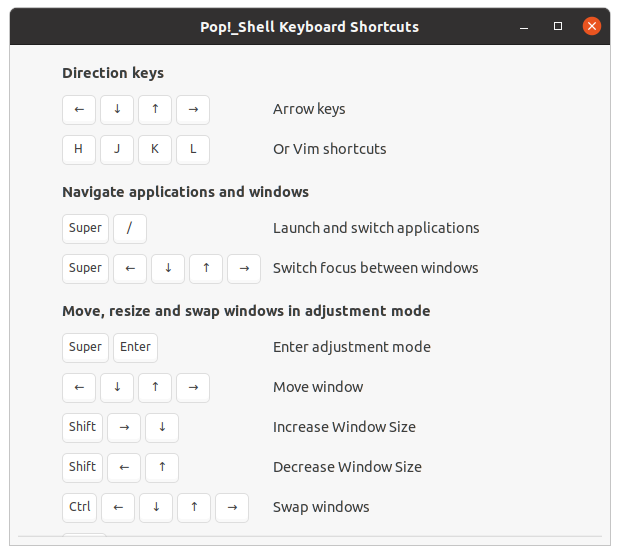
Once you finish installing it successfully, you can open dialog by running the command:
pop-shell-shortcuts
Pop Shell Keyboard Shortcuts Info
Later, if you wish to remove or uninstall the Pop Shell Shortcuts, run the following command:
sudo rm /usr/local/bin/pop-shell-shortcuts
How To Remove Pop Shell Extension?
You can uninstall Pop Shell tiling window extension using any of the three methods.
First, you can run the following command from the shelldirectory:
make uninstall
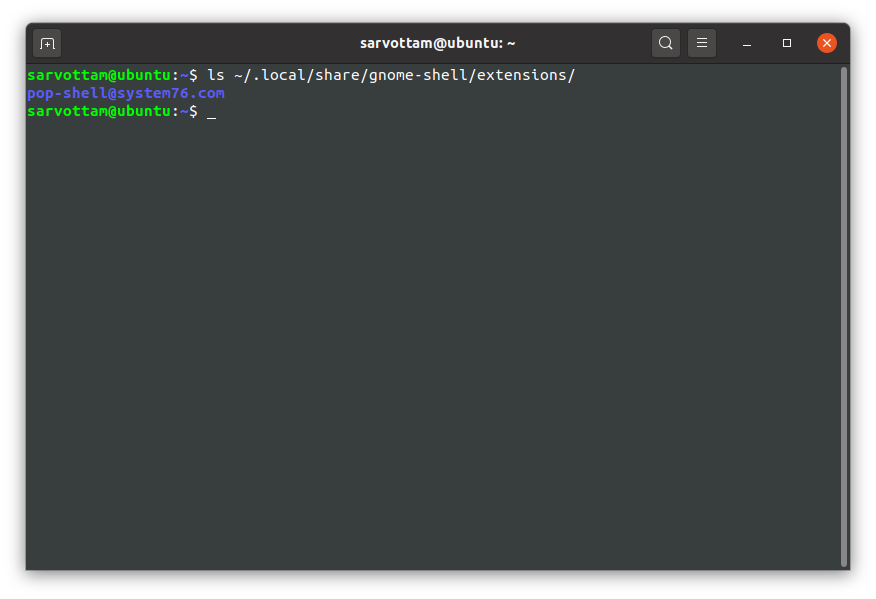
Second, you can delete the directory pop-shell@system76.com from the location ~/.local/share/gnome-shell/extensions:
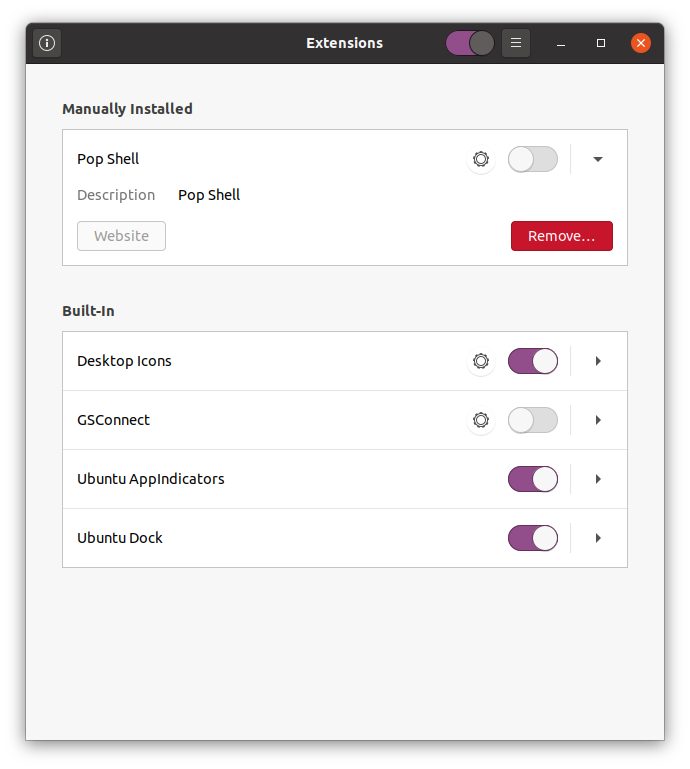
Third, you can use the GNOME Extension app to remove Pop shell.
Pop Shell remove
Conclusion
I hope Pop shell extension will make your day productive by managing the windows. But let me also inform you that the extension is still under development.
Therefore, you may find it a little buggy or annoying in some cases. For example, if you run Pop Shell on a modern Wayland compositor, GNOME desktop may become unresponsive.
Overall, Pop shell extension seems like a great advancement in the field of the tiling window manager. If you work in two-sided screen mode, it would definitely help to tile one window to one side of the screen, another to the other side of the screen. With time, you can expect it to get much better and make windows handling easier.
If you have been living close to the torrent ecosystem, you might realize that there exist tons of torrent sites where you can search torrent files. But if you remember, when the FBI nabbed the operators of KAT, many people heard the term torrent search engine for the first time.
Amid the rising scrutiny, many torrent sites have started calling themselves a search engine for torrents, saying they only provide a way for people to search torrents. It’s a category of torrent sites that don’t host any torrent files but provides a way for the users to find torrents on other torrent sites.
So, you can add some torrent search engines to your list to find the torrent that you need. But before moving ahead, we already have other attention-seeking lists that you might want to see in your free time:
Fossbytes is publishing this list just for educational purposes. We do not support the use of any website to download copyrighted content. We also encourage new BitTorrent users to explore the basics of P2P file sharing, its advantages, and the local laws related to the same.
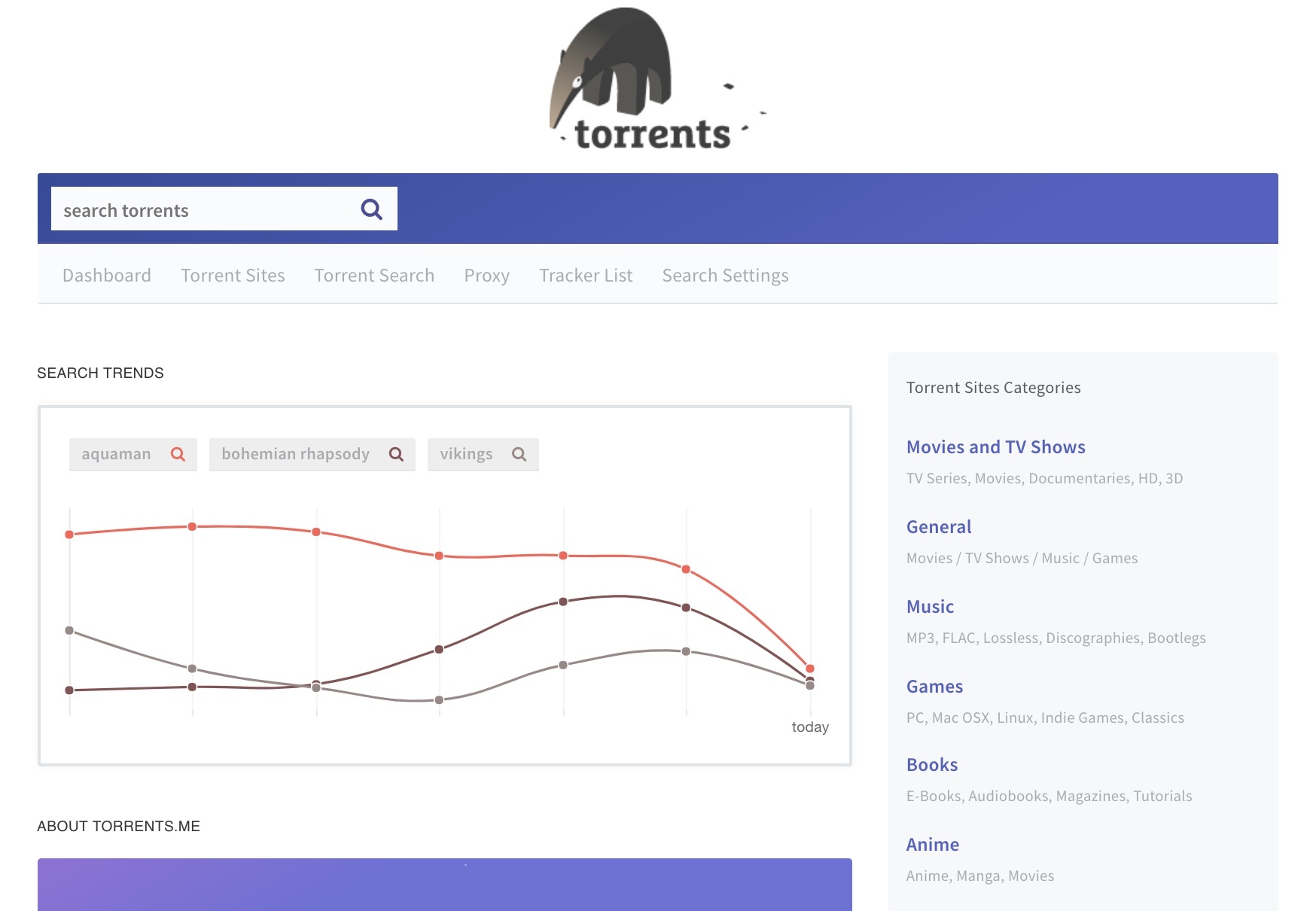
This popular meta torrent search engine site is very different from any other BitTorrent-related site you’ll see. While homepages feature extensive lists of torrents, Torrents.me displays search trends for popular queries. These trends keep changing frequently and provide a good idea of what’s hot and what BitTorrent users are looking for.
As you scroll down, you can find torrent sites divided into different categories. The UI is neat and clean, and you won’t see any annoying ads popping out of nowhere. Using the search button at the top left, you can search for the torrent you like and get relevant BitTorrent download. You also have the option to sort the results by date and relevance.
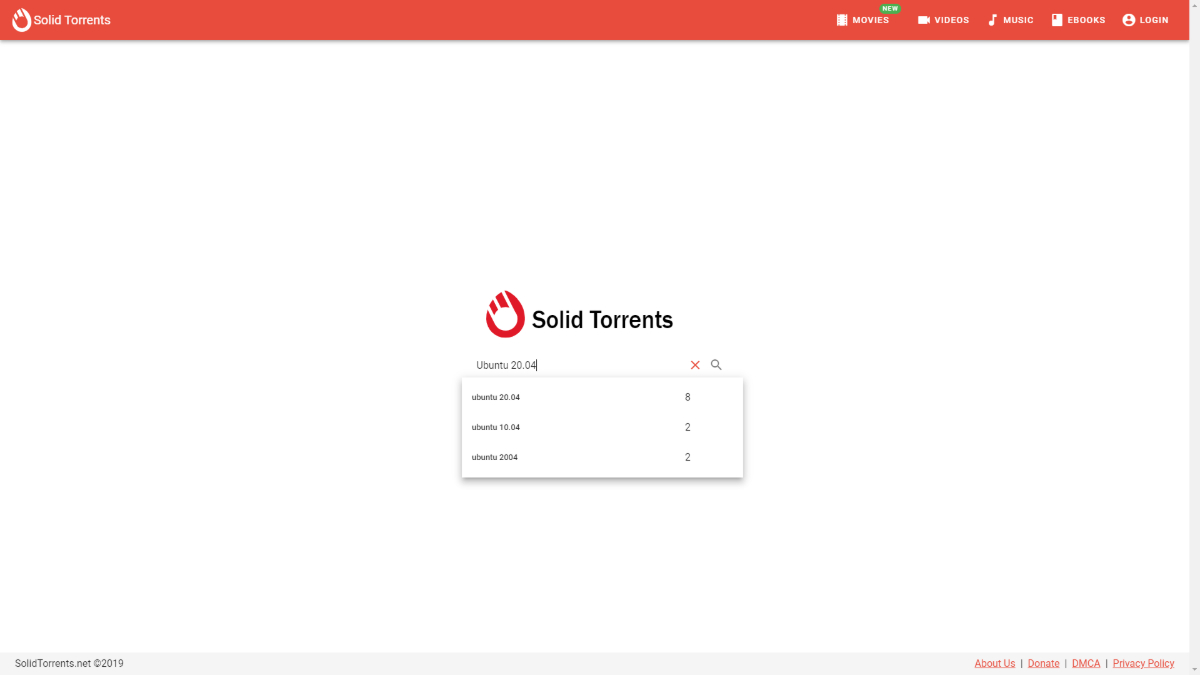
Continuing our quest for torrent finder sites, SolidTorrents is a relatively new option to consider. It’s a DHT search engine with a minimalist interface cleaner than any other site you’ll find on this list and provides an experimental dark mode option.
As of now, SolidTorrents has indexed over 23 million torrents across various categories; it displays some of them the top. On top of that, you can also submit your own torrents to the SolidTorrents index and create an account to bookmark your favorite ones.
The USP of this BitTorrent search engine is the advanced search options provided; for instance, you get instant suggestions as soon as you start typing your query. You can search two different queries by separating them using the ‘|’ (pipe) operator.
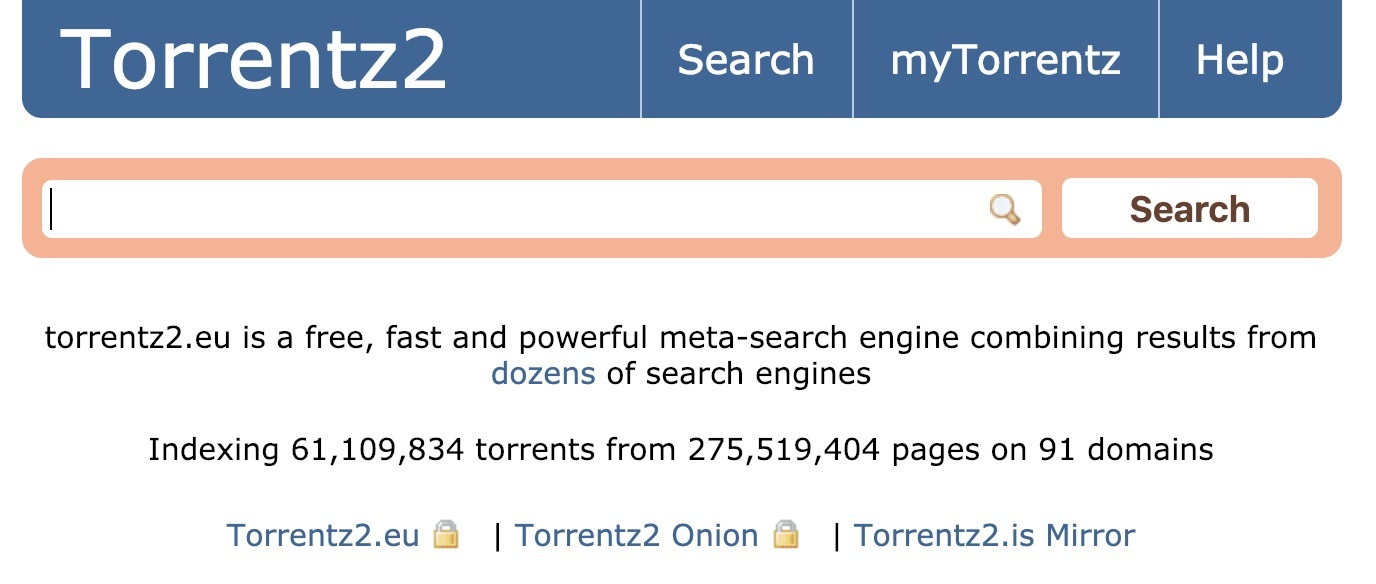
You can try Torrentz2 as an alternative to the now-offline site Torrentz. Even the torrent site pitches itself as a clone or replacement of the defunct site. I’ve also included it in the recent updates of the best alternativesto TBP and KAT.
This torrent search engine for 2020 features the same interface, and it’s also available in an onion version for users who want to access it over Tor; this option makes sure that you can access it anytime without any fear of downtime. You can use the search bar to find torrents from Torrentz2’s index of over 61 million torrents sourced from 90+ torrent sites.
Another name in your list of the best torrent search engines is the Google-inspired Toorgle. Just like Torrentz2, it also features just the torrent bar on its homepage. After searching for files using this torrent browser, you can sort the result by relevance and date.
By the looks, Toorgle may seem a little bit outdated, but this is what makes the torrent finder site lightweight and capable of loading on slower connections. It crawls over 450 torrent sites to find what you want and serve the best results.
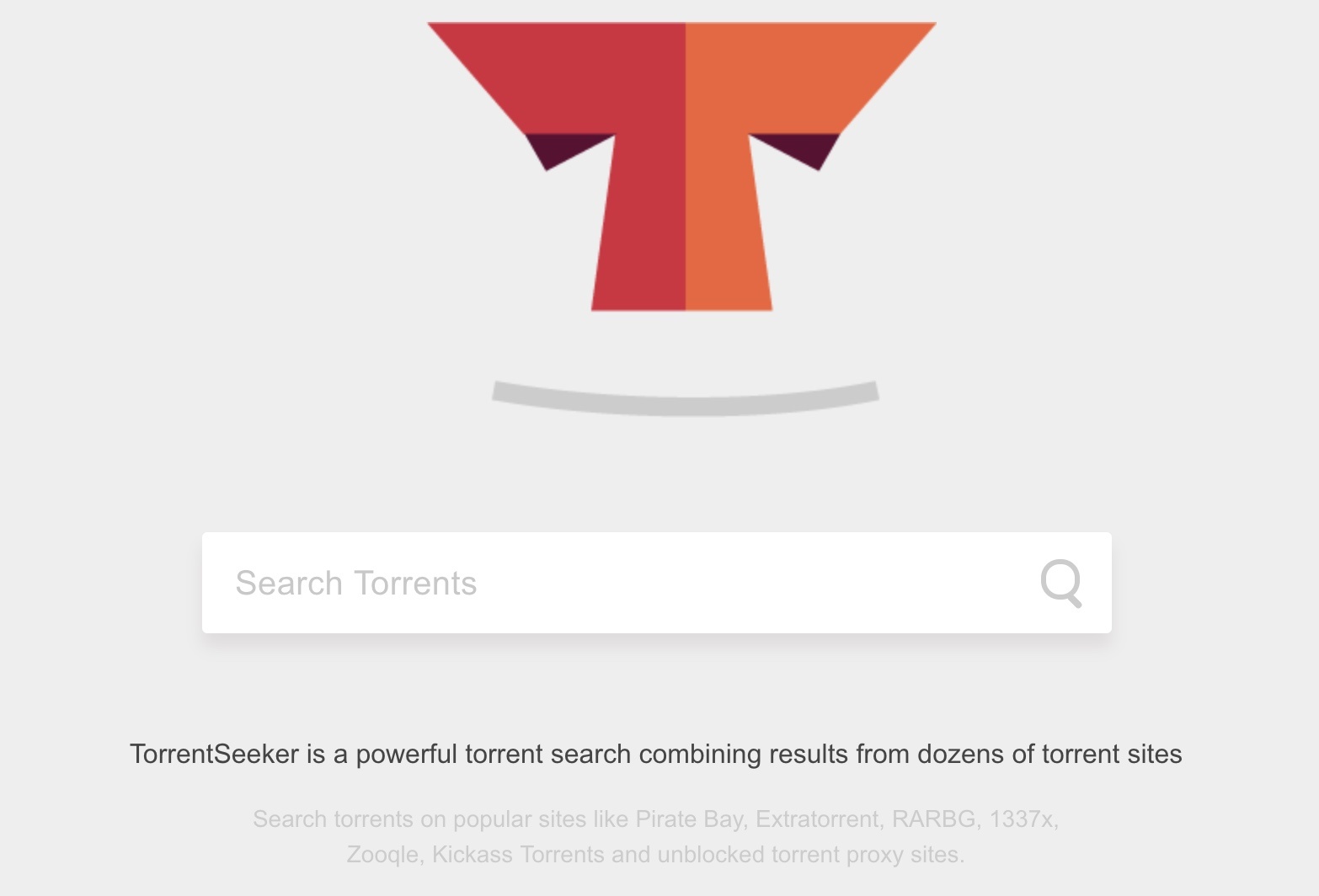
TorrentSeeker is also a robust torrent search engine that uses custom Google Search to scrape torrents from over 100 torrent sites. The site also claims to update its database on a regular basis with popular torrents, latest proxy sites, and niche and language-specific sources as well.
Its simple to use interface makes the torrent search process easier than ever. However, the great look and feel are only limited to the homepage. The results page isn’t that pleasing. Anyway, it does what it does, its job of finding the torrents users want. You can also sort the results on the basis of relevance and date.
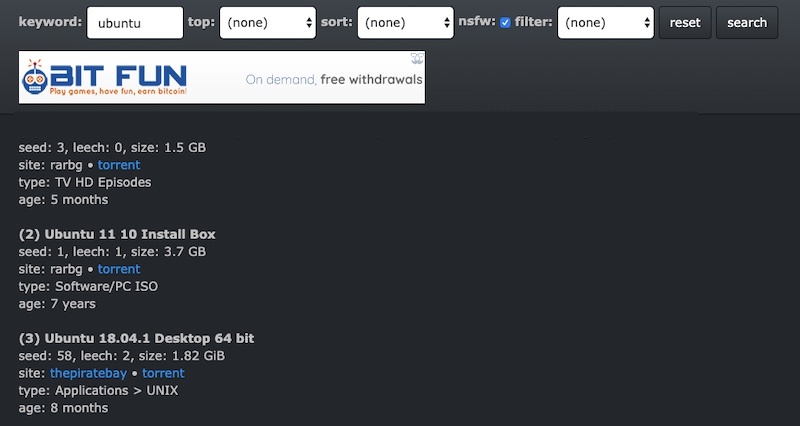
Just like other torrenting sites mentioned in this list, Snowfl.com is a torrent aggregator that goes through various public torrent indexes when you search for a query on this website. What sets this website apart from other sources is its minimal interface and night mode option to soothe your eyes.
There are very few elements and ads on the website, and the listing of the files from various torrent downloaders like Rarbg, Pirate Bay, etc., are mentioned in a simple list. You just need to click on the blue links to download the torrent files safely in one go. There’s also a .onion link to the website that ensures access even when you’re browsing on the Tor network.
When trying to find your favorite torrents, another great torrent search site exists by the name of Xtorx. Just like other alternatives you find in this list, Xtorx also features just a search bar on its homepage.
You can get your torrent search results instantly, but sadly there is no way to filter them out. But that isn’t needed because Xtorx provides search URLs for other torrent sites. That means clicking any of the results would open a new search on another torrent site.
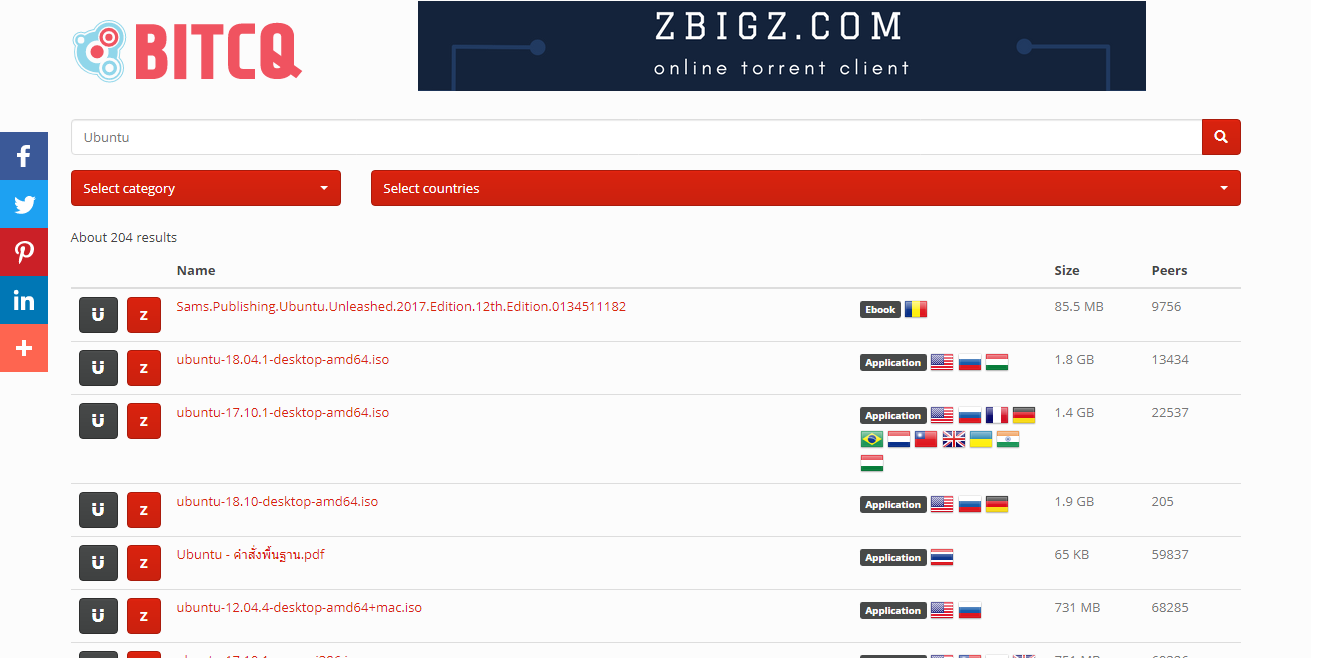
Just like Snowfl, Bitcq is also a torrent downloader website that features a very clean and distraction-free interface. It’s a BitTorrent DHT search engine that makes use of DHT protocol for searching nodes that take care of torrent distributing jobs.
Just like other websites on this list, Bitcq also doesn’t store any content on its website. It simply uses the metadata like names and sizes to list downloadable torrent files.
So, these were some of the websites for 2020 that don’t host any torrents of their own, but they can act as a search engine to find content from other torrent sites.
How can I download my torrents while keeping safety?
Downloading content via the BitTorrent network is quite reliable as your torrents can be easily resumed after network disruption or a power cut. However, as you may know, the BitTorrent download can be deciphered by your ISP or some other determined user.
In other words, you’re not anonymous on the BitTorrent network.
Here, you can subscribe to one of the top VPN services of 2020 that can hide your IP address and also make the connections encrypted. That means no unwanted people taking a sneak peek into what you are up to.
Is It illegal to download torrents?
Speaking of torrent downloading, you aren’t doing anything unlawful by browsing torrent search engines and using torrent clients on your device. But you cross the line if you download a torrent containing copyrighted content. In fact, piracy is the reason BitTorrent has blown up so much in size.
Whether we agree or not, piracy is a thing that has existed for ages, and it was present even before the internet. However, cost-cutting isn’t the only reason people download pirated content.
Here, you’ll be amazed to know there are many legal torrent sites that only host legitimate content.
If you have something to add, drop your thoughts in the comments.
But if we talk about the second batch, which includes the majority of Xiaomi devices, not much has changed. While the MIUI 12 Pilot program has recruited a few Mi users, it is yet to begin beta testing for the second batch of devices. This pace indicates that the MIUI 12 update for the majority of Xiaomi devices is at least a few months away.
But that shouldn’t stop Mi fans from trying the features of MIUI 12. Thankfully, there is a way through which you can get, not all, but at least one of the best MIUI 12 features, and that is the new Control Center.
How to get MIUI 12 Control Center on any Android device?
Xiaomi’s MIUI 12 Control Center is inspired by the iOS control center and, therefore, features a similar interface. Swiping down from the top right corner of the screen brings up the Control center, meanwhile a swipe down from the top left brings up the notification shade.
If you have a Xiaomi device or any other Android, you can get Xiaomi’s new Control center by merely downloading the Mi Control Center app from APK Mirror. It is a third-party app from a developer named Alex that brings MIUI 12’s new Control Center to any Android device.
Mi Control Center APK features
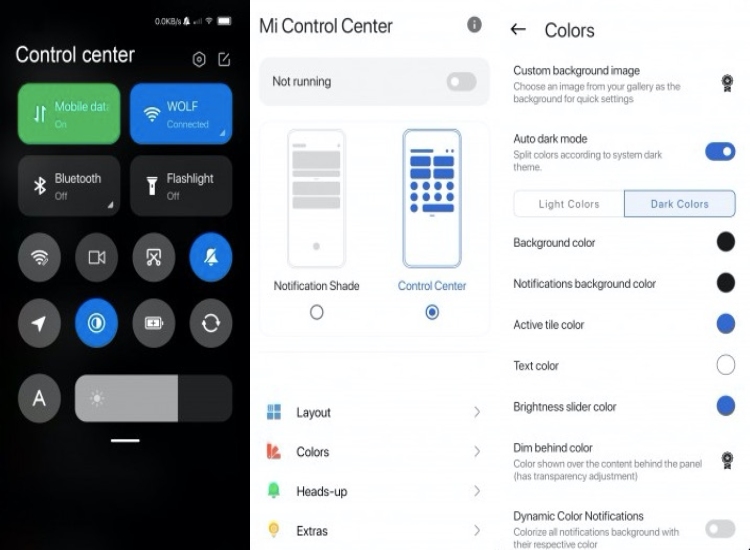
The best part about the Mi Control Center app is that it features way more customization options than you will ever see on the official one. You can have different colors for the background, text, icons, brightness slider. Moreover, the app enables you to change the color of the pop-up badge as well.
The Control Center APK also comes with a Light mode and Dark mode option. You also have the option to toggle the “Auto Dark Theme” settings which will change the Control Center’s based on the device theme.
Few features are only available to premium users like setting a custom background image or dimming the color shown over the content tiles.
Even if you don’t use the customization options, you can still use it as a replacement to the official MIUI 12 Control Center. If you have a Xiaomi device, it’s a great alternative until MIUI 12 officially arrives on your smartphone.