I would have deleted Snapchat a long time ago if it wasn’t for the Streaks. The Snapchat feature makes me feel involved in my friends’ lives even if they are miles away.
After mindlessly creating streaks with nearly all my friends, I am at a phase of life where Snapchat streaks are exclusive to a few. It has always been my utmost priority to keep the streaks going. However, there have been unavoidable circumstances where I lost Snapchat streaks. Thankfully, there is a way to recover streaks on Snapchat.
Snapchat streak starts when you and your friend send direct snaps to each other, and continue to do so for more than three consecutive days. After this, a fire symbol (🔥) appears next to the name of the person, along with the number of days the streak has been going on.
Snapchat awards users with special emojis for crossing certain streak thresholds, for instance, a mountain emoji or a 100 number streak emoji.
Snapchat streak rules
The Snapstreak count goes on as you and your friend are sending snaps to each other within the 24-hour time frame. And by Snaps, we mean taking a picture/video and sending it to the person.
Bear in mind that the things mentioned below do not count as a Snap for Snapstreak —
Chatting or sending stickers
Pictures/videos picked from memories or the Camera roll
Content sent through Spectacles
Snaps to groups
While you will likely see different emojis as you continue your Snapstreak over months, an important one to look out for is the hourglass emoji (⌛️) next to the person’s name. This means your Snapchat Streak with them is about to expire. In that case, send a snap or ask the person to send you a snap.
How to restore lost Snapchat streaks?
Although Snapchat reminds you if a streak is about to break, sometimes you just can’t help it. And once it breaks, the standard procedure is to build the streak from scratch.
But if the lost Snapchat streak meant the world to you, there is one way to get it back. You can start the Snapchat streak recovery process by following the steps mentioned below:
Choose “My Snapstreaks have disappeared” under the How can we help section.
Fill in the Snapstreak questionnaire.
Click on Send.
In the questionnaire, try to be as accurate as possible, from typing the exact username to filling the exact tally count of the Snapstreak. It’s okay if you put an approximate value in case you don’t remember, but it shouldn’t be too far from the original number.
Under the “What information should we know” question, you can explain the reason behind losing the streak. Of course, you can cook up something like the internet connection failed, or the app wasn’t working. The goal here is to make Snapchat believe it to be a genuine case.
But you must not make this a regular thing and use it only in extreme cases. Snapchat will likely turn down more than two requests. Also, Snapchat will probably recover your Snapchat lost streak with a single person, unless you have a legitimate case, so choose the longest one.
How to keep the Snapstreak going?
Keep sending snaps! This might sound like the worst advice, but this is what users often forget to do, in an attempt to send a “perfect” picture.
Often, Snapchat users wait for the right surroundings, the right dress, and the right make-up, and forget to send a snap later throughout the day. ultimately losing the Snapchat streak. The trick is to keep sending snaps, even if you have to click the fan on the ceiling.
So, this was how users could get their Snapstreak back and keep the symbol of your friendship bonds alive.
You don’t necessarily need to have bulky scanners and printers to scan essential office documents.
As most smartphones pack a good camera nowadays, you can scan documents in high quality using any one of the best document scanner apps below. Moreover, scanning PDFs with your phone can be a faster process than using a desktop scanner.
A few advantages of popular Android scanner apps are that they let you access documents from the cloud, have powerful editing features, and some even come with OCR (Optical Character Recognition) support. We have compiled a list of the best scanner apps for Android.
12 Best Android Scanner Apps (2020)
Adobe Scan
Google Drive Scanner
Clear Scanner
Office Lens
vFlat Mobile Book Scanner
Photo Scan by Google
TinyScanner
TurboScan
Smart Doc Scanner
Fast Scanner
Scanbot
Notebloc
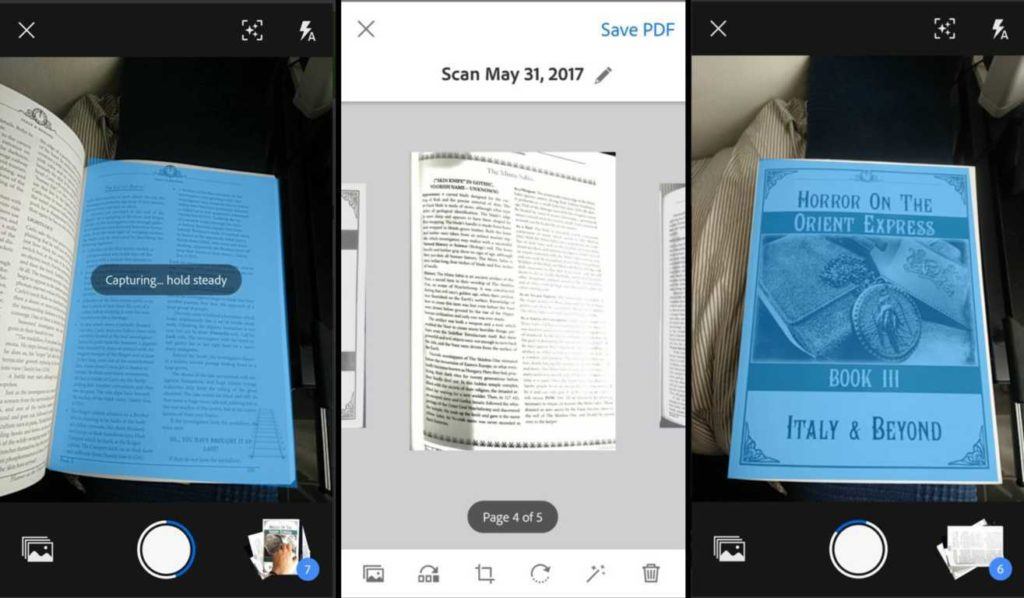
1. Adobe Scan
Adobe Scan is the best scanner app for Android. It allows you to scan any notes, forms, documents, receipts, images, and convert them to PDF files. It is simple and effective to use. Once you point your phone’s camera at the document you want to scan, it will automatically recognize and scan the document.
It even permits you to reorder the pages as needed, and you can also color-correct any of the pages. Also, there is built-in OCR that let’s you reuse scanned content. You can also scan multiple pages and put them in a single PDF file.
Furthermore, the document scanner app allows you to send your scanned files via email or upload them to the cloud. Overall, Adobe Scan covers almost all the essential features. The best part about the app is that Adobe Scan is entirely free with no ads.
Why should I install Adobe Scan?
Supports multiple pages scanning into a single file.
Allows color correction and cleanup for any stains or creases in the scanned documents
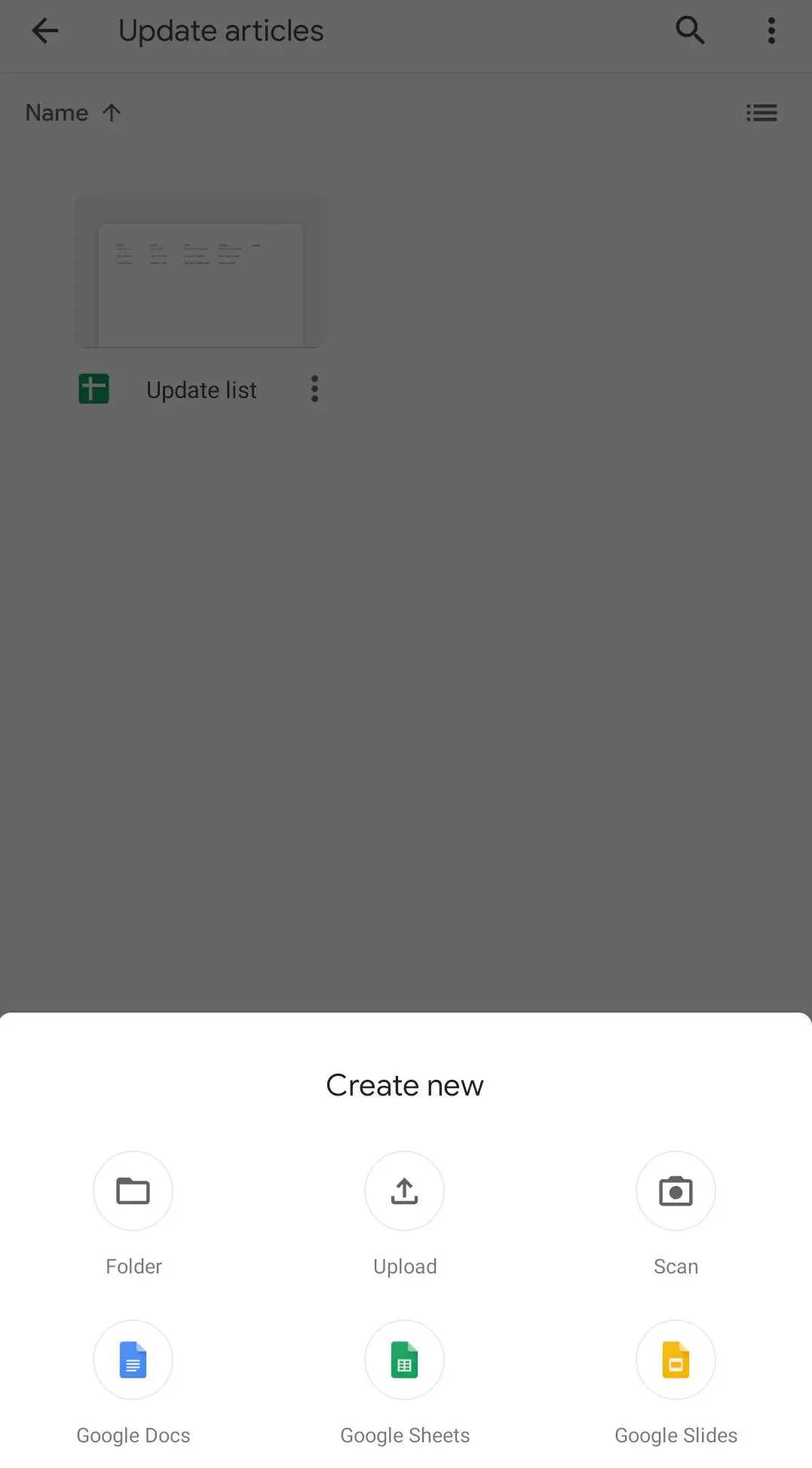
At first, I was surprised to know that the Google Drive app for Android has an inbuilt option to scan documents. While this tool isn’t as feature-rich as the other Android scanner apps on this list, it’s worth giving it a try because many of us already have the Google Drive app installed on your Android smartphone.
To find the scanner option in the Drive app, locate the ‘+’ button in the bottom right corner, and tap on it. It will reveal new options, including the ‘Scan’ option. You’ll now have to grant camera permission for the Google scanner feature to work. The tool has basic crop and adjustment features for the document, color change options, image quality selector, etc.
Overall, the document scanner app is a good alternative for users who rarely use Android scanner apps and don’t want a dedicated one to fill up their phone storage.
Why use Google Drive’s scanner?
No need to install any extra app if already have the Drive app
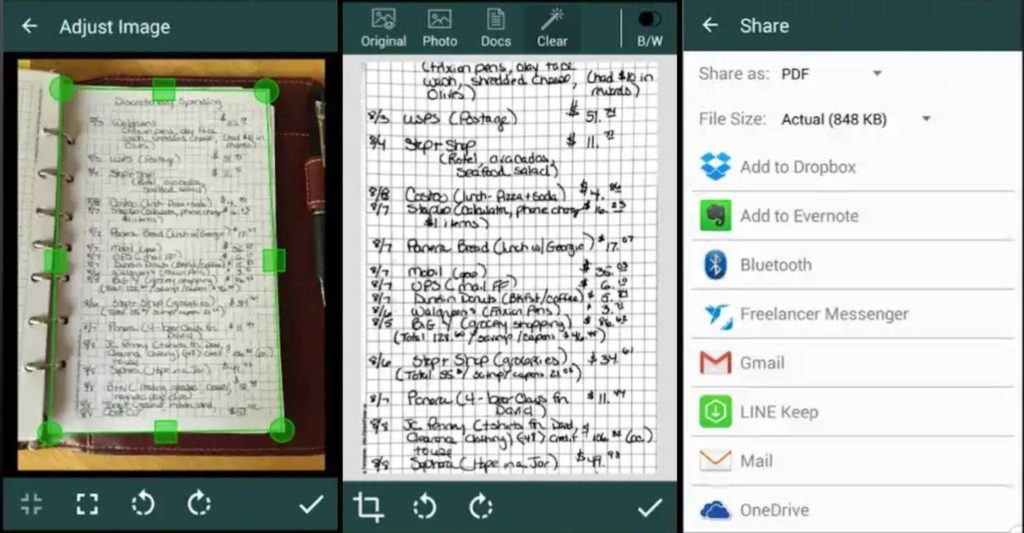
Clear Scan for Android allows you to scan any documents or images directly from your phone quickly. You can convert your scanned documents and images to PDF or JPEG format. This excellent scanner app for Android is lightweight and provides fast processing.
You can print the scanned documents or pictures by using Cloud Print. The free scanner app offers various professional editing features even after saving the images to the gallery. Also, you can save multiple pages within one document, reorder pages, set page sizes for PDF, etc. It has cloud support for Google Drive, OneDrive, and Dropbox.
As I mentioned, Clear Scanner is free to download; however, it does come with sometimes obtrusive ads.
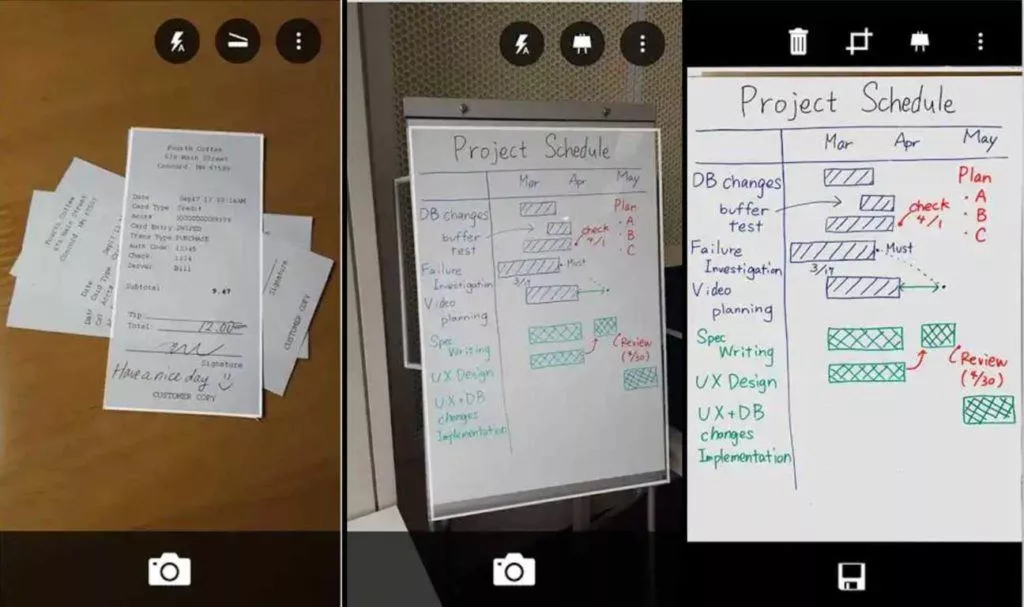
Office Lens is another best free Android scanner app developed by Microsoft for scanning documents and whiteboard images. You can quickly capture any document and convert images to PDF, Word, or PowerPoint files.
It also allows you to save your files to OneNote, OneDrive, or to your local storage. The app is relevant for both business and school purposes. Apart from English, it also works in German, Spanish, and Simplified Chinese.
Office Lens is ad-free and does not contain any in-app purchases.
Why should I install Office Lens?
Quick and easy to operate.
It is productive for both school and business purposes.
As its name suggests, the vFlat Android scanner app aims to be your one-stop solution for scanning books and notes quickly and efficiently. There’s a timer option at the top that allows the app to take pictures regularly, making the process smoother.
In my experience, the 3-second timer worked fine and gave me enough time to turn the pages with the other hand. This way, you don’t need to tap the shutter button again and again after turning the pages.
The scanned pages can be further stitched together into a single PDF document and exported. There’s an OCR option as well, but it comes with a limit of 100 recognitions per day, which is enough, in my opinion.
If you are looking for the best scanner app for Android, not to scan documents but to scan old printed photos, then Photo Scan by Google is the perfect fit for you.
The Android app scans photos in an instant and removes glare, if any, automatically. So, lighting conditions are not something you should worry about; instead, you should focus on finding your old photo album. The app also crops up images based on the edge detection feature.
After scanning the printed images, you can immediately upload them to Google Photos online storage and share them with your friends and family.
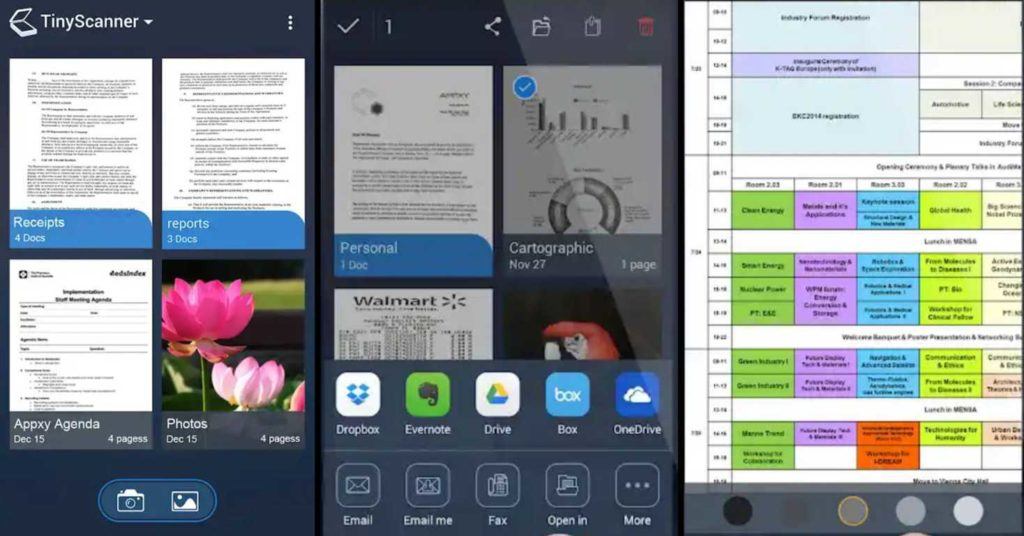
Tiny Scanner is a reliable document scanning app for Android that delivers most of the standard features. The app doesn’t require any login before use so you can get started right away.
You can scan documents, receipts, reports, or other files and save them in PDF format. The Android scanner app has support for all popular cloud storage services and allows you to print your necessary files within minutes.
Moreover, it has auto edge detection that can help prevent distortion by straightening out the images. The app features five levels of contrast, a quick search by document title, has passcode protection for important files, etc.
Tiny Scanner is ad-supported and has in-app purchases.
Why should I install Tiny Scanner?
It is optimized to work fast.
You can scan in color, grayscale, or black and white.
Support for cloud services like Dropbox, Evernote, Google Drive, etc.
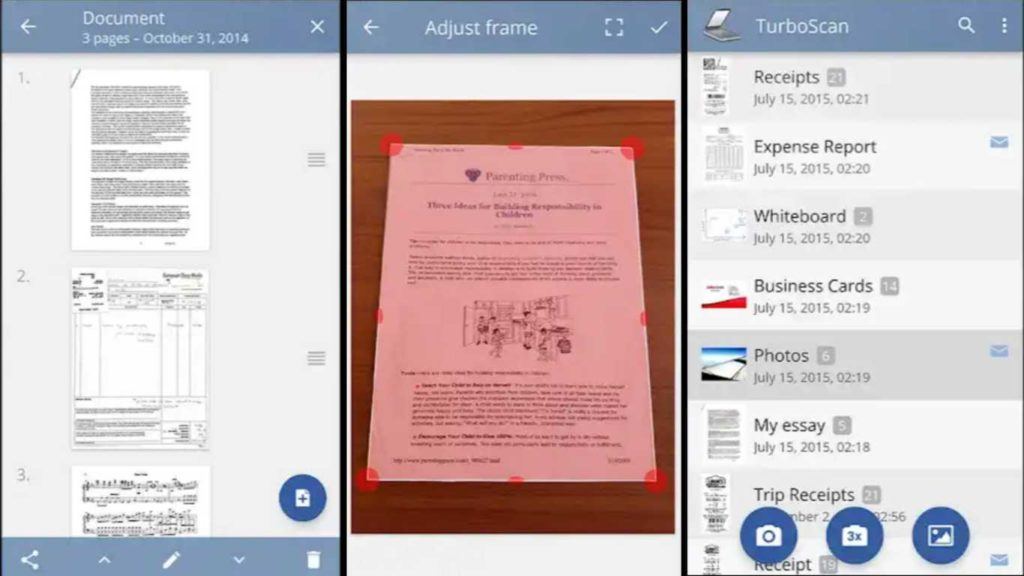
TurboScan is a powerful and fully-featured Android scanner app with a free and paid version. It allows you to scan and share multipage documents in high quality PDFs or JPEGs. It features a “SureScan” mode for very sharp scans and includes multipage editing features such as page adding, reordering, and deleting.
You can also use this phone scanner app to organize multiple receipts or business cards on a single PDF page. You can open PDFs or JPEGs in other apps like Dropbox, Evernote, Google Drive, etc. or print your necessary documents using Cloud Print.
Turbo Scan is ad-free and offers in-app purchases.
Why should I install TurboScan?
It is lightweight and includes almost all the necessary features.
If we are talking about the best scanner apps for Android, the Smart Doc Scanner fits perfectly into the category.
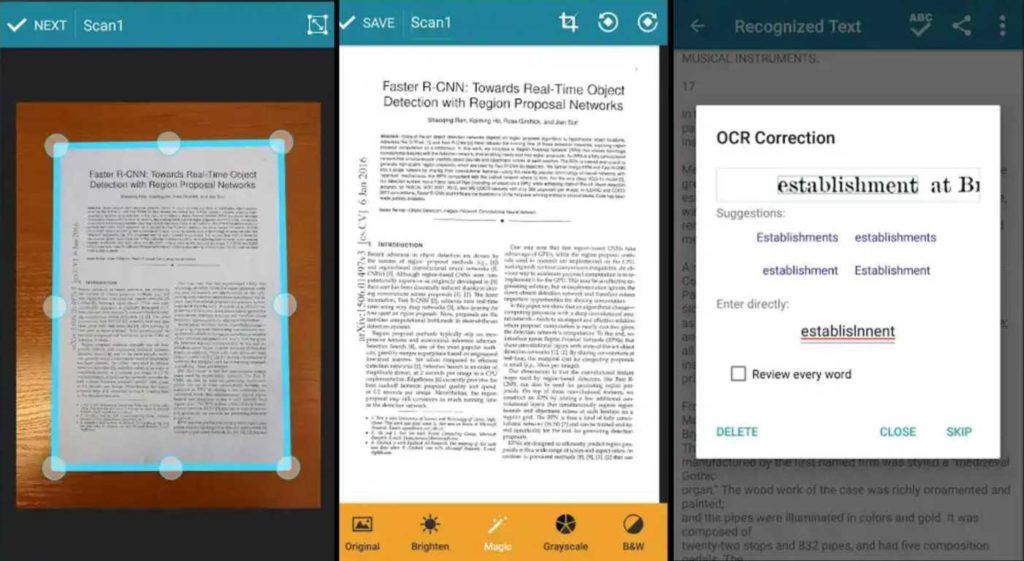
It covers many essential features for document scanning. It has support for OCR to read text from images in more than 40 languages and also includes spelling checks. You can set page size, enable batch-scanning mode for multi-page documents, and a lot more features. It also comes with crop and zoom features to scan pages in a better way.
The document scanner app supports output in almost all the popular image formats such as JPEG, PNG, BMP, GIP, and WebP. It is also integrated with Dropbox, Google Drive, and other cloud storage options.
The app doesn’t display ads or offer in-app purchases.
Why should I install Smart Doc Scanner?
It is lightweight.
Has an intuitive interface that allows users to scan rapidly
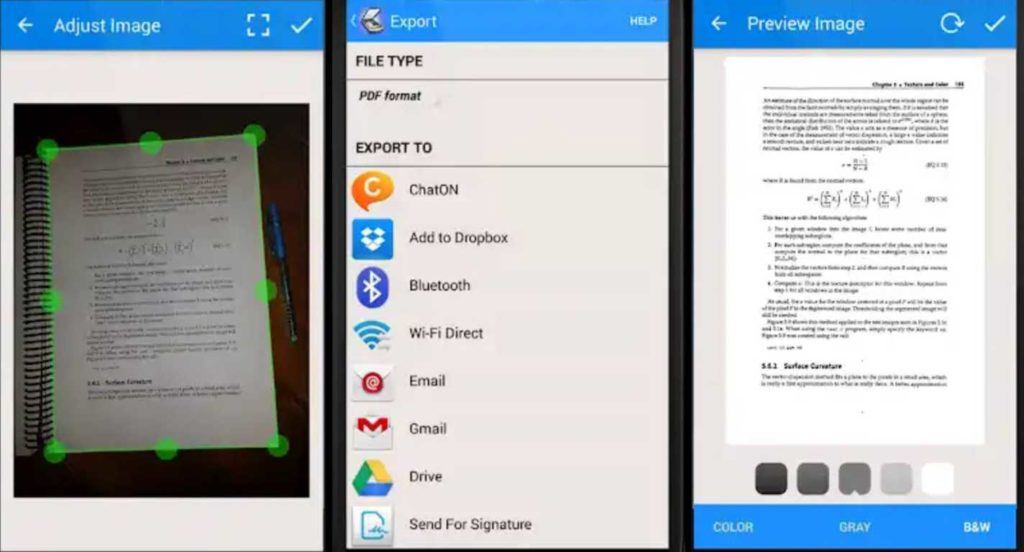
Fast Scanner is another reliable document scanning app that features most of the typical functions. It allows you to scan any document, export it to PDF or JPEG format, add multiple edits to scanned documents, etc. You can also add new pages or delete existing pages within the file. Moreover, you can print your documents using Cloud Print.
The document scanner app for Android is free to download and contains ads.
Another popular choice for the best document scanner apps is Scanbot, often used as an alternative to Office Lens and Adobe Scan since it packs more features.
Scanbot is extremely quick to scan the documents, and users can save the scan as PDF or JPG. Other than document scans, it also features QR code scanning and bar code scanning.
Scanbot’s OCR text recognition is outstanding. The scanner app for Android supports several cloud services, including Dropbox, Google Drive, OneDrive, Evernote, Slack, Todoist, and a few more. There is an auto-upload option as well.
Notebloc is one of the best free scanner apps for Android users. Two great things about Notebloc — no watermarks and no sign up required.
On top of that, the app includes OCR for more than 18 different languages. The Android scanner app’s highlight is that it removes any trace of shade in the clicked images.
Other than that, users can scan multiple pages and add them to a single document. In the settings, users can change the page size of the PDF document. The only catch in Notebloc is full-screen ads that seem to pop-up every time you scan a document.
These were our picks for the best Android scanner apps of 2020. But choosing the right one depends on what kind of usage you’re looking for. Whether you want a pre-loaded and easy to use document scanner like Google Drive or Office Lens or, if you want advanced scanners then you might want to go for Clear Scanner, Adobe Scanner, Fast Scanner, etc.
Don’t forget to check out our other Android apps lists:
You may already know that the KDE community develops a very well-known Plasma desktop environment for Linux-based OS and Plasma Mobile for smartphones.
Surprisingly, in March 2020, the community announced a new project called “Plasma Bigscreen” to provide a desktop for big TV Screens. It also released the first beta images of Plasma Bigscreen for the Raspberry Pi 4.
Now, after the eighth month of development, the Bigscreen project has made a new and second beta update available to download for Raspberry Pi 4 with several new features and changes.
Before we discuss the new update, let me brief you about Plasma Bigscreen. It is a free and open source user interface powered by KDE Plasma and Mycroft AI’s voice assistant technology for Smart Televisions.
The most important enhancement that Beta 2 has added is the support for KDE Connect KCM and Indicator. This means you can now pair your KDE Connect devices with Plasma Bigscreen.
Not just pair, but if you enable the Bigscreen plugin on KDE Connect, you can also navigate the bigscreen interface using your mobile phone.
Among the core components, bigscreen image has upgraded its base to KDE Neon Focal 20.04 and now features kernel and firmware from the Raspberry Pi Kernel version 5.4.y branch.
Furthermore, for a more seamless voice application experience, the latest beta image of Plasma Bigscreen has included newer default installed skills and voice apps like PeerTube and upgraded Mycroft-Core to their 20.08 branch release.
At last, with current release, an armhf image is also available to download supporting armhf base system.
How To Get Plasma BigScreen Beta 2?
Currently, Bigscreen images are only available for Raspberry Pi 4 devices. Hence, if you own a Pi 4 single-board computer, you’re all set to enjoy Plasma Bigscreen.
The only thing you need to is to grab the Plasma Bigscreen Beta 2 ISO from here, flash it to a microSD card using image writing tools like Etcher, insert your microSD into the Raspberry Pi 4, and boot the desktop.
Once the device starts, you’ll have to go through the device registration, and then you’ll be ready to experience BigScreen. If you find any difficulty, you can follow the official step-by-step guide here.
Google has recently launched a new app called Task Mate that lets users earn money by completing simple tasks such as taking pictures or recording short audio clips.
Currently, the app is in beta and is available on the Google Play Store for Indian users. However, it can be used only via referral code. So in this article, apart from discussing how to earn cash, we will also talk about how to get the referral codes for Google Task Mate.
How To Earn Cash On Task Mate?
First of all, do not confuse Google Task Mate with Google Opinion Rewards, which also rewards users in the form of Play Store credit for answering certain questions.
With Task Mate, you go beyond quizzing and perform actual tasks to get paid in real money. These tasks may be something like taking a photo of a nearby restaurant, answering survey questions about your preferences, or translating sentences from English to your local language.
Here’s how to install and earn money on Google Task Mate:
1. Visit Google Play and download the Android app (Not available on iOS yet).
2. Open the app and select your preferred e-mail ID to run the account and tap On “Get Started.”
4. Select the app language.
5. It might offer you an option to select the languages you are comfortable with [this step may not appear for all].
6. Enter your Invitation Code or Referral Code that you might have received.
PS: One Referral Code seems to be working only for a few users right now.
7. Read the terms and conditions and tap on ‘Accept Agreement.’
8. Next you’d see a number of tasks you can perform to earn money on Task Mate. Select the ones you are interested in.
List of tasks to earn money on Google Task Mate
Note: You can choose to skip tasks if you want. These tasks can be completed any time, from anywhere.
9. Once you have successfully performed the task, you will be rewarded with some amount that can be viewed in your Rewards section.
How To Redeem Money Earned On Task Mate?
Google pays the rewards in local currency for the tasks that you complete accurately. To redeem the cash earned on Google, you will need an account with a third-party payments processor. This can be done by registering your e-wallet or account with the payment partners listed on the app like Google Pay or other UPI based payment gateway.
After linking your account, just hit the “cash out” button and withdraw your earnings in your local currency.
How To Get Referral Code For Google Task Mate?
A lot of people are currently googling “How can I get the invitation from Google for Task Mate app?”
Unfortunately, Google hasn’t released many Task Mate invitation codes for users to sign up. Google has also put a limit on the referral code for the current users. This means the existing Task Mate user can refer up to 3 friends only.
Caution: It has also been observed that there is a limit for entering codes. Entering too many wrong/expired Task Mate referral codes results in users not being able to use the app anymore from the same ID.
This is why it is advised to use a secondary Google account for testing any invitation codes that you get from different groups or YouTube channels. Use your main account once you are sure that the code is valid.
If you use Google Chrome regularly, you know that a lot can be done or fixed in the Google Chrome settings. However, more often than not, it gets difficult to navigate through the abundance of options and locate the one that you need.
Google is now solving that problem with a new feature introduced in Chrome 87 called, “Chrome Actions.” With this new Google Chrome feature, simple actions such as clearing browsing history or opening incognito mode can be achieved right from Chrome’s address bar.
How Chrome Actions Work?
Essentially, Google Chrome now recognises a huge list of phrases, once entered in the omnibox, can activate a range of Chrome settings. Here are a few instances of “Google Actions” in action —
Clear Browsing Data – type ‘delete history’, ‘clear cache ‘ or ‘wipe cookies’
Manage Payment Methods – type ‘edit credit card’ or ‘update card info’
Open Incognito Window – type ‘launch incognito mode‘ or ‘incognito’
Manage Passwords – type ‘edit passwords’ or ‘update credentials’
Update Chrome – type ‘update browser’ or ‘update google chrome’
Translate Page – type ‘ translate this’ or ‘ translate this page’
How to enable Google Chrome Actions?
The latest Google Chrome feature was enabled by default when I updated to Chrome 87. However, Google says “the update will be progressively rolling out over the coming weeks” which means it may not be readily available to you.
The good news is you can enable Google Chrome actions in the Google experimental features. Here is how to do it —
Update Chrome to the latest version (Go to Menu — Help — About Google Chrome — Relaunch).
Open Chrome and enter chrome://flags in the address bar.
Look for “Omnibox suggestion button row” and “Omnibox Pedal Suggestions” and set them to “Enabled.”
Relaunch the browser.
Now, just type in a phrase like “delete history” or “update browser” in the address bar and press enter, Google will automatically perform the associated action. Apart from this, the Google Chrome 87 update brings several new changes and massive performance enhancements.
Discord is one of the best VoIP platforms that is used by millions of gaming enthusiasts globally. Besides text chat, you can also engage with other users through audio chat on Discord. However, in audio channels, several Discord users try to make things entertaining by doing all sorts of things; using a voice changer is one of them.
Interestingly, there are several voice changers for Discord that lets you take on different types of voice. So, you can switch between several voices to scare your friends or confuse them with an unusual voice. However, there are so many options on the internet that it is hard to find out which Discord voice changer is best for you. Well, no worries, because in this article, we’ll list down the 7 best Voice changers for Discord. So, without any further ado, let’s get started.
Voice Changer For Discord
S.No
Discord Voice Changer 2020
Platforms
1
Voicemod
Windows
2
MorphVOX
Windows (FREE), Mac (Paid)
3
ClownFish
Windows
4
Voxal Voice Changer
Windows, Mac OSX
5
RoboVox Voice Changer
Android and iOS
6
Voice Changer
Windows, Mac
7
Voice Changer With Effects
Android and iOS
1. Voicemod
Voicemod is one of the best voice changers for Discord in 2020. This voice changer app lets you take the voice of a robot, sci-fi celebrity, and more than 80 other voices and effects, which is awesome.
What makes Voicemod more amazing is that besides Discord, this free voice changer is compatible with online games such as PUBG, Valorant, Apex Legends, and many more. Other than that, you can also use Voicemod Skype, VR Chat, and Second Life. So, there are plenty of options.
If you’re wondering, you can use Voicemod on Windows 7, 8, 8.1, and 10. Interestingly, the developers of this Discord voice changer are planning to make the app compatible with Linux and Mac OSX as well.
Unfortunately, not all the features of Voicemod are handed over to users for free. To access all the voices and effects on every online game and VoIP platform, you will have to buy a Voicemod Pro subscription.
When it comes to the best voice changers for Discord in 2020, MorphVOX deserves to be on the list. The best thing about this voice changer is that it listens to your own voice and then modifies it to match your personality, which is quite an awesome feature.
Using MorphVOX, you can customize your voice to sound like a man, a woman, or a kid. The voice changer comes with a custom mouse and joystick shortcuts to make it easy for you to access common features. Fortunately, the MorphVOX uses very low bandwidth while also putting a minimal load on your CPU.
Of course, the Discord voice changer isn’t restricted to a single VoIP platform. You can use all the customized voices on different online games and messaging platforms.
MorphVOX offers a free trial for Windows, in which you have to let go of premium features. However, if you think that this Discord voice changer is right for you, you can pay a few bucks to buy MorphVOX PRO, which is also compatible with Mac.
Platforms: Windows (FREE), Mac(Paid) Download:MorphVOX
3. ClownFish
Clownfish is one of the best free Discord voice changer apps that are completely free to use. You don’t even have to sign up or create an account to install and use Clownfish.
This Voice changer for Discord is installed on the system level. It further means that every VoIP platform or online game that uses a Microphone is compatible with Clownfish. So, it doesn’t matter if you want to use the voice changer on Discord or Mumble; Clownfish will never let you down. The free voice changer offers multiple voices, including Alien, Atari, Fast Mutation, etc.
However, compared to other Discord voice changers on our list, the voice options are limited in Clownfish. Nevertheless, if you’re looking for a free voice changer app that is easy to install and use, then Clownfish is the best fit for you.
Voxal Voice Changer is distinct from other Discord voice changers we’ve already mentioned. That’s because Voxal lets you apply effects to the already existing audio files, which can be quite useful. You can apply alien, robotic, or any other voice effect in real-time as well as pre-existing audio files.
Other than that, with this Discord voice changer, users can create unlimited custom voice effects. So, Voxal is the best voice changer for Discord out there when it comes to giving you the control.
You can use Voxal on almost all VoIP platforms along with online games such as PUBG, Apex Legends, Warzone, etc. Also, the voice changer app doesn’t put much load on the CPU. It further means that by running this voice changer in the background, the game’s FPS performance isn’t affected negatively.
If you’re looking for a Discord voice changer for Android or iOS, then RoboVox is the perfect option for you. RoboVox Voice Changer comes with 32 different voices, giving you more than enough options to scare your friends.
What’s more, this voice changer app comes with a parrot feature, which automatically repeats your modified voice. Other than that, you can record your voice and apply voice effects to send it to your friends; or you can use voice effects in real-time using your microphones.
In short, the RoboVox Voice changer gives you several options to modify your voice on your smartphone. However, the app offers some paid options as well. So, if you want to enhance your experience with this discord voice changer, then you might have to spend some bucks.
Unlike other Discord voice changers on our list, you will have to use the ‘Voice Changer’ online through your browser. Of course, for that, the Discord app should be running in the background.
The Discord ‘Voice Changer’ lets you upload audio from your system and then apply different voice effects to it. The program also instructs you to use the microphone for voice effects in real-time.
Interestingly, ‘Voice Changer’ gives you several voice options, including Alien, robot, bane, etc. Other than that, if you’re not satisfied with pre-existing voice effects, then you can also create custom voices using this voice changer. What’s more, you can use ‘Voice Changer’ to generate speech using the text file on your system, which could be really useful.
‘Voice Changer with Effects’ is yet another free Discord voice changer for Android and iOS. Using this app, users can modify the real-time or the already existing voice with over 40+ effects. So, you can surprise your friends on Discord or send a strange voiceover to your friends on a WhatsApp group.
Besides all the traditional voice changer features, this app lets you include voice effects in the pictures. Other than that, you can also create sound by uploading the text file. In short, this voice changer for Android gives you all the necessary features.
Platforms: Android, iOS Download: Voice changer with effects (Android, iOS)
Frequently Asked Questions (FAQs)
1. How To Use Voice Changer On Discord?
Once you’ve downloaded and installed your preferred Discord voice changer, launch the Discord app and go to ‘Settings.’ Then, click on ‘Voice and Video’ and go to Microphone. Select the input device that says the name of the installed voice changer.
2. Are Voice Changers Safe?
Yes. The voice changers we’ve mentioned in this list are completely safe for your system. You can use these apps on Discord, Skype, online games, etc., without getting any malware or virus.
Best Voice Changer For Discord: Wrap Up
So, these are the 7 best Discord voice changer you can start using right away. Of course, there are other apps with similar features on the internet; however, we’ve only mentioned some of the best options for you. If you think other apps deserve to be on the list, let us know in the comment section.
Systemd, a controversial system and service manager for Linux operating systems, has a major version release as Systemd 247.
Speaking of new changes, systemd 247 has added a new service called systemd-oomd to monitor and take action on processes when memory or swap goes above the configured limits.
Additionally, it also has a new helper oomctl to introspect systemd-oomd state. However, systemd-oomd service is only enabled by default in developer mode and hence still an experimental addition in this release.
As Linux distributions are switching to Btrfs as default filesystem like the latest Fedora 33, systemd-homed in v247 now uses the Btrfs file system by default (if available) while creating home directories in LUKS volumes.
Furthermore, systemd-homed also now maintains a “dirty” flag for each LUKS encrypted home directory. The flag indicates that a home directory has not been deactivated cleanly when offline.
Among the other enhancements, here’s what systemd 247 includes:
Support for “recovery keys” in JSON user records managed by systemd-homed
Systemd-cryptsetup gained support for processing detached LUKS headers specified on the kernel command line
Bootctl’s set-default and set-oneshot commands now accept the three special strings “@default”, “@oneshot”, “@current” in place of a boot entry id
Added a new “credentials” logic to system services to pass privileged data to services in a safe and secure way
Systemd-detect-virt now recognize IBM PowerVM machine virtualization
The cgroup2 file system is now mounted with the “memory_recursiveprot” mount option
“systemd-dissect” tool to inspect OS disk images moved from /usr/lib/systemd/ to /usr/bin/
With systemd-udevd 247, udev tags assigned to a device get removed only if the device is unplugged
For complete details about changes in systemd 247, read the NEWS file.