Wednesday, December 30, 2020

Apple AirPods Max Alternatives: Best Headphones Under $500

The AirPods Max are stirring the market with social media overflowing with users buying the $500 headphones. So we decided to give you the best AirPods Max alternatives that are in the same range as Apple’s offering. I’m thankful to Apple for pricing the AirPods Max in the $500 segment.

I say so because Apple’s move has normalized spending $500 on a pair of headphones. While this price is pretty much the starting point for audiophiles, our AirPods Max alternatives are for the everyday user looking for a premium sound.

Why Consider The AirPods Max Alternatives?

Apple’s latest headphones surely stepped-up the luxury game in the consumer headphone segment. However, if you dig deeper, there’s a lot missing from the AirPods Max. For instance, there’s no real case to protect the headphones, they’re not foldable, and the aluminum ear-cups will become a scratch magnet if not handled with care.

Also Read: Apple AirPods Max Review Roundup: Are They Worth The $549 Price Tag?

On the other hand, the AirPods Max alternatives on this list come with premium cables, a good build, and some unique acoustic features. These headphones are the closest competitors to the AirPods Max, and most of them are cheaper than the AirPods. So these are the AirPods Max alternatives that you can get today. They’re also some of the best headphones under $500.

1. Marshall Monitor II A.N.C.
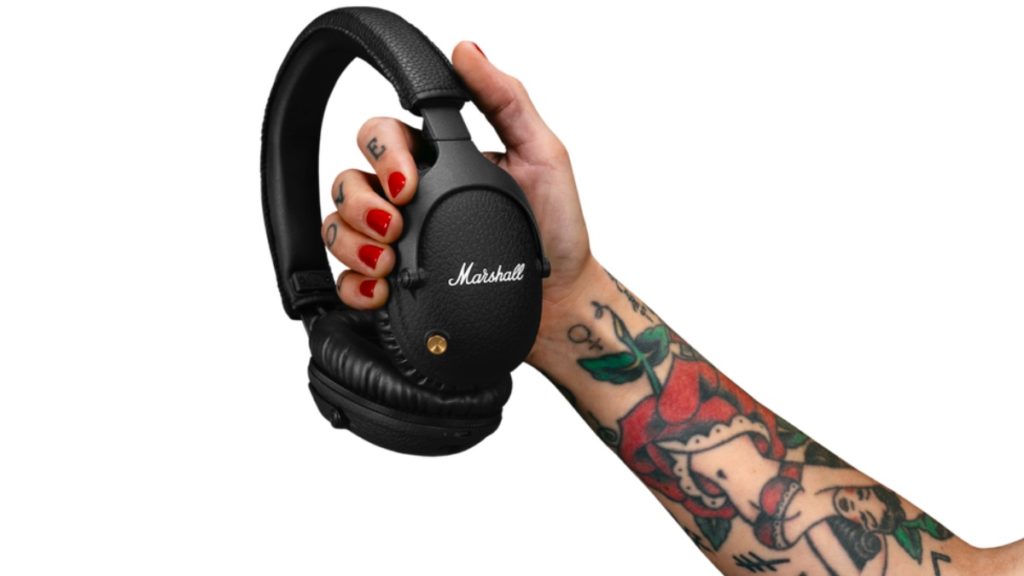
Marshall Monitor II ANC
Image: Marshall

This one lands squarely in the AirPods Max territory and that too for $200 less. The Marshall Monitor II A.N.C. comes in a leather finish, sports 40mm dynamic drivers, and gives a playback time of up to 30 hours with active noise cancellation. All these features make the Marshall one of the best travel headphones.

You can download the accompanying Marshall app on your phone and switch between 3 equalizer settings of your choice at the push of a button. You can buy the Marshall Monitor II for $319.99 from the Marshall online store.

2. Sony WH-1000XM4
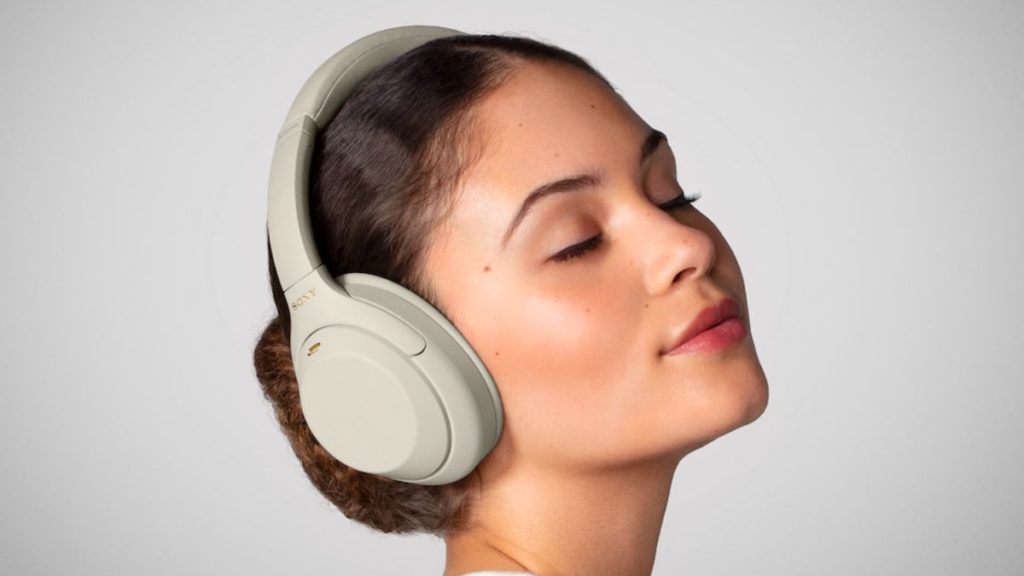
Sony WH1000-XM4- AirPods Max Alternatives
Image: Sony

Simply called the Sony XM4, this pair of headphones was quickly called the best AirPods Max alternative. However, it’s not the only one giving the AirPods Max a run for its money. The Sony WH-1000XM4 packs a Sony QN1 noise-canceling chip, which makes them one of the best noise-canceling headphones you can get.

With a 1.57″ dome type driver, the Sony XM4 gets a battery life of up to 20 hours. The accompanying app for the headphones makes it easier for you to tune them to your taste. Made almost entirely out of plastic, the Sony WH-1000XM4 handles scratches of headphones. It is a rather lightweight and comfortable option for long sessions. You can get these headphones for $279.99 from authorized Sony dealers.

3. Sennheiser MOMENTUM 3 Wireless
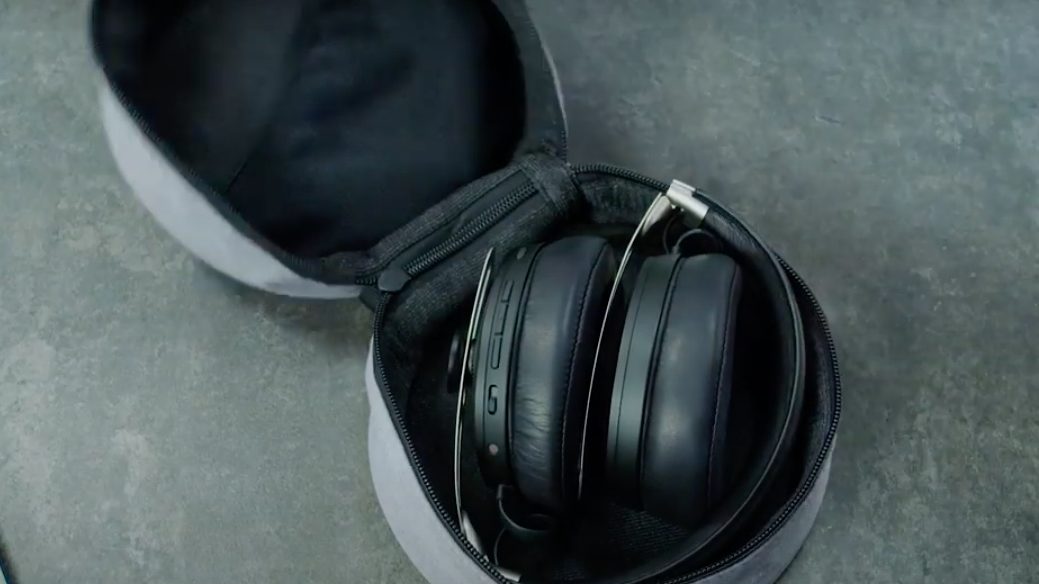
Sennheiser MOMENTUM wireless- Best AirPods Max Alternatives
Image: Sennheiser

One of the best Apple AirPods Max alternatives you can get in terms of design and build. The MOMENTUM 3 comes with signature Sennheiser sound, bespoke design, and a premium build. The MOMENTUM 3 houses leather finish on the headband and premium material on the ear cups. The hybrid active NoiseGard ensures a leak-free ANC experience, and the aptX codec brings out the details.

The Sennheiser MOMENTUM 3 gives you a playback time of 17 hours with a single charge. You can buy these headphones in black or sandy white colors at $349.95 from the Sennheiser online store.

4. Bose Noise Cancelling Headphones 700
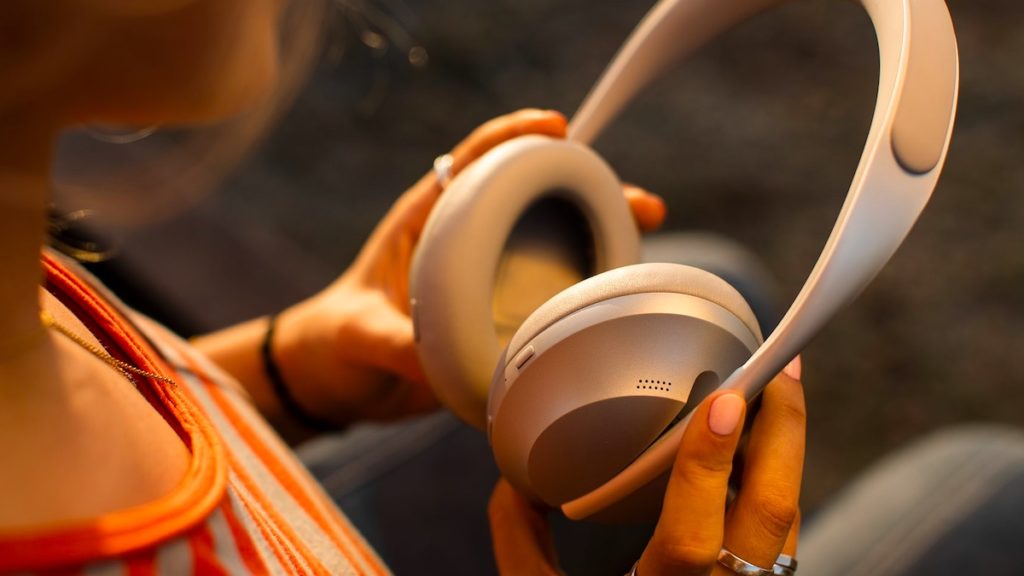
Bose Noise Cancelling headphones 700- AirPods Max Alternatives
Image: Bose

These look like a pair of headphones right out of a sci-fi movie. The Bose NC Headphones 700 come with a stainless steel headband with a silicone underside. The ear-cups are made of protein leather, and they tilt up to 15 degrees to adjust to the shape of your head. These headphones have 11 levels of noise cancellation and will give you up to 20 hours of listening time with a full charge.

Build aside, another good thing about the Bose Headphones 700 is the balanced sound. In fact, I used the Bose Quiet Comfort 35, which is a watered-down version of the 700s, and the sound is as neutral as it gets. It’s a good pair of headphones if you don’t like thumping bass or a screeching treble. You can get the Bose Noise Cancelling Headphones 700 starting at $279.95 from Amazon.

5. Microsoft Surface Headphones 2
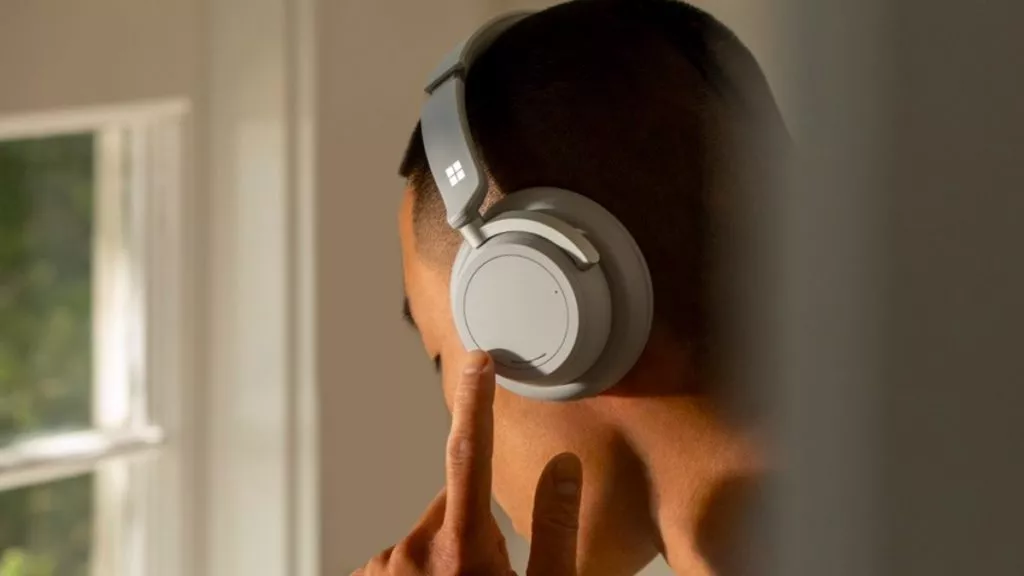
Microsoft Surface Headphones 2
Image: Microsoft

The Microsoft Surface Headphones 2 are a reliable pair of headphones from Microsoft. Fitted with a 40mm Free edge driver, the Surface headphones are capable of reduced distortion at high volumes. The volume and noise cancellation are controlled via physical wheels on both ear cups. Another good thing about this pair of headphones is the 13 levels of noise cancellation, which lets you easily crank up or dial down outside noise.

If you’re looking for a premium everyday pair of headphones, the Microsoft Surface Headphones 2 is a good alternative to the AirPods Max, and that too at half the price. You can get the Surface Headphones 2 in light gray or matte black colors for $249 from Amazon.

6. JBL Club One

JBL Club One
Image: JBL

There’s nothing out of the ordinary when it comes to the looks of the JBL Club One. However, these headphones are packing 40mm dynamic drivers carved out of custom orange graphene. While most headphones pack a neodymium driver (including the AirPods Max), a graphene driver can deliver clearer, higher-resolution sound.

The drivers in the JBL Club One are tuned for distortion-free listening even at high volumes. You might not like the standard ear cups on these headphones, but you’ll dig the premium leather headband and metal hinges. These JBLs can deliver a 45-hour playback without active noise cancellation, and 25 hours with it. You can buy them from the JBL online store for $299.95.

7. Meze 99 Classics (Wired)
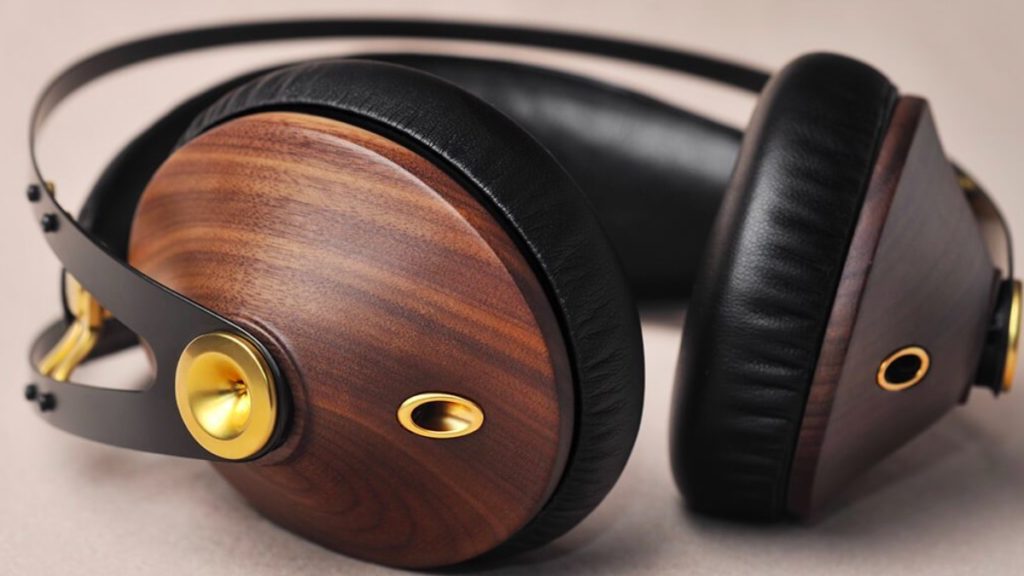
Meze 99 Classics- AirPods Max Alternatives
Image: Meze

If you’re ready to give up the cable-free active noise cancellation experience, these are the headphones for you. The Meze 99 Classics are literally all about acoustics. The ear cups on these are made of solid wood. You can even choose if you want a maple wood finish or a walnut one.

While these pack a standard 40mm neodymium driver, the ear-cups are memory foam on the inside. The only thing that stands out about the 99 Classics is the wooden ear-cup. For a seamless wired listening experience, the headphones come with a premium Kevlar cable which is replaceable in case you damage it. The Meze 99 Classics start from $309 at the Meze online store.

Which AirPods Alternative You Should Choose?

All of the above are premium headphones for everyday listening. If you’re looking for sturdy headphones for travel, I’d recommend you go with the Marshall, Sony, or the Sennheisers from the list. It is so because they have collapsible design and a build that can resist minor scratches and bumps.

If audio purity is on your mind, and you don’t mind losing wireless functionality, you can go with the Meze 99 Classics, or the JBL Club One for the JBL signature sound. Lastly, if you’re looking for a futuristic design or easy-to-use controls, the JBL 700s and the Microsoft headphones are the best options.

The post Apple AirPods Max Alternatives: Best Headphones Under $500 appeared first on Fossbytes.


Apple AirPods Max Alternatives: Best Headphones Under $500
read more

Tuesday, December 29, 2020

6 Methods To Mirror Android Screen To PC (No Root Apps) In 2020

Android screen mirroring isn’t as popular as other Android topics like rooting or customization. It is probably because not many people are aware of it or they just don’t want to deal with the hassle. But there are now hundreds of screen mirroring apps using which you can cast Android to your PC.

What is Screen Mirroring?

Screen Mirroring is a way through which you can remotely share/mirror one device screen to another, such as mirroring Android Screen on your PC or vice-versa. In this article, we’ll be talking about screen mirroring on Android.

A phone screen on a PC can help you in many ways. For instance, it removes that extra step of grabbing the smartphone for every new notification; If you are a developer, you can check app performance on the Android phone mockup; sharing media files to PC also becomes very easy.

Prerequisites for screen mirroring

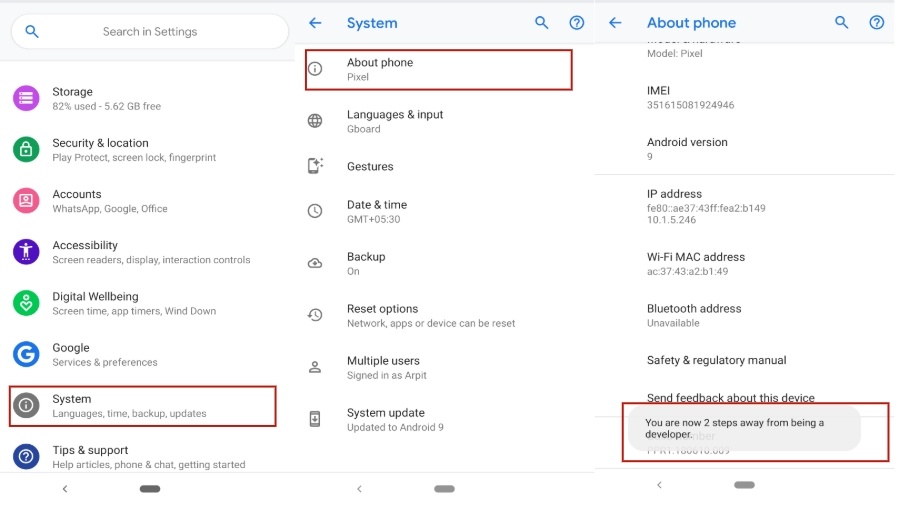
For screen mirroring apps to work, it is necessary that you turn on the USB debugging located in the Android developer options.

To enable Developer Options on your Android Device –

How to turn on Developer Options
  1. Head over to your Android Settings ⇒ System ⇒ About Phone
  2. Scroll down and tap Build Number five times
  3. Go back to System settings
  4. You will now see Developer Options

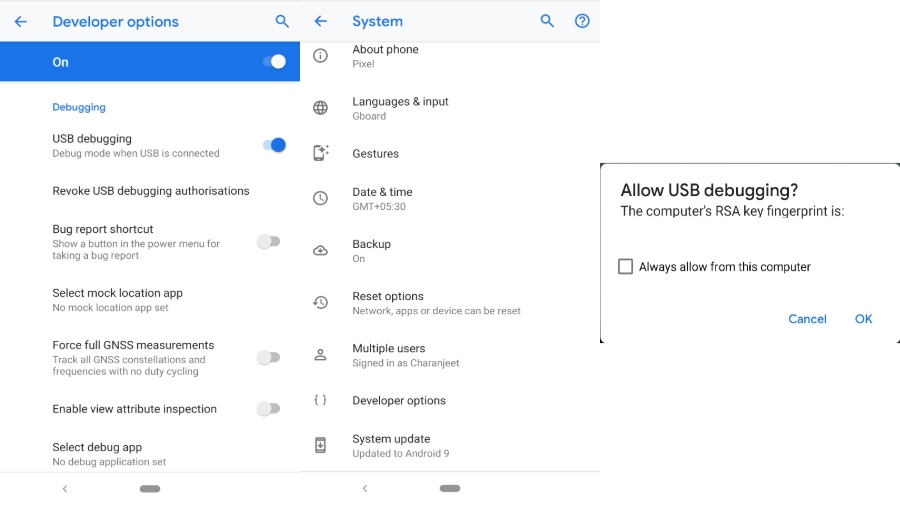
To enable USB Debugging on your Android Device –

USb Debugging Prompt - Allow
  1. Head over to Android Settings ⇒ System ⇒ Developer Options
  2. Scroll down and toggle USB debugging

I would recommend you to tick “Always allow” for the “Allow USB Debugging” pop-up. Thus, you won’t have to repeatedly deal with the permission box.

Keep in mind that Android screen mirroring apps need a strong internet connection if you’re going for the wireless option. Also, both platforms should share a single Wi-Fi to cast Android wirelessly. That being said, users can also view their phone screen on PC via a USB cable.

How to mirror Android to PC — 6 Best Apps

  • Vysor
  • ApowerMirror
  • AirDroid (Wireless)
  • Screen Stream Mirroring by MobZapp (Wireless)
  • Mobizen

1. Vysor

The quickest method to mirror Android screen on your PC is through Vysor. The app is ridiculously easy to set-up. You can use apps, play games, take screenshots i.e essentially, anything that you can do on an Android device.

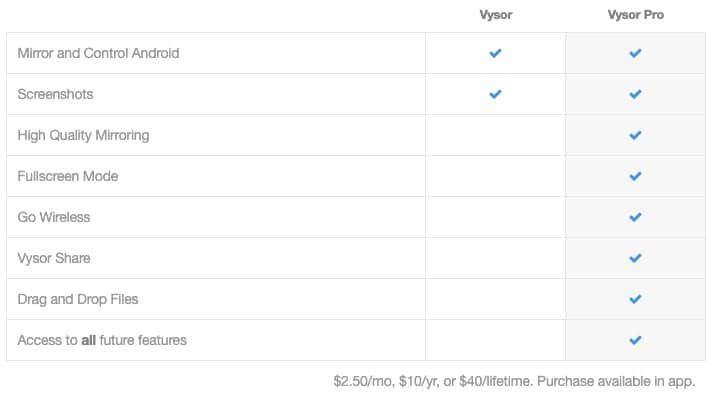
The only drawback with Vysor is that most of its necessary features come with a price. From high-resolution Android screen mirroring to sharing Android screen wirelessly, everything starts with a subscription. In fact, a simple drag and drop is locked in the free version.

On the bright side, Vysor Android screen mirroring is fast and extremely easy to set up. Moreover, users can click and share screenshots and recordings.

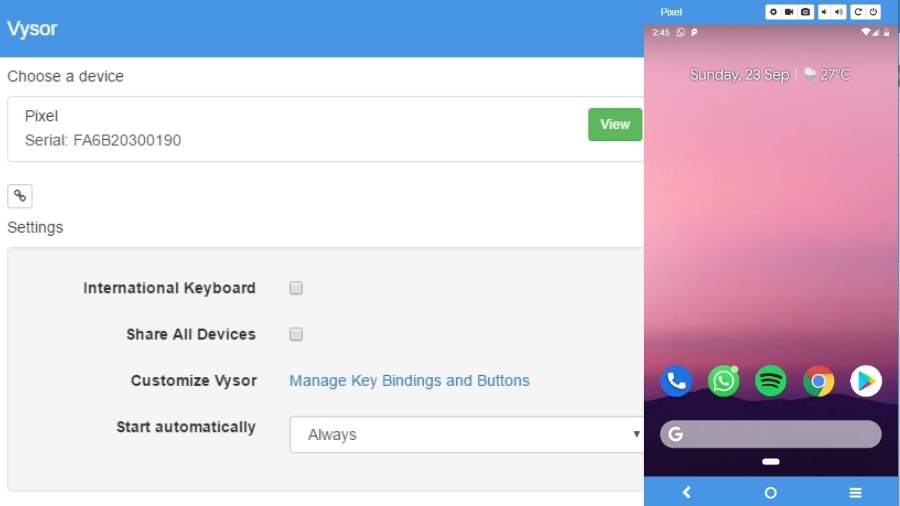
How to mirror Android screen via USB [Vysor]

How to use Vysor in screen mirroring Android
  1. Download the Vysor mirroring software for Windows/Mac/Linux/Chrome
  2. Connect your device to your PC via USB cable
  3. Allow USB debugging prompt on your Android
  4. Open Vysor Installer File on your PC
  5. The software will prompt a notification saying “Vysor has detected a device”
  6. Now, tap on view to start casting your device on your PC screen.

Vysor Price

Vyser in-app purchases – $2.50/monthly, $10/yearly, or $40/lifetime.

Vysor Screen Mirroring for Android Pricing

2. ApowerMirror

ApowerMirror is another brilliant application that lets your mirror Android to PC and vice-versa. In other words, not only you can control Android using mouse and keyboard, but ApowerMirror also enables users to control PC with their Android.

Upon subscribing to the ApowerMirror VIP account, you can mirror three Android devices at the same time. The paid membership also allows you to scribble and draw on the screen.

I think the best feature is the Game Keyboard where you can map keyboard shortcuts for smoother Android functionality. ApowerMirror has more features than you can digest, but setting it up can be a really tough task. Anyway, let’s get right to it –

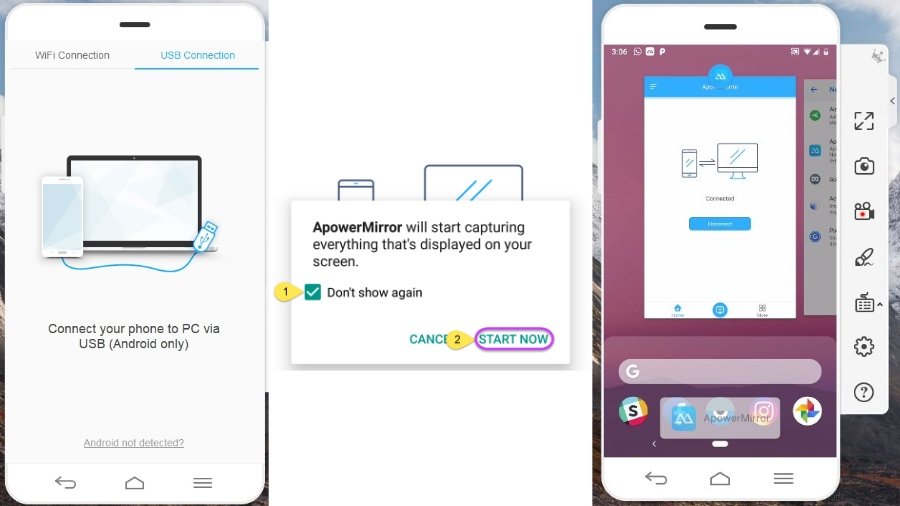
How to mirror Android screen To PC without Internet [ApowerMirror]

How to mirror Android Screen to PC
  1. Download and Install ApowerMirror on your Windows and Android device.
  2. Enable USB Debugging in developer options
  3. Connect the device to your PC via USB (Allow USB debugging prompt on your Android)
  4. Open the app and tap “START NOW” on the permission to capture screen

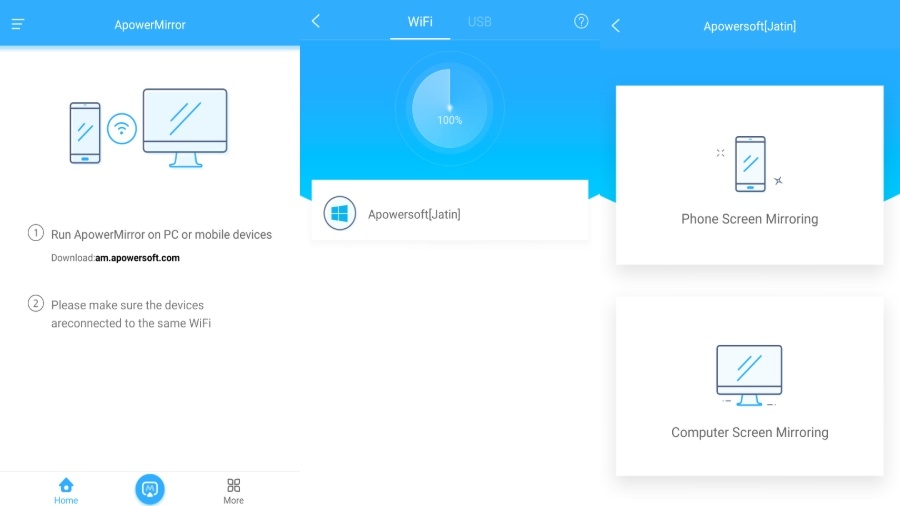
How to mirror Android screen wirelessly [ApowerMirror]

ApowerMirror - Screen mirroring Android Wirelessly
  1. Remove the USB cable
  2. Run the mirror app on your Android device
  3. Tap on the M button at the bottom of the app
  4. Select your Computer Name from the listing (Make sure the PC version is up and running)
  5. Choose “Phone Screen Mirroring” (Go for other options if you want to mirror the computer window on your device)
  6. Tap on “Start Now”
[ Note: Make sure to use the USB cable method first, instead of the wireless one. Doing otherwise will only stream your Android device on PC, i.e., just a window on your PC with no functionality.]

ApowerMirror Price

Lifetime subscription (Endless)- $69.95,
Yearly Subscription – $29.95
Unlimited Subscription for one year (All Apowersoft Products) – $59.95

3. Scrcpy

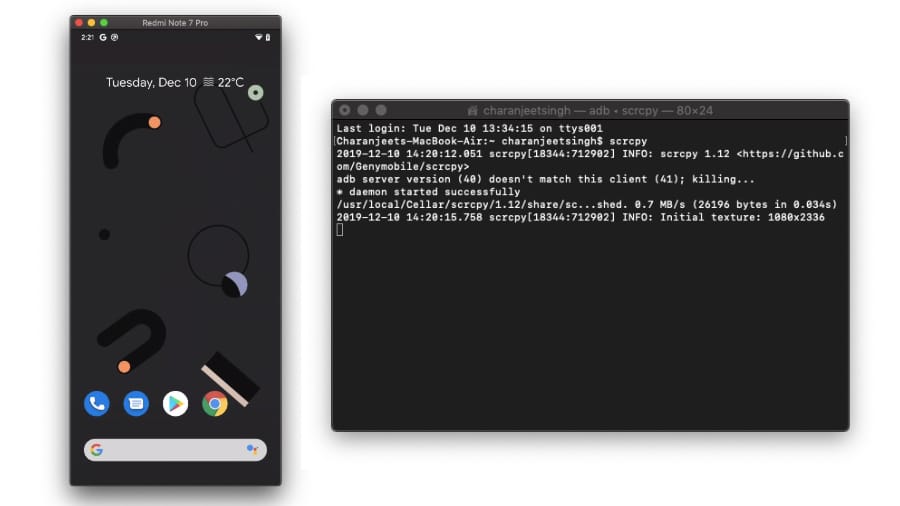
Scrcpy Android screen mirroring

Scrcpy is a free open-source alternative to all the best screen mirroring software that requires users to shell out loads of money.

The best part is you don’t have to install any application here, but only Android ADB tools. Scrcpy supports both, USB and Wireless Android screen mirroring and supports Windows, macOS and Linux. Due to Scrcpy’s low size, the tool offers an extremely low latency rate, therefore, making it the fastest screen mirroring app.

However, the biggest problem with Scrcpy is that it is a little difficult to set up, particularly for users who have no technical knowledge of Terminal, ADB tools, Command-Line, etc. Still, Scrcpy is one of the best screen mirroring apps thanks to its simplicity and low latency rate.

Prerequisites for installing Scrcpy

How to view phone screen on PC via USB using Scrcpy (Windows)?

  1. Download the Scrcpy latest package and extract the zip file.
  2. Connect the device to your PC via USB cable.
  3. Allow USB Debugging confirmation on your phone.
  4. Run the application “Scrcpy”

How to cast Android screen to laptop using Wi-Fi using Scrcpy (Windows)?

In order to cast Android screen on a PC wirelessly, follow the previous steps and install Scrcpy, then simply enable the wireless connection on ADB. Also, make sure your PC and Android device are on the same wireless network.

  1. Connect your device to your PC and allow USB debugging confirmation.
  2. Enter the command “adb devices” to confirm the connection.
  3. Now, enter the command “adb tcpip 5555” to enable WiFi Debug mode.
  4. Remove the USB cable.
  5. Enter the command “adb connect <device IP address>”
    You can locate your Android device’s IP address in Settings — About phone — IP address.
  6. Enter the command “scrcpy”

MacOS users can find the steps to install the Android mirroring tool here.

Scrcpy Price – Free

4. AirDroid (Wireless)

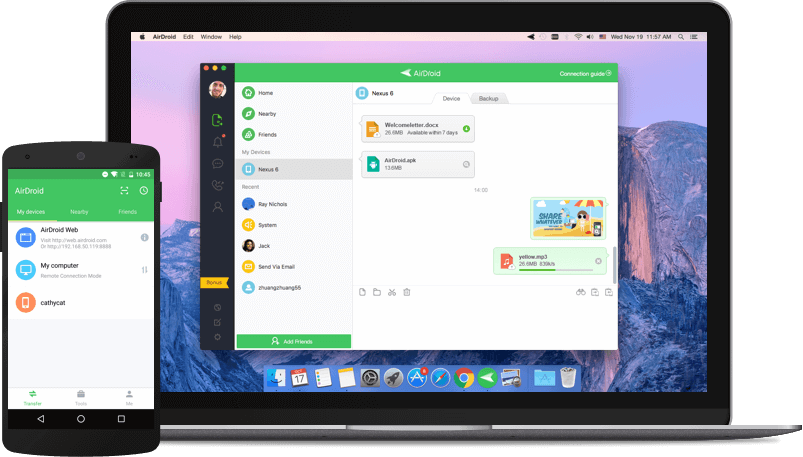
AirDroid Share files from Android to PC wirelessly

AirDroid has been the user’s top choice in Android screen mirroring apps due to its unique features and smooth synchronization between Android and PC.

The mirroring application for Android house a desktop client where users can share files, read notifications, missed calls and call logs. In the pro account, you can remotely open the camera on your device. AirDroid also has a web client that enables users to use their Android phones on the web.

AirDrop has it’s UI with a limited amount of Android functionality. This means you cannot play games, run apps or do things along those lines. However, the mirroring app lets you stream Android devices to PC so that you can take screenshots and record the screen.

How to mirror Android wirelessly [AirDroid]

  1. Download and install the app on Windows/macOS and your Android/iOS device
  2. Open Windows app and create an AirDroid account
  3. Add a device to your account via signing in the AirDroid app version

Now, you can access your Android device files, calls and messages. The floating bar will show any notifications that come up on your device. To receive desktop notifications – Go to Android settings ⇒ Apps and Notifications ⇒  Special app access ⇒ Notification Acess ⇒Toggle AirDroid on.

How to Stream Android on PC [AirDroid]

Hot to Steam Android on AIrDroid
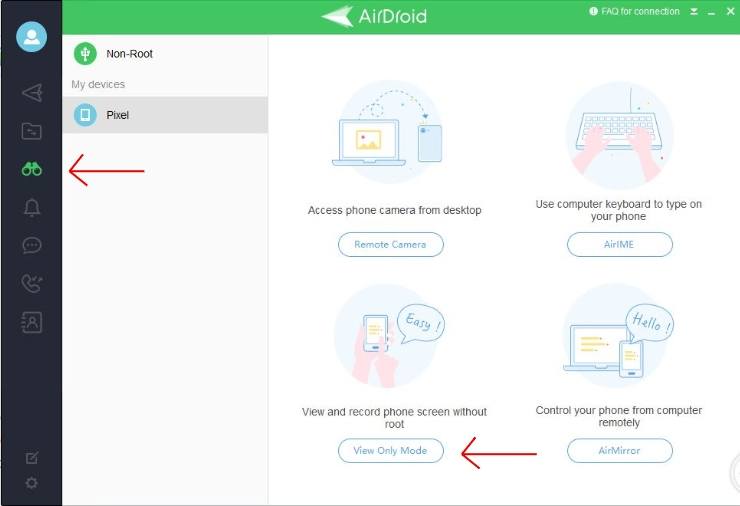
  1. Open AirDroid on your PC
  2. Tap on AirMirror Tab
  3. Tap on ViewOnly Mode
  4. Head over to your Android device and tap “Start Now” on the pop-up.

How to mirror Android on Google Chrome [AirDroid]

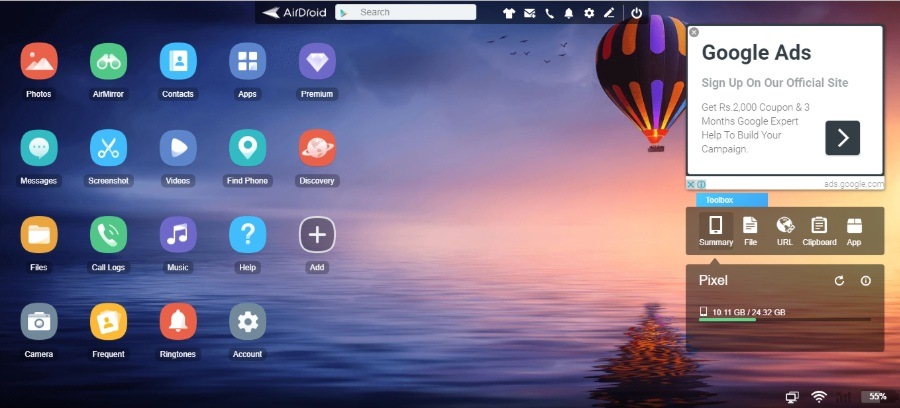
AirDroid Web Android Screen Mirroring
  1. Head over to the AirDroid Website on your browser
  2. Log in if have already made an account or simply scan the QR code through the app

AirDroid Price

Monthly – $1.99
Yearly – $19.99

5. Screen Stream Mirroring by MobZapp (Wireless)

As the name suggests, the Android screen mirroring app is predominantly used for streaming your Android device.

However, this screen sharing app has an endless number of platforms support. Starting with media players like VLC, KODI, OBS to sharing screen over the web. The mirroring app even allows you to broadcast your Android screen to Twitch, Youtube,  Facebook, Ustream, etc.

With this software, you can also share the screen with UPnP / DLNA devices such as Smart TV. Not to mention, the app is Google Chromecast ready as well. The only issue with this app is that the free version has a time limit for each application run, and the Android application is crawling with ads.

If you are looking to cast your Android device on a PC or TV, this Android app is surely a must. However, if controlling Android via PC is the primary goal, this app shouldn’t be on your list.

How to mirror Android screen on your Web Browser

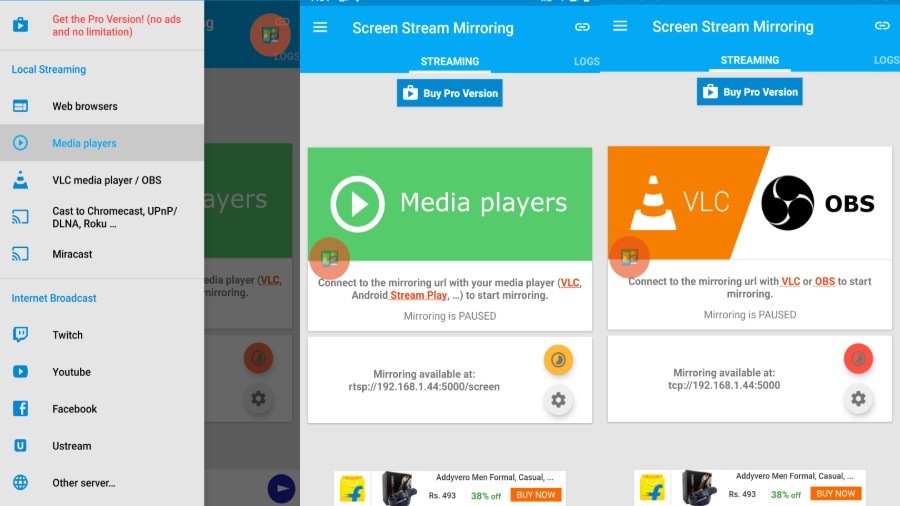
  1. Start the stream from your Android device
  2. Remember the URL prompted at the bottom
  3. Type the exact URL in your PC browser search bar
  4. Enjoy the stream

How to mirror Android screen wirelessly on PC

Screen Stream Mirroring Android -Mobzapp
  1. Download the Android app
  2. Allow “Start Stream Mirroring” pop-up on the screen
  3. Now Open VLC on PC ⇒ File menu ⇒ “Open Network Stream”
  4. Type the URL, given in the Android App,
  5. Click Play

Check out there official website FAQ to know more about how you can stream Android on different platforms.

Screen Stream Mirroring price

The paid version is available on Google Play Store for $4.99

6. Mobizen

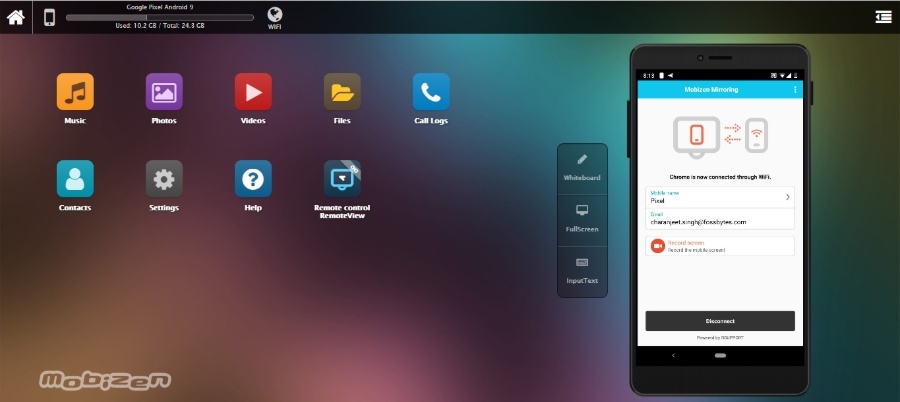
Mobizen is very similar to the Vysor screen mirroring app for Android, only Mobizen’s basic features are free to use. For instance, mirroring form a web browser like Chrome, controlling device via keyboard/mouse, transferring and viewing files on PC and so much more.

Apart from that, mirroring on Mobizen shows a sophisticated Android device render on the PC. You can set up screen transparency (ghost mode) and even add push notifications on a paid subscription. You can also use your Android device remotely through the Mobizen website.

While everything with this app is close to perfect, there is a slight problem with it. In the wireless option, the app doesn’t let you control your Android device. But you can still record, draw, transfer files and do lots of stuff. Also, when it comes to overall casting speed and smoothness, Vysor overcomes Mobizen entirely.

How to mirror Android screen via USB [Mobizen]

Mobizen Screen mirroring Android
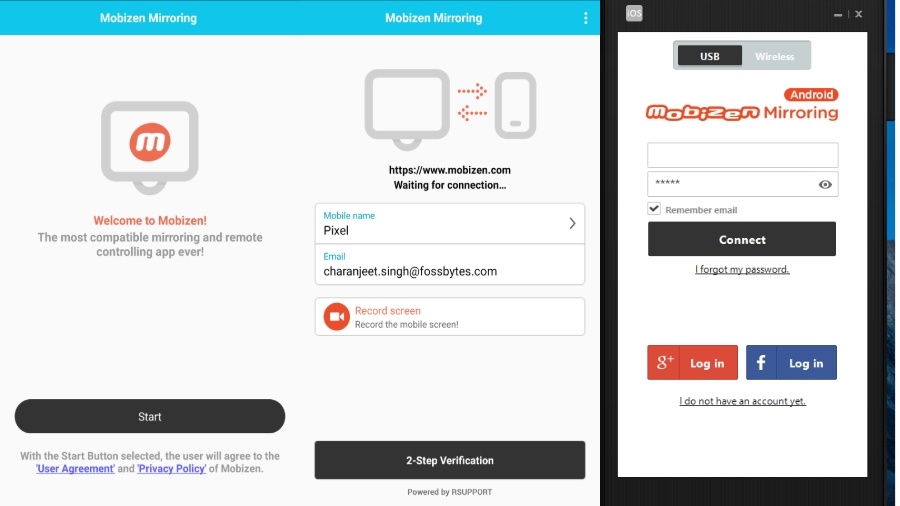
  1. Download and install Mobizen mirroring app on your PC and Android Device.
  2. Turn on USB Debugging on developer options
  3. Open the Android app and sign in.
  4. Launch the mirroring software on windows and choose between USB / Wireless and log in
  5. Tap on “Start now” in the pop-up to initialize the remote connection
How to Mirror Android to PC via Mobizen

To mirror the Android screen on a web browser. Just log in through this Mobizen website and follow the same steps above.

Mobizen Price

Monthly – $2.99
One Year – $23.90
Two year – $47.88

How to Mirror Android To External Display or TV?

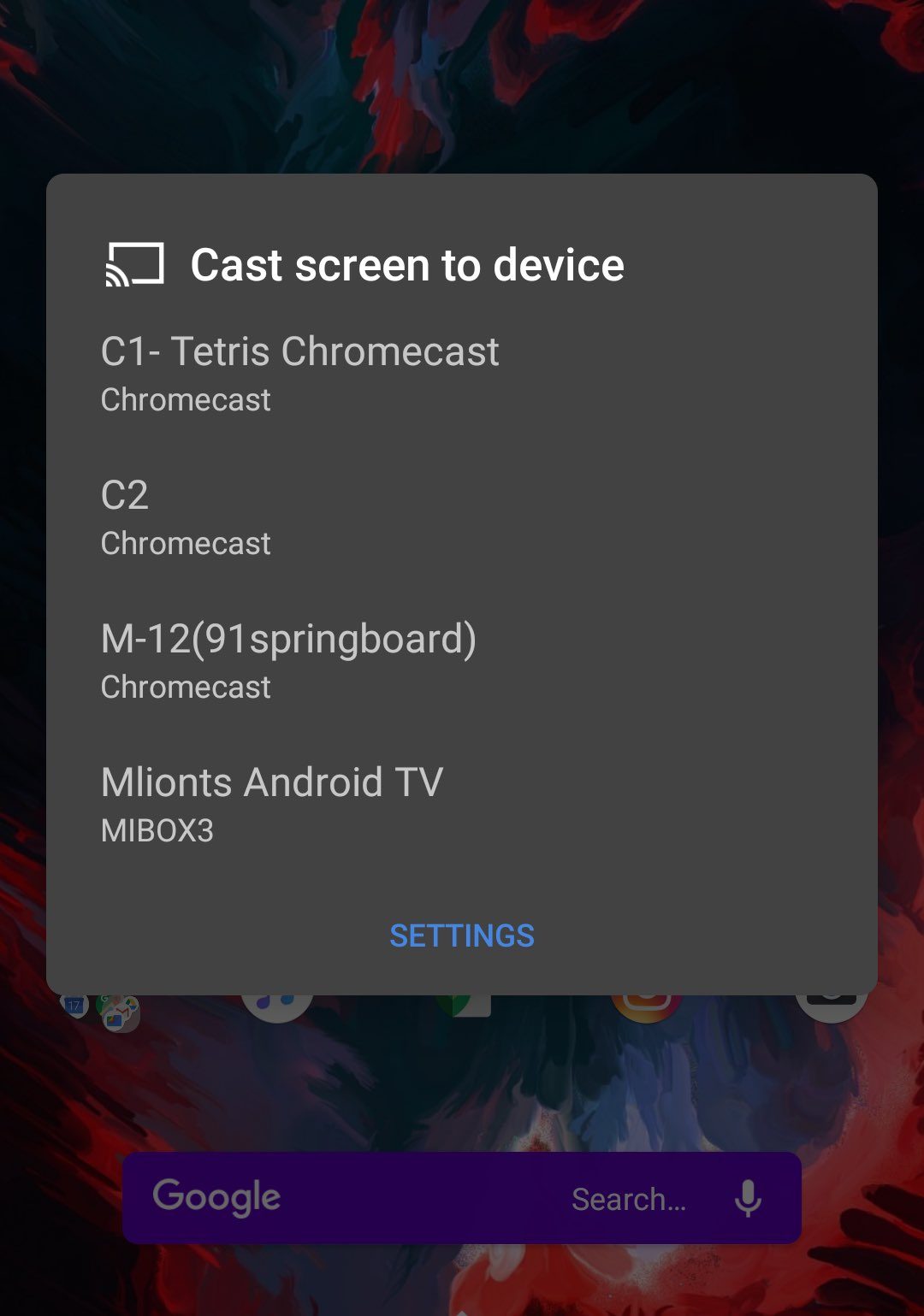
The above methods work when you wish to mirror Android to your PC or laptop but what if you don’t have a computer at your disposal? In this case, you can use your TV or an external display as a bigger. However, to do this, you’ll need Chromecast. We’ve created a dedicated guide on how to set up your Chromecast device and use it to cast your Android display.

cast screen to chromcast display

All of these apps work fine if you want to integrate your device functionality into the PC. However, if you’re more into playing Android games on PC or using Android apps, I would recommend that you install one of the best Android emulators to get an uninterrupted Android experience on a computer.

Also Read: Free And Best Android Apps

The post 6 Methods To Mirror Android Screen To PC (No Root Apps) In 2020 appeared first on Fossbytes.


6 Methods To Mirror Android Screen To PC (No Root Apps) In 2020
read more
Xiaomi Announces MIUI 12.5: Here’s Everything You Need To Know

At the Xiaomi Mi 11 launch event, Xiaomi announced a new massive update to its Android skin with MIUI 12.5, along with the list of devices that can start testing the MIUI 12.5 beta.

Xiaomi clarified that the update may sound like a small iteration of MIUI 12, but it’ll get a huge UI improvement and will power the Xiaomi smartphones in 2021.

New MIUI 12.5 features

The new MIUI 12.5 update comes with a number of enhancements, primarily in the UX department. Also, there are privacy improvements and changes in how MIUI interacts with Windows.

Snow Mountain and Geometry Live Super Wallpaper

Super Wallpaper is one of the biggest features of MIUI 12. Back when MIUI 12 first arrived, Xiaomi introduced Earth and Mars super wallpaper. Later, the Chinese smartphone company also came up with Saturn super wallaper.

With the MIUI 12.5 update, Xiaomi has now come up with two more new super wallpapers — Geometry and Snow Mountain live wallpapers.

The MIUI 12.5 Geometry live wallpaper consists of shapes that move while interacting with the screen, however I am more fascinated by the Snow mountain live wallpaper from Xiaomi. When unlocking, the wallpaper zooms out of the mountain peak. On top of that, the scenery color changes based on the time of the day.

Thanks to the developer linuxct, you can sideload the MIUI 12.5 Snow Mountain and Geometry super wallpaper on any Android device.

Changes in UI

According to Xiaomi, the new version of MIUI 12 comes with less number of pre-installed apps compared to other Android skins. Xiaomi compared MIUI 12.5 with iOS 14, EMUI 11, Color OS 11, and Funtouch OS 10.5.

The MIUI 12.5 comes with new animations and transitions. Xiaomi says the MIUI 12.5 interface is now as good as the interface of iOS 14.

Apart from that, there are changes in the Xiaomi Notes app. First, there is a new Notes app icon. Secondly, there are multiple new features in the Notes app such as ability to create indented lists, brain maps, drawing and doodling etc.

In MIUI 12, Xiaomi added nature-inspired sounds which can be applied as ringtones, and message tones. In the new update, Xiaomi has added new nature sounds which are inspired from places in Amazon, Australia, Artic and Africa.

System enhancements

Xiaomi claims there are major improvements in the back end, and therefore MIUI 12.5 is highly optimized to give more performance while consuming less battery.

The latest MIUI 12.5 uses 32% less memory and and 17% less power. Also, there is a 20% decrease in memory usage in core usage situations. On top of that, background memory usage has been decreased by an average of 35%.

MIUI 12 Super Wallpaper, which is known to take up high battery consumption, will now consume 40% less power.

MIUI and Windows integration (MIUI+)

Xiaomi has introduced a new service called MIUI+. It’s similar to how Microsoft’s Your Phone app enables users to see their Android device’s activity on PC.

With the help of MIUI+ in MIUI 12.5, Xiaomi users will be able to see phone’s notifications on PC. The service will also support a universal clipboard where users can copy content from a Xiaomi device and paste it directly on a Windows PC.

Xiaomi fans will also be able to access files on their Xiaomi device as well as access clicked screenshots instantly.

As of now, below are the Xiaomi devices that will provide MIUI+ service —

  • Mi 10 Ultra
  • Mi 10 Pro
  • Mi 10
  • Mi 9 Pro 5G
  • Mi 9
  • Redmi K30 Ultra
  • Redmi K20 Pro
  • Redmi K30 Pro

Privacy Changes

Xiaomi has also introduced some big privacy enhancements with MIUI 12.5. In the latest MIUI update, Xiaomi and Redmi users will be able to send a rough location instead of the exact location when asked by an app. Since most apps don’t need the exact location data, this will help in safeguarding the user’s privacy.

Another big change is how apps access the clipboard data. For the apps trying to access the clipboard data, you now have the option to grant or decline their request.

MIUI 12.5 Supported Devices and Roll-out Schedule

Reportedly, Xiaomi will start delivering MIUI 12.5 updates starting in April 2021. It goes without saying that the MIUI 12.5 Stable ROM will first arrive to Xiaomi China users.

As of now, MIUI 12.5 China Closed Beta ROM is available on the following devices:

  • Mi 10
  • Mi 10 Pro
  • Mi 9
  • Mi 9 SE
  • Redmi K20 / Mi 9T
  • Redmi K20 Pro / Mi 9T Pro
  • Mi CC9e
  • Redmi Note 7 / Redmi Note 7S
  • Redmi Note 7 Pro
  • Redmi K30 Pro / POCO F2 Pro
  • Redmi K30 5G
  • Mi 10 Youth Edition / Mi 10 Lite Zoom
  • Redmi K30 4G / POCO X2
  • Mi CC9 Pro / Mi Note 10
  • Redmi K30S / Mi 10T
  • Mi 10 Ultra
  • Redmi K30 Ultra
  • Redmi 10X
  • Redmi 10X Pro
  • Redmi Note 9 5G
  • Redmi K30i 5G

Below are the devices that will start receiving MIUI 12.5 Closed Beta starting mid to late January 2021:

  • Mi 9 Pro 5G
  • Mi CC9 / Mi 9 Lite
  • Mi CC9 Meitu Edition
  • Redmi Note 9 Pro 5G / Mi 10T Lite
  • Redmi Note 8 Pro
  • Redmi Note 8
  • Redmi Note 9 4G / Redmi 9T / Redmi 9 Power

MIUI 12.5 Stable version will start rolling out to these devices in April 2020:

  • Mi 11
  • Mi 10 Ultra
  • Mi 10 Pro
  • Mi 10

We will keep on updating this list when more devices are added to the MIUI 12.5 roll out schedule. So bookmark this page to check later!

The post Xiaomi Announces MIUI 12.5: Here’s Everything You Need To Know appeared first on Fossbytes.


Xiaomi Announces MIUI 12.5: Here’s Everything You Need To Know
read more
How To Find Apple M1 Apps And Games: Make The Most Out Of Your New Mac!

Now that the Apple M1 MacBooks are out there, users are looking for apps and games that can run natively on Apple custom silicon. While the Mac App Store is updating with more apps that run natively on the M1 Mac, there is a way to check which games can run on the new Macs.

Why Run Games On Mac?

Games on the M1 Mac

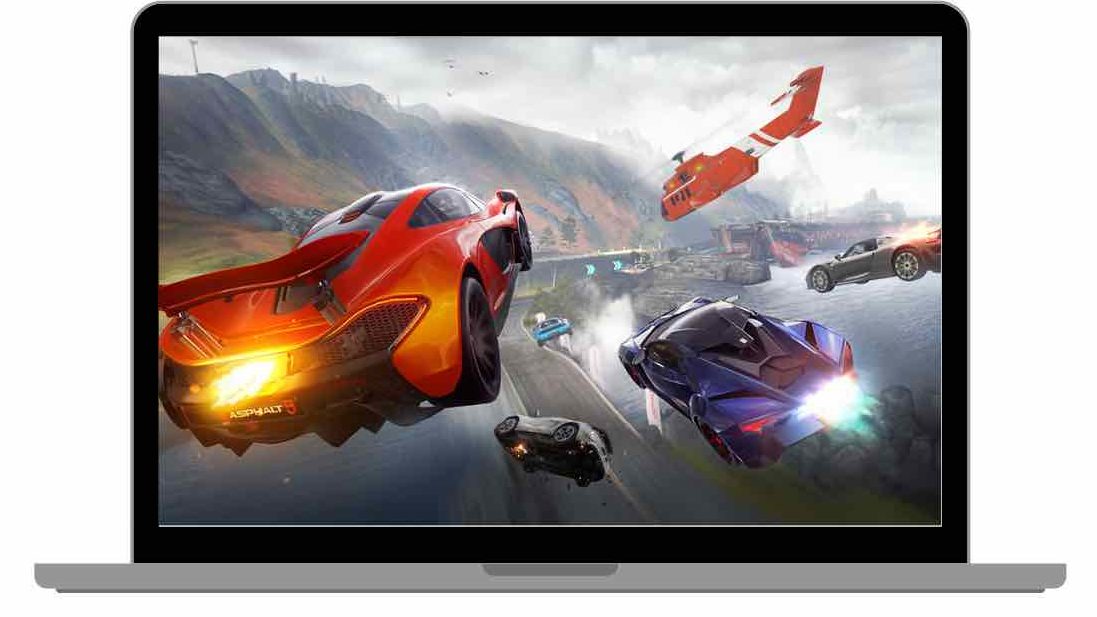
One of the reasons you might want to go for the new Macs is that they’re more gaming-friendly. With the major performance boost and capability to run iOS apps natively, the M1 certainly packs some muscle. So the simplest reason to run games on the new Apple silicon is because that you can.

How To Find Apple M1 Compatible Games?

Screenshot from Apple Silicon Games
Screenshot from Apple Silicon Games.

There are broadly 3 different methods to run games on M1 Mac. The smoothest games are the ones that run natively, which means they’re optimized for the processor and can run at the best possible settings.

The second method here is via Rosetta 2, which means the older x86-64 packaging of the game is translated to make it compatible with the system.

Lastly, we have the CrossOver method, which translates Windows apps to Mac, but it isn’t compatible with all the games.

Also Read: Apple M2 Details: What To Expect Of Apple’s Next Mac Chip

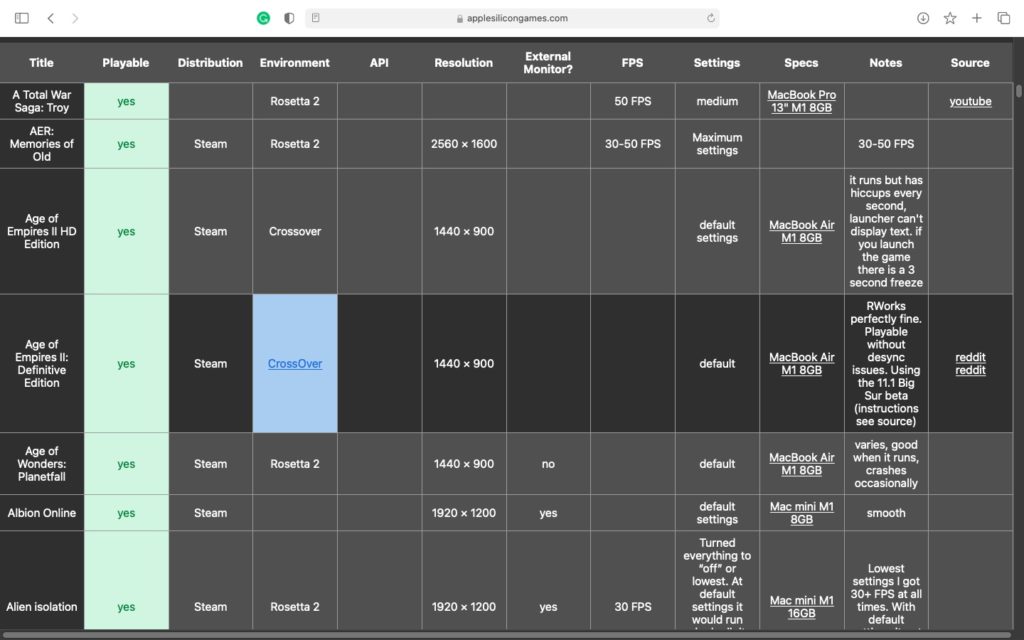
You can find a list of Apple M1 games on Apple Silicon Games. This website maintains a directory of games that can run on the new Mac lineup.

The site also offers a comprehensive table with various titles. You can check whether a game is playable or not, the distribution, environment, supported resolution, and required specs from this table.

How To Find Apple M1 Apps?

How to Find Apple M1 Apps and Games
Screenshot of Apple Story on M1 Compatible apps

Since most of the apps run on x86-64 instructions, Apple came up with Rosetta 2, a translator that lets you run old Intel apps on the new M1 chip. While it’s an efficient emulator and most of the time you might not even notice using it, there are some apps that need to run natively.

For instance, Adobe Lightroom and Final Cut Pro are power-hungry apps that might not do well if run using Rosetta 2.

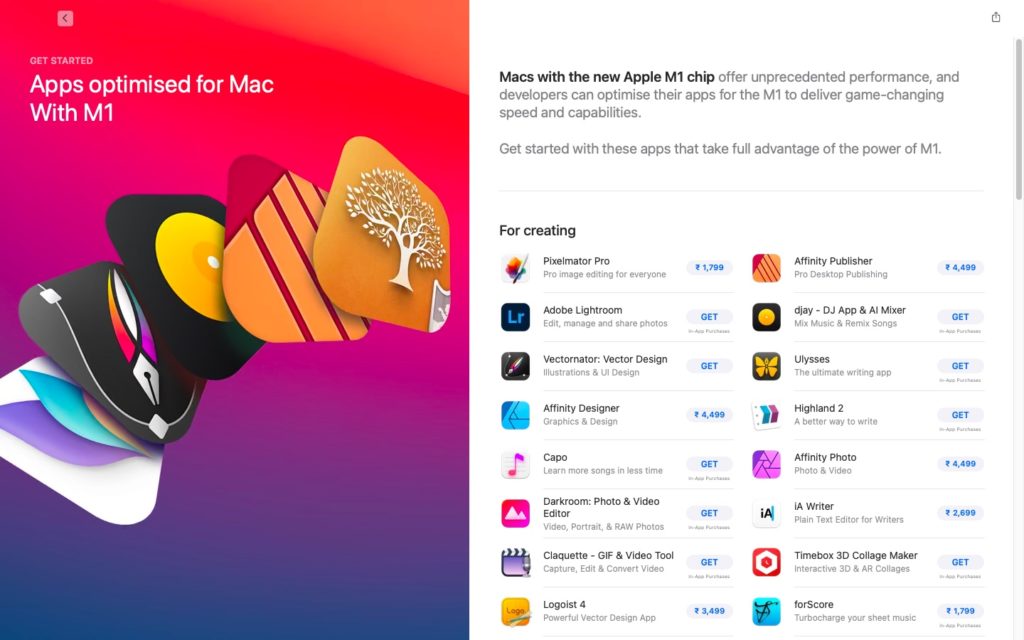
You can find apps that run natively on the Apple M1 macs on the Mac App Store. Apple recently added a new story titled ‘Apps optimized for Mac with M1‘.

These include all Apple apps and some other essentials like Adobe Lightroom, Logic Pro, Capo, and Fantastical. Native support for Microsoft Office is also there so that you 3get the most out of your productivity apps in the M1 Mac.

The post How To Find Apple M1 Apps And Games: Make The Most Out Of Your New Mac! appeared first on Fossbytes.


How To Find Apple M1 Apps And Games: Make The Most Out Of Your New Mac!
read more
10 Best Android Video Chat Apps For 2021 | Free Video Calling Apps

Have you ever taken a moment to think that we are living the future that sci-fi films predicted to an extent? Sure, we don’t have time travel or teleportation yet. But the technological breakthroughs of the last two centuries have pushed our civilization into this space age that our ancestors wouldn’t have even dreamed of.

High-speed video calling is a fitting testament to the extent technology has touched our lives. Just a decade ago, video calling was mostly laggy, with dropped frames and incomprehensible sound. Video chat apps for Android that use efficient compression algorithms, together with high-speed internet connectivity, have changed the scenario now. Nowadays, we can instantly interact with any person face-to-face with just a few taps on our phone. 

Here, we have compiled some of the best video calling apps that you can try out on your Android phone.

Note: This list isn’t in order of preference. You’re advised to choose one as per your needs.

10 Best Android Video Chat Apps (2021)

  1. Google Duo
  2. Skype
  3. Viber
  4. IMO
  5. Messenger
  6. Houseparty
  7. WhatsApp
  8. Signal
  9. LINE
  10. Tango

1. Google Duo

Google Duo is one of the best video chat apps for Android. The headlining feature of Duo is the simplicity of the interface that brings video calling to the forefront. It’s quite simple and straightforward to log in and verify your number, and you can make faster and more reliable video calls to other users just like you make a standard phone call.

The app includes a “Knock Knock” feature that provides a live preview of the caller before you receive the call. It is also a cross-platform tool so that both Android and iOS users can enjoy the app. The free video chat app for Android is also available on the web. Overall, it is a great app for Android that’s worth a try.

App Installs: Over 1 billion
Google Play Store Rating: 4.5

Download for Android and iOS or use the web version.

Also read: Best Secure Messaging Apps For Android & iOS

2. Skype

Skype is a free Android video chat app that has over 1 billion downloads on the Play Store. In fact, Skype is the one that introduced us to free video chat over the internet. It is a cross-platform tool that has its native apps on most platforms, including PC.

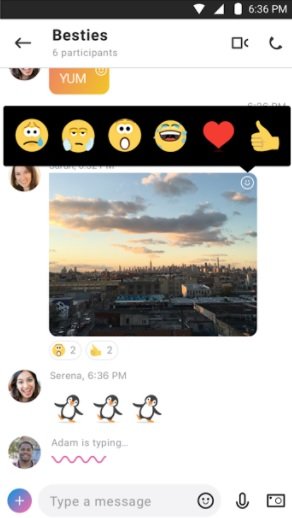
The Android app is not as good as the desktop application, but it comes with a whole lot of features. You can make video calls to a group of up to 25 people. It also features a free text chat where you can send voice messages, emoticons, photos, emojis, etc.

It comes with Microsoft and Facebook account integration. Moreover, you can even call regular cell phones and landlines for a nominal fee. Skype doesn’t compromise on call quality, so it consumes more data compared to other apps. Also, if your area has slow internet, then you better opt for the other apps on this list.

The app still needs modifications, but the service itself is about as excellent as it gets. There’s a pretty good chance your friends and family are already using this application.

App Installs: Over 1 billion
Google Play Store Rating: 4.3

Download for Android and iOS or use the web version.

3. Viber

Viber is another popular Android video call app in 2021 that has been on the Play Store for a long time. The app has since been improved and bundled with a lot of features. It is cross-platform and available for free for almost all operating systems, and also mobile devices like Blackberry, Windows Phone, Android, and Apple devices.

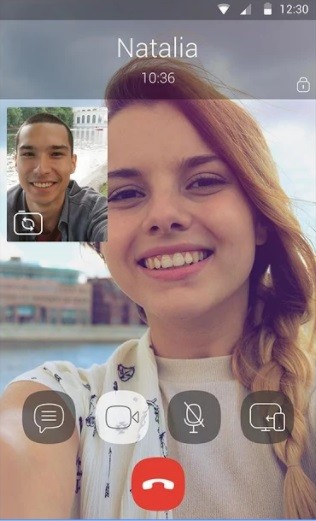
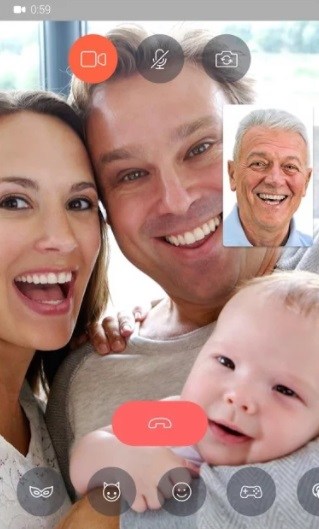
Viber provides secure communications between users and automatically encrypts text messages, video and voice calls, photos, and group chats. It has a user-friendly interface, and doing a video chat is quite easy; just click on the Camera sign next to a user’s name and start talking. Additionally, you can also play Viber games with friends, follow public accounts, share contact files, etc.

App Installs: Over 500 million
Google Play Store Rating: 4.4

Download for Android and iOS

4. IMO free video call and chat

IMO is a simple video chat app for Android, which is great for making free video and voice calls over 2G, 3G, 4G, or Wi-Fi connections. It is cross-platform and compatible with both iOS and Android. Besides text, voice, and video calls, the app doesn’t come with a lot of features. However, it is a trusted app as it provides complete encryption to messages and the calls.

You can also make group calls, share photos, send stickers, etc. Users have claimed that IMO uses less data while doing video chats compared to most apps. It is free to download, but you have to deal with some advertisements within the app.

App Installs: Over 500 million
Google Play Store Rating: 4.2

Download for Android and iOS

5. Facebook Messenger

Facebook Messenger is trendy, and the app is trusted by a vast number of users. It is available for free on iOS, Android, and also via any web browser logged into your Facebook account. Facebook Messenger is pretty easy to use. You can get connected however you want; send a text message, or start a video chat, the choice is all yours.

There is so much more you can do with Facebook Messenger, such as making group video calls, sending emojis, stickers, and GIFs, capturing photos and videos with fun art and effects, playing games, etc. Messenger also lets you keep track of chats with other users, and you can even make reservations, check on others, or use it for a business purpose.

App Installs: Over 1 billion
Google Play Store Rating: 4.2

Download for Android and iOS

6. Houseparty

Houseparty is the most popular video chat app for Android. For some, the video calling app for Android was a savior during the lockdowns of 2021.

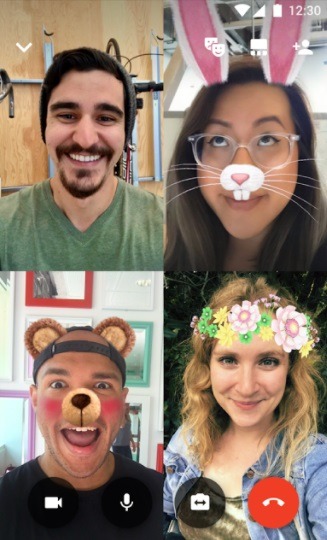
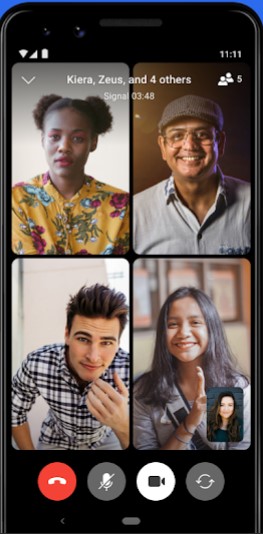
If you are looking for a fun video calling app to hang out with friends, then Houseparty should be on your Android. You can play games with your friends, add frames, have a karaoke session, and much more. You can video call with up to 10 friends.

Houseparty best video call app

While the video quality is good, the calls are not end-to-end encrypted. Once, few security experts warned that the Houseparty app collects worrisome amounts of personal information. Aside from that, Houseparty is still one of the best group video call apps to have fun with friends.

App Installs: Over 10 million
Google Play Store Rating: 4.0

Download for Android and iOS

7. WhatsApp

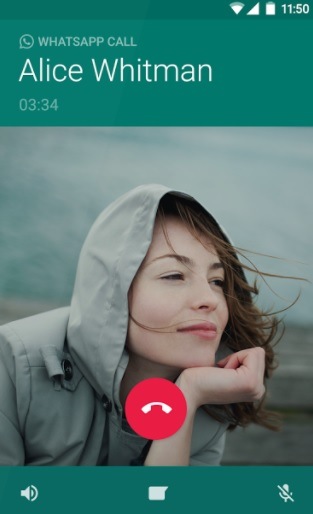
Being one of the most popular messaging apps, Whatsapp is also eligible to be on the list of best Android video calling apps. It is cross-platform, and users make millions of video calls per day across the world on Android, iOS, and Windows devices. The calling feature is straightforward and has minimal hurdles for users, just open the contact you want and tap on the video call button.

The voice and video call options only appear inside one-on-one conversations, but the video calling works quite well, and you should not face any problems while using it. Additionally, the app also includes the feature of sending text messages, share media files, GIFs, stickers, etc. The app is a secure one and is available for free. Also, it does not display any ads.

App Installs: Over 5 billion
Google Play Store Rating: 4.3

Download for Android and iOS

8. Signal

Signal is another video chat app for Android if you are overly concerned about your privacy. In fact, it’s the best private video chat app for Android. All video calls on Signal messenger are private and end-to-end encrypted. The Android video chat app also supports encrypted group video calling for up to five people.

Singal video chat app 2020

Thanks to Singal’s strong belief in privacy, there are no ads or any kind of trackers on the android video calling app. The app doesn’t pack a lot of features, but it provides you with an excellent video calling quality to any number in the world. Aside from that, Signal has all the standard features of a messenger including the option to make messages disappear. Overall, Signal Private messenger is one of the best video calling apps for 2021.

App Installs: Over 10 million
Google Play Store Rating: 4.5

Download for Android and iOS

9. LINE

LINE is a popular messaging platform, which not only allows you to enjoy messaging but also free voice and video calls from anywhere, anytime. With over 500 million users worldwide, LINE can be one of the best Android video chat apps for you. It lets you enjoy high quality calls with no charge, and you can even add effects and filters while making a video call.

The app is cross-platform and allows you to make calls using either your computer or your cell phone. Moreover, you can do group video chat with up to 200 friends, share messages, photos, stickers, videos, social media features, etc. The app is available for free, although it comes with some in-app purchases and ads. It is supported in Android 4.1 and above.

App Installs: Over 500 million
Google Play Store Rating: 4.1

Download for Android and iOS

10. Tango

Tango is a third-party messaging application that has been around for quite some time. Over the years, Tango has been modified and improved into a full-fledged messaging service, complete with both video and voice calling. It is an excellent video call app for Android as it provides high-quality video and phone calls for free.

It comes with all the necessary features, such as sharing messages, photos, videos, audio, stickers, locations, etc. You can also broadcast live videos on Tango and play games while chatting. Tango has public chatrooms for casual conversations apart from 1-on-1 chatting. Video calling in Tango consumes less data than most other apps.

App Installs: Over 100 million
Google Play Store Rating: 4.4

Download for Android and iOS

Did you find this list of the 10 best Android video chat apps to be helpful? Share your reviews in the comments.

The post 10 Best Android Video Chat Apps For 2021 | Free Video Calling Apps appeared first on Fossbytes.


10 Best Android Video Chat Apps For 2021 | Free Video Calling Apps
read more
How To Find WiFi Password On Mac & Share It On Your iPhone?

Whether you are setting up a new device for the first time or resetting one, it is important that you know the WiFi password. It’s the first thing that guests ask after entering your home.

Although most routers have a dedicated procedure to reset the WiFi password, the process is technical and difficult to accomplish for many. However, all hope is not lost! If you previously used the network on a Macbook, you can find the WiFi password on your Mac device within the Keychain.

How to find WiFi password on Mac?

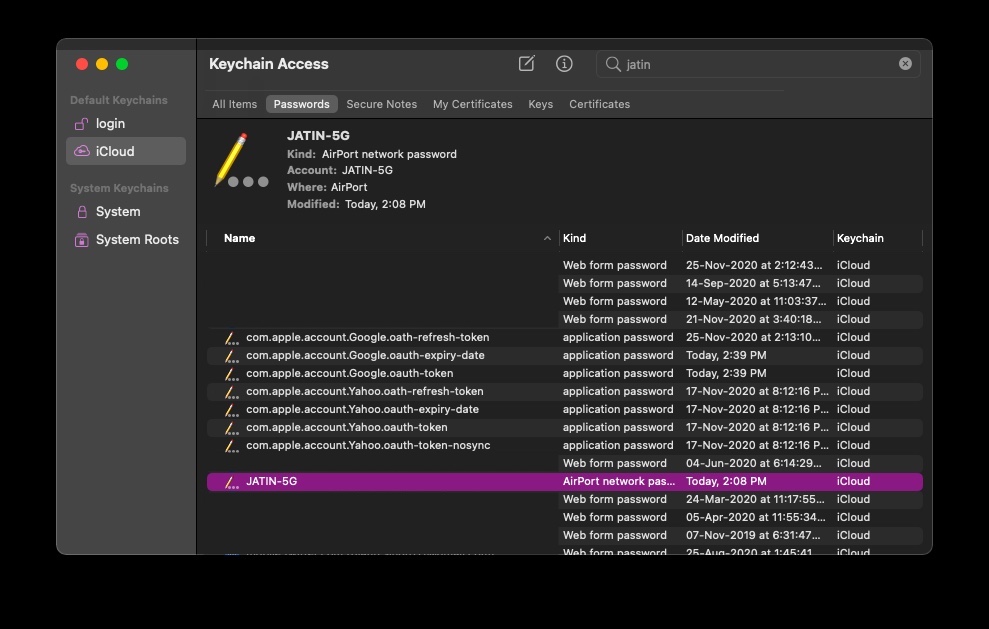
The Keychain Access app on MacBooks stores your personal data and passwords. One can also call it macOS password manager. Whenever you save your password while logging in to a website, email account, network, or any password-protected item, you can view it in the Keychain. Here’s how to see WiFi password on your Mac.

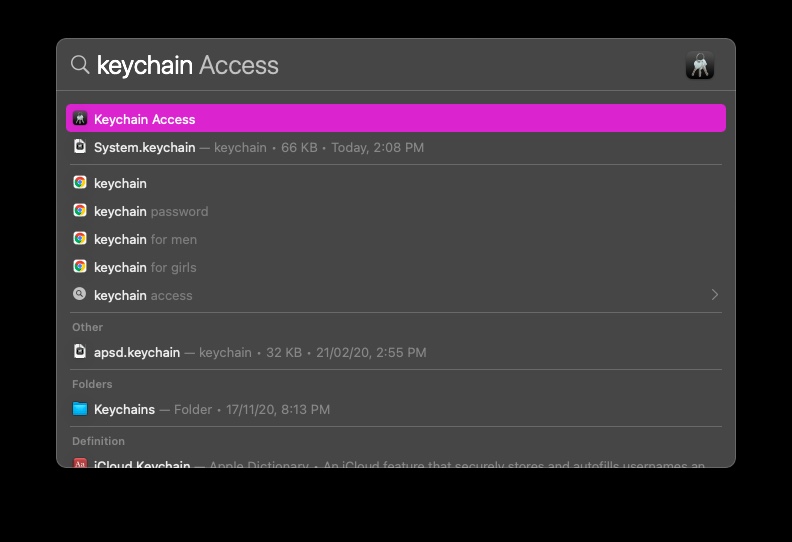
  1. Open Keychain Access

    Go to Spotlight (Press Command-Space bar), type “Keychain” and press enter.Open Keychain wifi password mac

  2. Look for your WiFi network name and open it.

    Type the name of your WiFi network in the search bar at the top and double click on it.find saved Wifi password mac

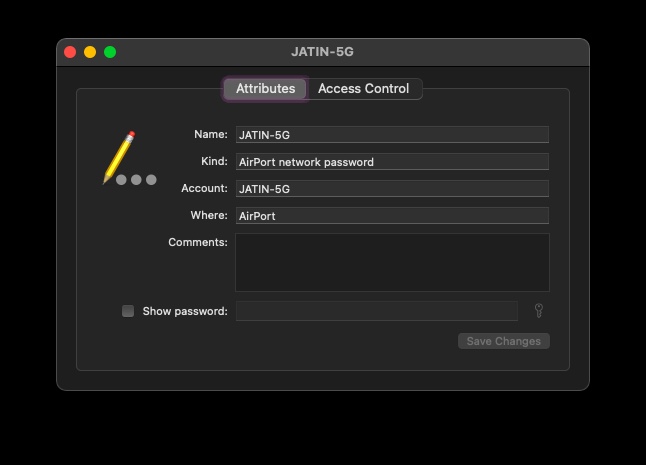
  3. Click on Show Password

    Wifi network name mac

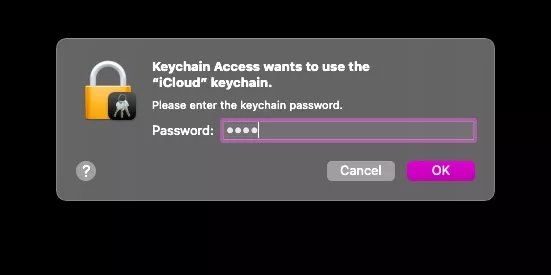
  4. Enter your username and password and press Enter

    Use the credentials that you use to log in to your Mackeychain wifi network mac

  5. You will now see the WiFi password on your Mac

    It will be right next to the “Show Password” option. Here you can also change your password.

Note that the WiFi network should have previously been accessed at least once through the Macbook for the above mentioned steps to work.

How to share WiFi password from Mac to iPhone?

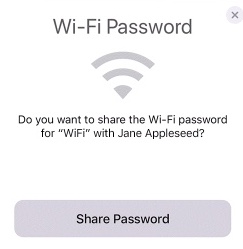
If your end goal is to share the WiFi password on your Mac with other macOS, iOS, and iPadOS devices, then you don’t need to know the WiFi password. Apple offers a way through which users can share the WiFi password from Mac to iPhone or other Apple devices without knowing the password.

Share mac WiFi password

Make sure you are logged in to the WiFi network and the other person’s Apple ID is in your Contacts app. Now, bring the device with which you want to share the WiFi password with close to your Mac and choose the WiFi network on it. A notification will appear on your Mac asking you to share WiFi password. Click on Share.

You can use this simple method if you wish to share wifi password from mac to iPhone.

The post How To Find WiFi Password On Mac & Share It On Your iPhone? appeared first on Fossbytes.


How To Find WiFi Password On Mac & Share It On Your iPhone?
read more
8 Best Smartphones Of 2020 | Phones That Stood Out This Year

It’s only a matter of time before we leave 2020 for good. All major smartphone launches are done including the December 28th launch of Xiaomi Mi 11 which is probably the last smartphone launch of the year.

But before we say our good-byes to 2020, it’s time to look back at the best phones of 2020 that overshadowed other smartphones in the same category like a boss.

Best Smartphones 2020 List

In this article, we will look at the smartphones launched in 2020 that were well-received by the critics, as well as by the majority of users. Of course, we will also point out the big problems that users faced with the best 2020 smartphones.

For your ease and fairness, we have divided this best phones 2020 list into multiple categories. Now, without any further ado, let’s get right into it —

Overall Best smartphone of 2020

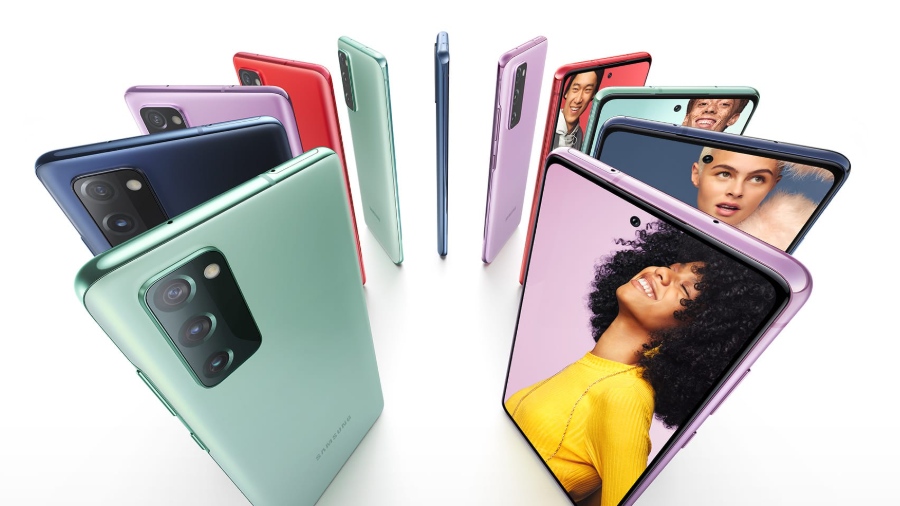
Galaxy S20 Fe best smartphone 2020

If you’re looking for the best buy smartphone of 2020, a phone that features all the flagship specs but comes with an affordable price, then pick the Samsung Galaxy S20FE 5G right away.

It’s a $699 5G smartphone that comes with a massive 6.5-inches 120Hz Full HD+ AMOLED display, a Snapdragon 865 SoC that is powered by a 4500mAh battery, and 6GB RAM with 128GB storage on the base variant. On the camera’s end, it features a triple camera setup with 12MP as its main sensor, an 8MP telephoto, and another 12MP for ultra-wide shots.

It’s also IP68 dust/water resistant and offers fast charging, wireless charging, and reverse wireless charging. The only non-flagship thing about the Galaxy S20 FE is that it comes with a plastic back, which surprisingly feels premium in hand. So, no complaints there!

However, if you live in India, I would suggest not to go for this phone because the Indian variant doesn’t feature 5G and comes with the Exynos 990 chip. We all know that Exynos’ performance isn’t comparable to Snapdragon chipsets. In that case, you can look at OnePlus 8T which starts at Rs 43,000 (~$583) in India.

Best flagship of 2020

iPhone 12 Pro and Pro Max Launched

A flagship is the greatest smartphone a phone manufacturer can offer. Out of all the great smartphones that were launched in 2020, we believe the iPhone 12 Pro Max is the best flagship of 2020. The phone is simply a beast — not only on the outside, but also on the inside.

The iPhone 12 Pro Max comes with a massive 6.7-inch OLED display, an A14 Bionic chip (which is even faster than the upcoming Snapdragon 888 chip), and all the iPhone 12 things. This year, Apple also took a big leap in improving the camera system. The phone comes with a 12MP primary sensor, a 12MP telephoto, a 12MP ultra-wide, and a TOF camera. The iPhone 12 Pro Max is priced at $1,099 for the 128GB variant.

The next best option or if you are looking for the best Android phone for 2020 then that would be the Samsung Galaxy Note Ultra 5G. The smartphone comes with a massive 6.9-inch Quad HD AMOLED 120Hz display, a 4500mAh battery, Snapdragon 865+, and a massive camera system including a 108 MP primary camera, a 12MP telephoto, and a 12MP ultrawide.

Best battery smartphone 2020

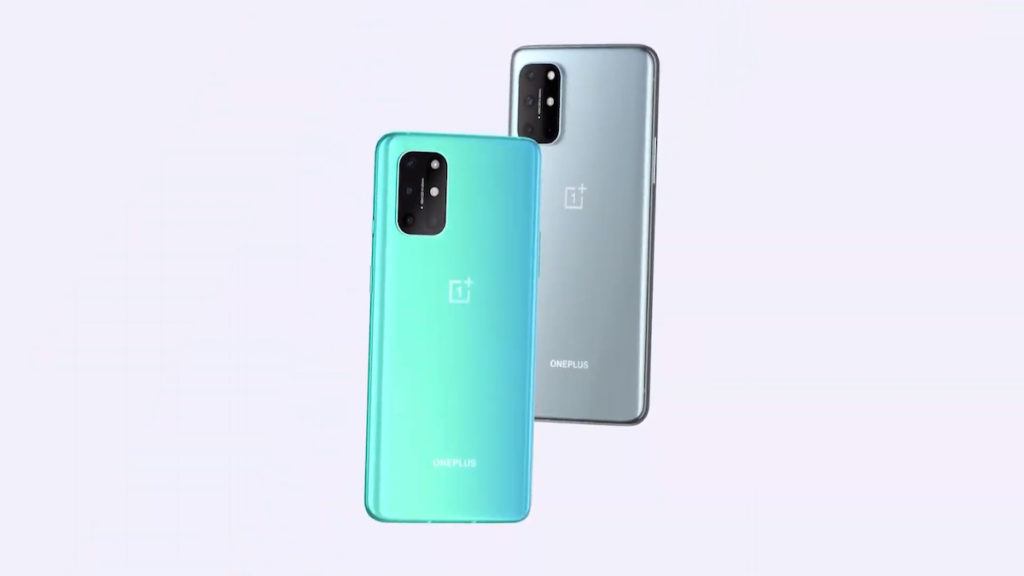
OnePlus 8T launched

For some, battery backup on a smartphone is extremely important, as well as how fast it can be charged. For those, the OnePlus 8T is a good option. The phone comes with a massive 4,500 mAh battery and can be fully charged in 40 min thanks to Warp Charge 65.

Other than that, the phone comes with a 6.55 inch Fluid AMOLED 120Hz display,  Snapdragon 865, a quad camera setup that includes a 48MP primary sensor, a 16MP ultrawide lens, a 5MP telephoto lens, and a 2MP portrait lens. The 8GB+128GB option is priced at Rs 42,999 (~$583).

Meanwhile, the Samsung Galaxy M51 is also a good choice if you are looking for the best battery phone for 2020 in the budget segment. It comes with a whopping 7000mAh battery that can give 24 hours of video playback on a single charge. In the box, you will get a 25W fast charging adapter.

Best compact smartphone of 2020

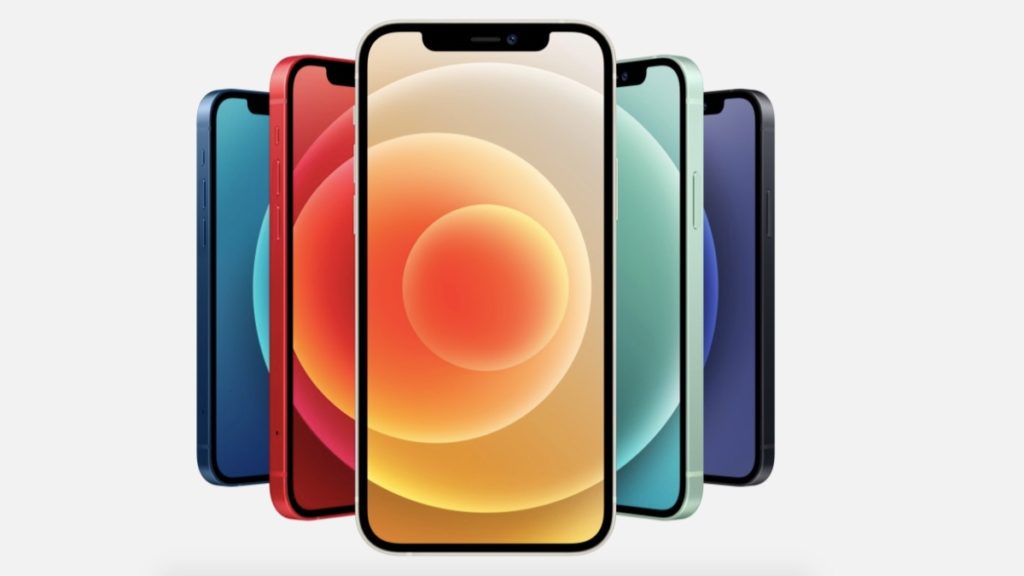
iPhone 12 adn iPhone 12 Mini battery

It’s a no-brainer that the iPhone 12 Mini is the best compact smartphone of 2020. In fact, the phone is a dream come true for people who have always wanted a powerful iPhone in a compact size.

The iPhone 12 Mini comes with a 5.4-inch OLED display, A14 Bionic chip, 4GB RAM with 64GB of storage on the base variant, all of which is supported by a 2,227 mAh battery which can give 15 hours of video playback on a single charge. Apart from screen size and battery, the iPhone 12 Mini and the standard iPhone 12 are technically the same.

They even have the same dual setup camera that includes a 12MP primary sensor and a 12MP ultrawide. The most compact phone of 2020 comes with all the flagship features such as 5G support, IP68 water resistance, fast charging, and support for wireless charging. The iPhone 12 Mini is priced at $699 for the 64GB option.

If you’re looking for something under budget, you can look at the Google Pixel 4a which comes with a 5.8-inch OLED display, Snapdragon 730G, a single 8MP camera, 6GB RAM coupled with 128GB of storage; all for 349$.

But if you want to stick with iOS, the other best compact phone 2020 in the budget segment is the iPhone SE 2020, which comes with a 4.7-inch HD LCD, last year’s A13 Bionic chip, 3GB RAM with 64GB of storage priced at $399.

Best camera smartphone of 2020

Mi 10 Ultra best camera smartphone 2020

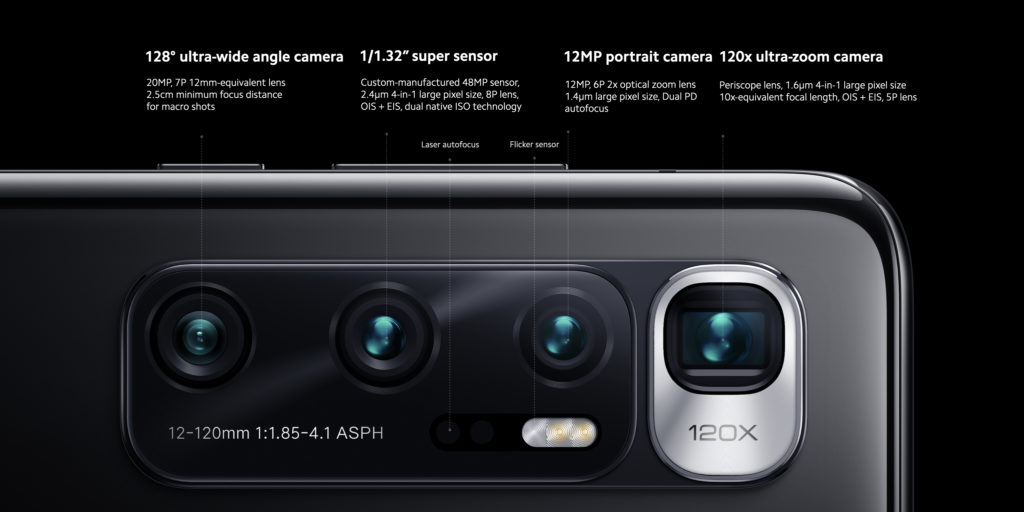
Today, most people prefer buying a smartphone with a good camera over spending money on a DSLR. And a lot of brilliant camera smartphones were launched in 2020. However, the best one of all we believe is Xiaomi Mi 10 Ultra.

The smartphone features a 6.6-inch 120Hz OLED single punch-hole display. The phone is powered by Snapdragon 865 and offers a 4500mAh battery — nothing out of the ordinary that you won’t see in a 2020 flagship phone. But what separates it from the rest is its massive quad camera that clicks amazing snaps.

  • 48MP primary camera with f/1.9 and 1.2µm pixels
  • 48MP telephoto lens with f/4.1, 5x optical zoom, 120x hybrid zoom and 0.8µm pixels.
  • 12MP another telephoto lens with f/2.0, 2x optical zoom and 1.4µm pixels.
  • 20MP ultra wide lens with f/2.2, 128° field of view and 1.0µm pixels.

The Xiaomi phone has been ranked third in DXOMARK’s list of best camera smartphones with an overall score of 133. The phone starts at  CNY 5,299 (~$811) and unfortunately is only available in China.

Another best camera smartphones of 2020 is the iPhone 12 Pro Max. The phone has been awarded a DXOMARK score of 130 so it’s pretty good.

Best mid-range smartphone of 2020

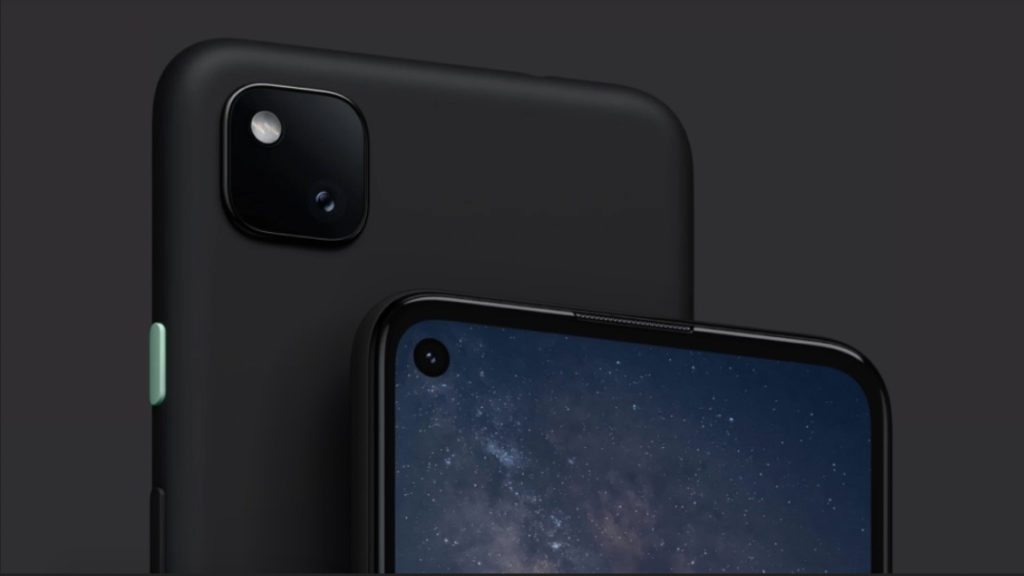
Google Pixel 4a will launch in India on 17 October

This year, Google blasted away the competition in the mid-range smartphone segment with its Pixel 4a. Here are three things on Google’s Pixel 4a that make it the best budget smartphone of 2020.

First, it’s part of the Pixel lineup, which means you get the true Android experience and Google’s support. Next is the iconic 12MP single lens that is known for clicking amazing photos. Lastly, the affordable price of Google Pixel 4a.

There are some downsides, though, like the speakers are not very great and it’s not the best performing smartphone out there thanks to the Snapdragon 730G. Still, we think it’s the best mid-range smartphone of 2020.

Best affordable smartphone of 2020

Poco X3 shadow grey

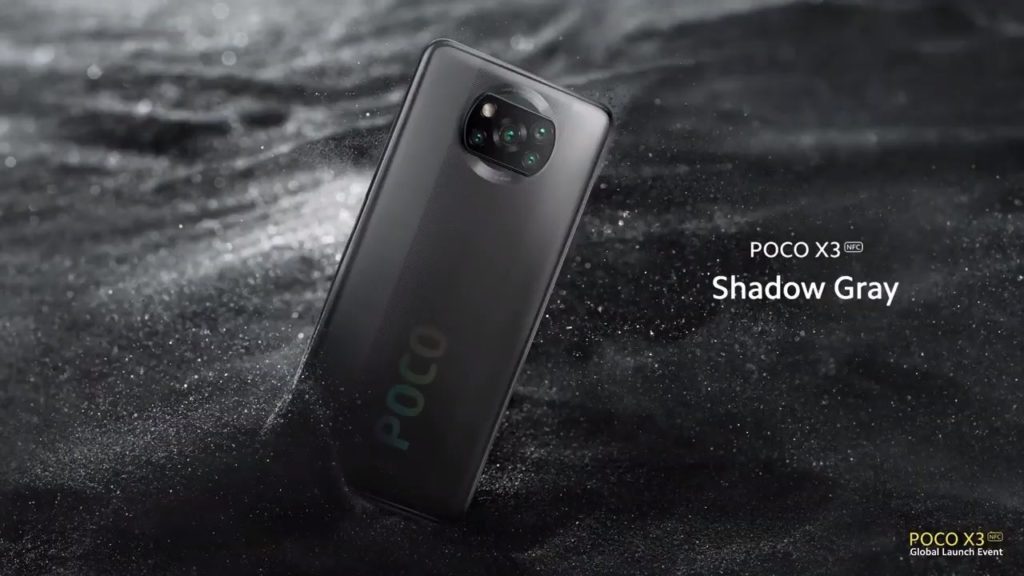
Smartphones are getting cheaper every day. Features that were once only seen on flagship devices are now available on every cheap smartphone. One such smartphone that deserves to be called the best affordable smartphone of 2020 is the Poco X3.

The Poco phone comes with a 6.67-inch 120Hz FHD+ LCD with a punch hole at the center. Under the hood, the phone is powered by Snapdragon 732G and runs on a whopping 6,000mAh battery. The 6GB+64GB variant is priced at Rs. 15,999 (~$217). However, we think you should buy the 6GB+128GB variant that is just another 1000 bucks (~$13).

Poco X3 is the best cheap smartphone that you can buy in 2020.

Best gaming smartphone of 2020

Asus Rog Phone

Similar to how the camera is important for some, smartphone gaming is important for others. When games such as Genshin Impact 3D bring PC gaming like graphics on smartphones, it’s important that you have a powerhouse in your reach.

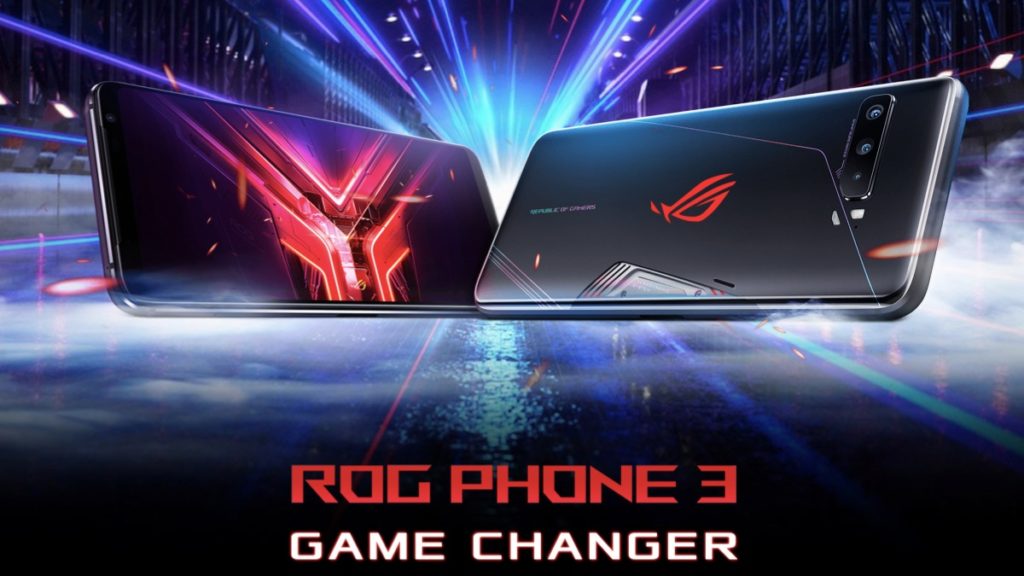
For that, the Asus ROG Phone 3 is the perfect fit. The phone comes with a 6.59-inch 144Hz AMOLED display, Snapdragon 865 Plus, and a 6,000 mAh battery for all-day gaming.

The phone also has Copper 3D vapor cooling, fast AirTriggers on the side, 30W fast charging, and 5G support. The ROG phone also comes with in-game device customization and other game-related features. You can also buy ROG phone accessories such as a ROG Kunai gamepad or AreoActive Cooler. The smartphone is priced at Rs. 46,999 (~$638) for the 8GB+128GB option.


So these were some of the best smartphones of 2020.

Let us know if we missed any 2020s best smartphones in the comments down below.

The post 8 Best Smartphones Of 2020 | Phones That Stood Out This Year appeared first on Fossbytes.


8 Best Smartphones Of 2020 | Phones That Stood Out This Year
read more
Playing Grand Theft Auto Inside A Neural Network’s Hallucination? It’s Possible!
Ever imagined what a Neural Network's hallucination would look like? The post Playing Grand Theft Auto Inside A Neural Network’s Halluc...