Thursday, February 4, 2021

Solus 4.2 ‘Fortitude’ Linux Distro Is Out, Removes YouTube-dl Package

Solus 4.2 'Fortitude' Linux Distro Is Out, Removed YouTube-dl Package

After almost a year of development, a new version of Solus 4 ‘Fortitude’ series called Solus 4.2 has been released.

Solus 4.2 supersedes the previous version 4.1 with new desktop environment updates, software stacks, multimedia upgrades, and hardware enablement.

What’s New In Solus 4.2 ‘Fortitude’?

The latest version 4.2 comes with the LTS Linux kernel 5.10.12, which brings support for a range of the newer hardware such as newer AMD Ryzen 5th generation processors and Intel Comet Lake CPUs.

All editions of Solus 4.2 now features the updated applications, which include Firefox 85.0, LibreOffice 7.0.4.2, and Thunderbird 78.6.1.

Additionally, it has upgraded open-source 3D computer graphics library Mesa to version 20.3.3.

Subsequently, Mesa 20.3.3 provides support for new GPUs, Vulkan 1.2 API support, and enabled ACO shader compilation by default for the RADV Vulkan driver.

Furthermore, version 4.2 has upgraded several multimedia packages, such as FFmpeg 4.3.1, dav1d AV1 decoder 0.8.1, GStreamer 1.18.2, and Pulseaudio 14.1.

Among the other new features and hardware enablement, this is what Solus 4.2 include:

  • Removed youtube-dl package
  • Enabled ACPI and HID ambient light sensors
  • Enabled NVMe hardware monitoring
  • Fast charge control for iOS devices.
  • Improved exFAT file system support
  • Intel Classmate accelerometer, backlight, and input device support
  • Added new USB cameras

Speaking of the changes for each edition available, let’s take a look at a brief list:

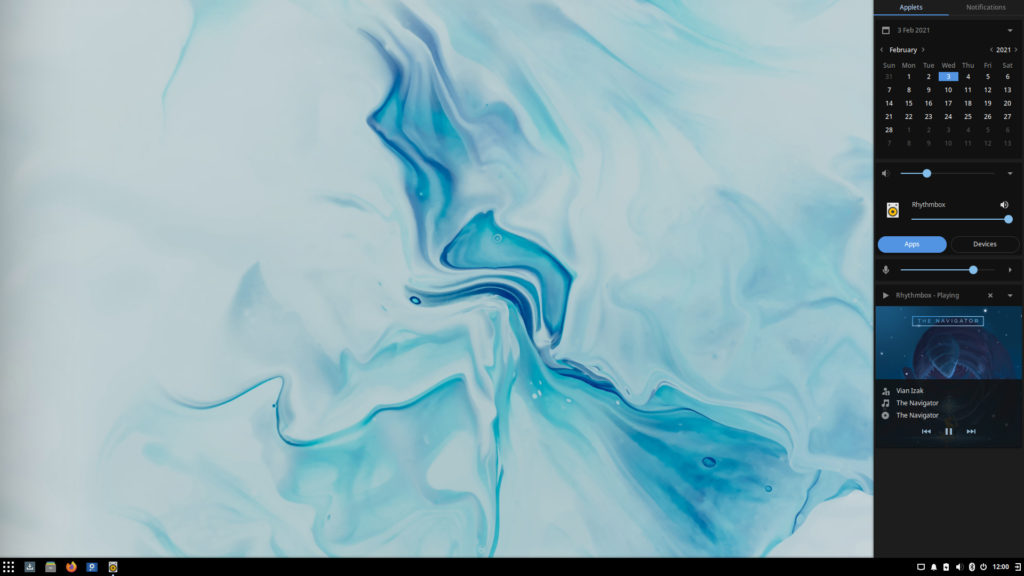
Solus 4.2 Budgie Edition

Solus 4.2 Budgie Edition
  • Budgie 10.5.2 desktop environment
  • New desktop icons implementation
  • Budgie Menu no longer show empty categories
  • Budgie Menu alphabetically sort category names
  • Complete rewrite of System Tray implementation
  • Redesigned Sound applet featuring a dedicated button for mute toggling

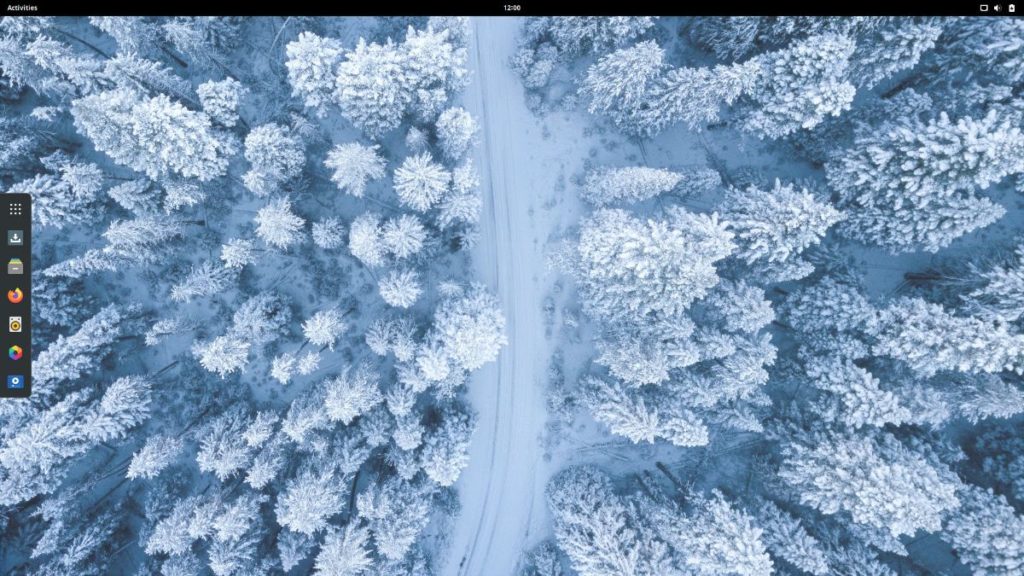
Solus 4.2 GNOME Edition

Solus 4.2 GNOME Edition
  • GNOME 3.38.3 desktop environment
  • A brand new major release of Tracker, GNOME’s search engine and database for the local and remote content
  • Disks now always show other filesystem format choices
  • GNOME Shell provides ‘Boot Options’ support to restart dialog
  • Restart option moved into a separate menu item
  • Improvement to Mutter window manager

Solus 4.2 MATE Edition

Solus 4.2 MATE Edition
  • MATE 1.24 desktop environment
  • Brisk Menu 0.6.2
  • Caja file manager now shows thumbnails in its list view
  • Engrampa now has support for more formats
  • MATE Control Center now display its icons correctly on HiDPI displays
  • Pluma plugins now fully switched to Python 3

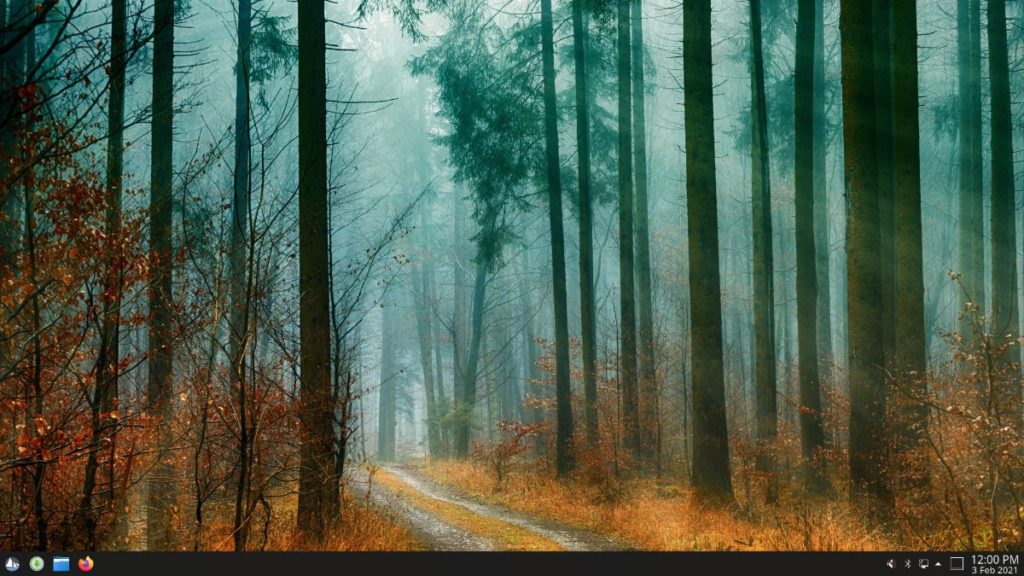
Solus 4.2 Plasma Edition

Solus 4.2 Plasma Edition
  • Plasma 5.20.5 desktop environment
  • KDE Frameworks 5.78, KDE Applications 20.12.1 and QT 5.15.2
  • Solus Wallpaper in different sizes
  • Change Dolphin to always open in the HOME directory
  • Various improvements to System Settings and Info Center

At last, if you want to try Solus 4.2 Linux distribution, download the image of any available edition from here.

The post Solus 4.2 ‘Fortitude’ Linux Distro Is Out, Removes YouTube-dl Package appeared first on Fossbytes.


Solus 4.2 ‘Fortitude’ Linux Distro Is Out, Removes YouTube-dl Package
read more

Wednesday, February 3, 2021

How To Get Old Google Icons Back If You Don’t Like The New Ones?

get old google icons back

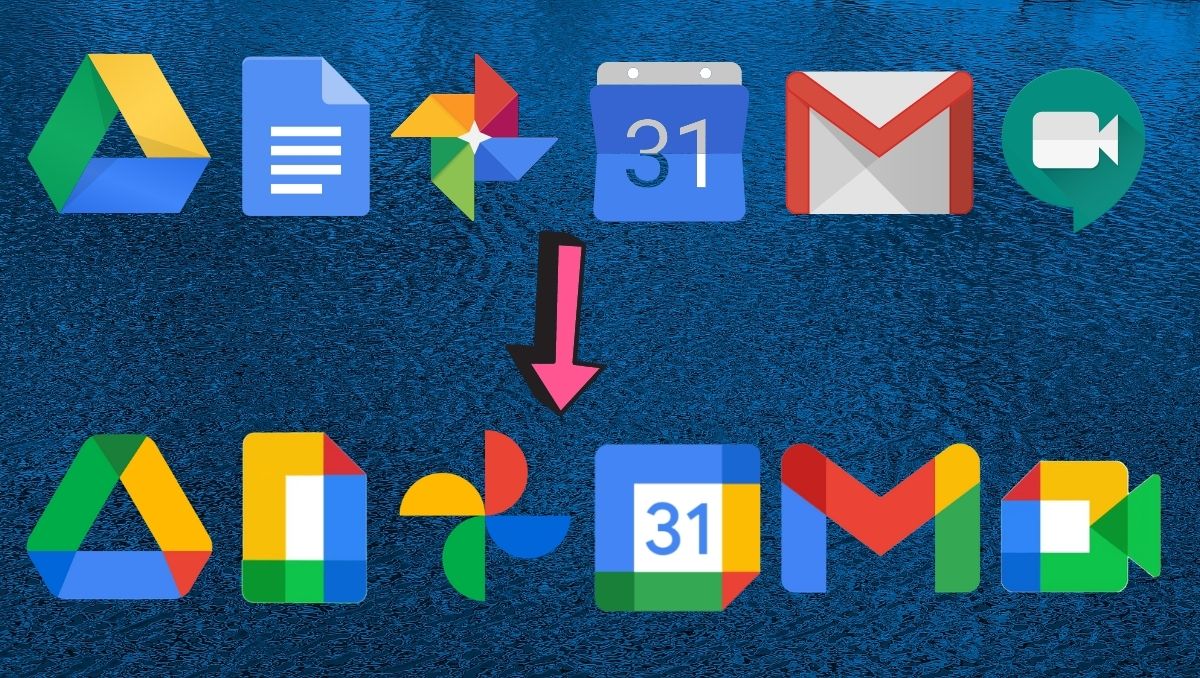
Google has been one of the few companies that besides giving importance to the quality of their products and services, also invests a lot of time making them visually appealing. Users have always appreciated the UI/UX elements of Google apps until the recent update.

In the last major update, Google redesigned all the icons of G-Suite with an intent to make them “visually appealing.” Instead, they ended up disappointing a lot of people, including me. In the new update, all the app icons have the same color pallet, making them challenging to differentiate.

Hence, in this article, let’s look at how to get old Google icons back if you don’t like the new ones.

Get Old Google Icons Back On Android

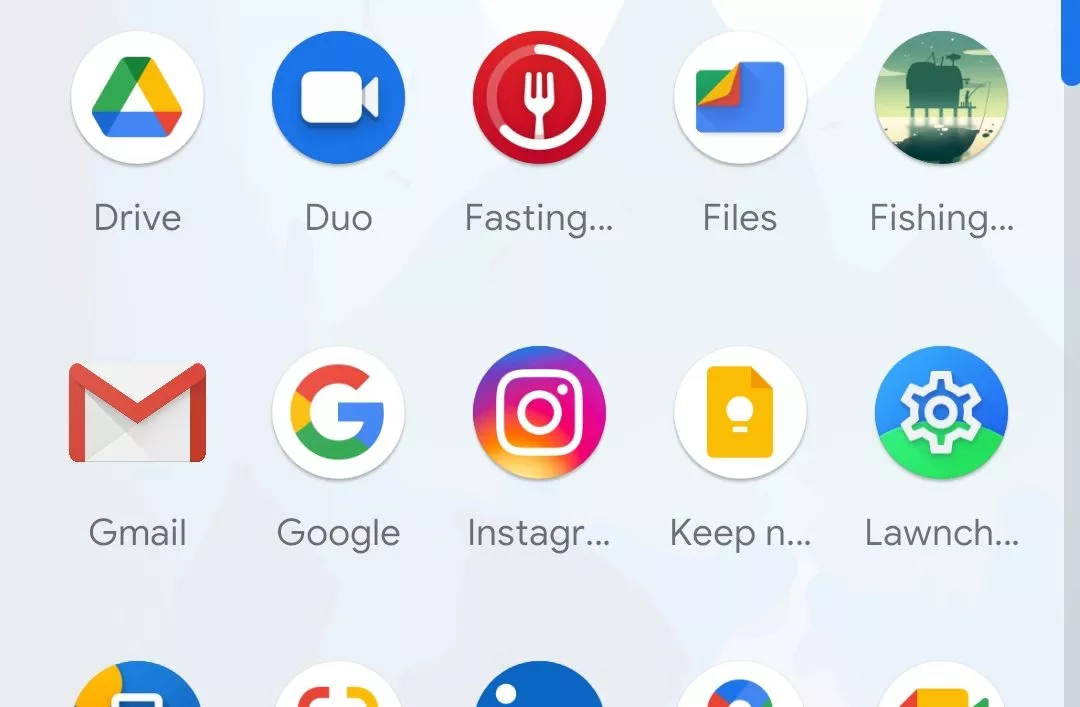
Thanks to Android’s open-source nature, installing a third-party launcher will help us replace/restore old Google App icons. In this tutorial, I’ll use one of my most favorite open-source launchers, “Lawnchair.”

  1. Install Lawnchair

    Head over to the Google Play store and install Lawnchair.

  2. Set it as the default launcher

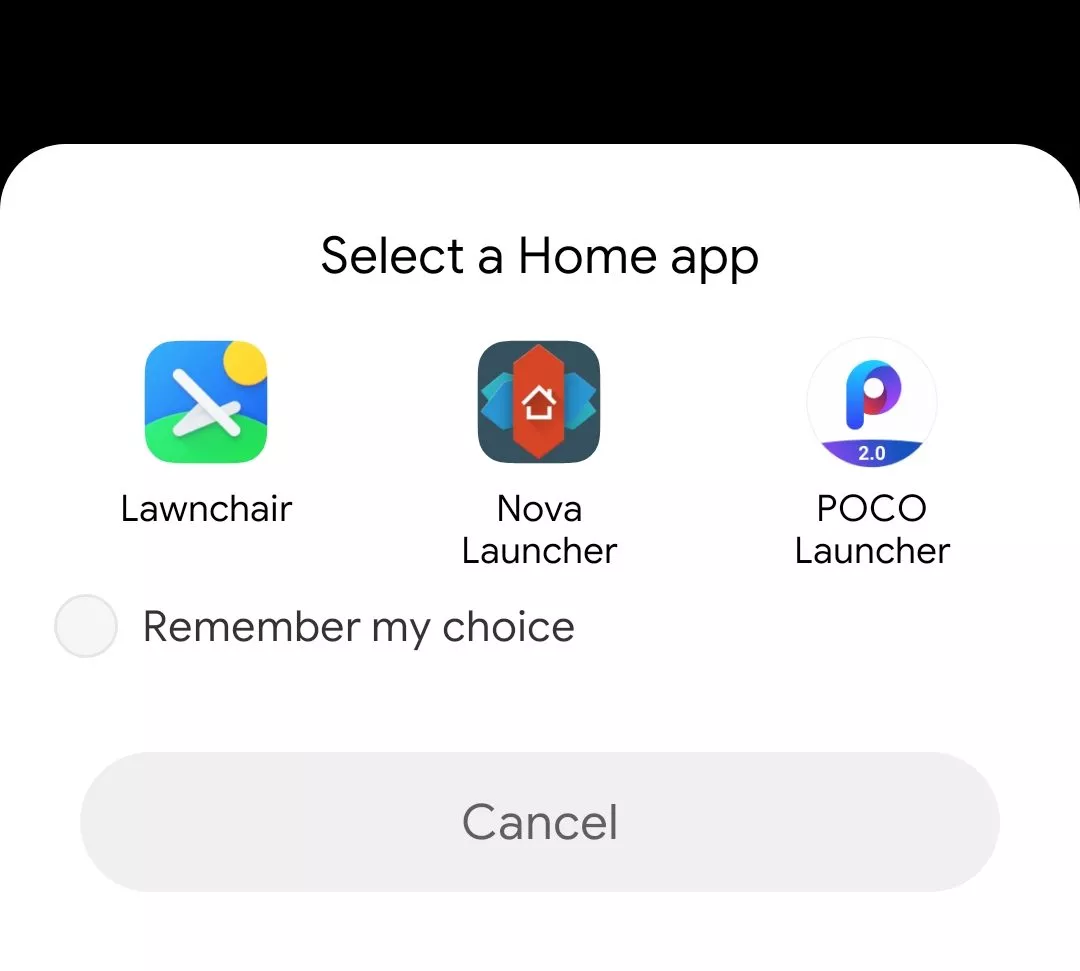
    Open Lawnchair and set it as your default launcher
    choose default launcher - how to get old google icons back if you dont like the new ones.

  3. Download the icon images

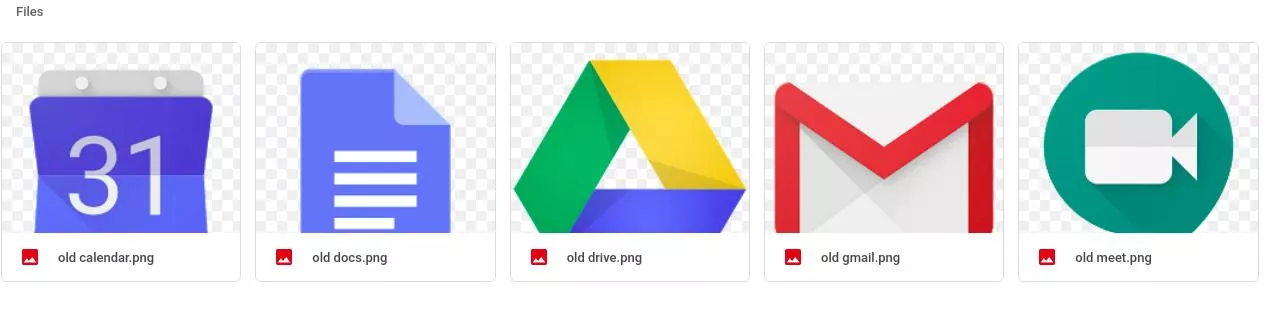
    Click on this Google Drive link and download the icons.
    old google icons - "how to get the old google icons back if you dont like the new ones"

  4. Change the icons

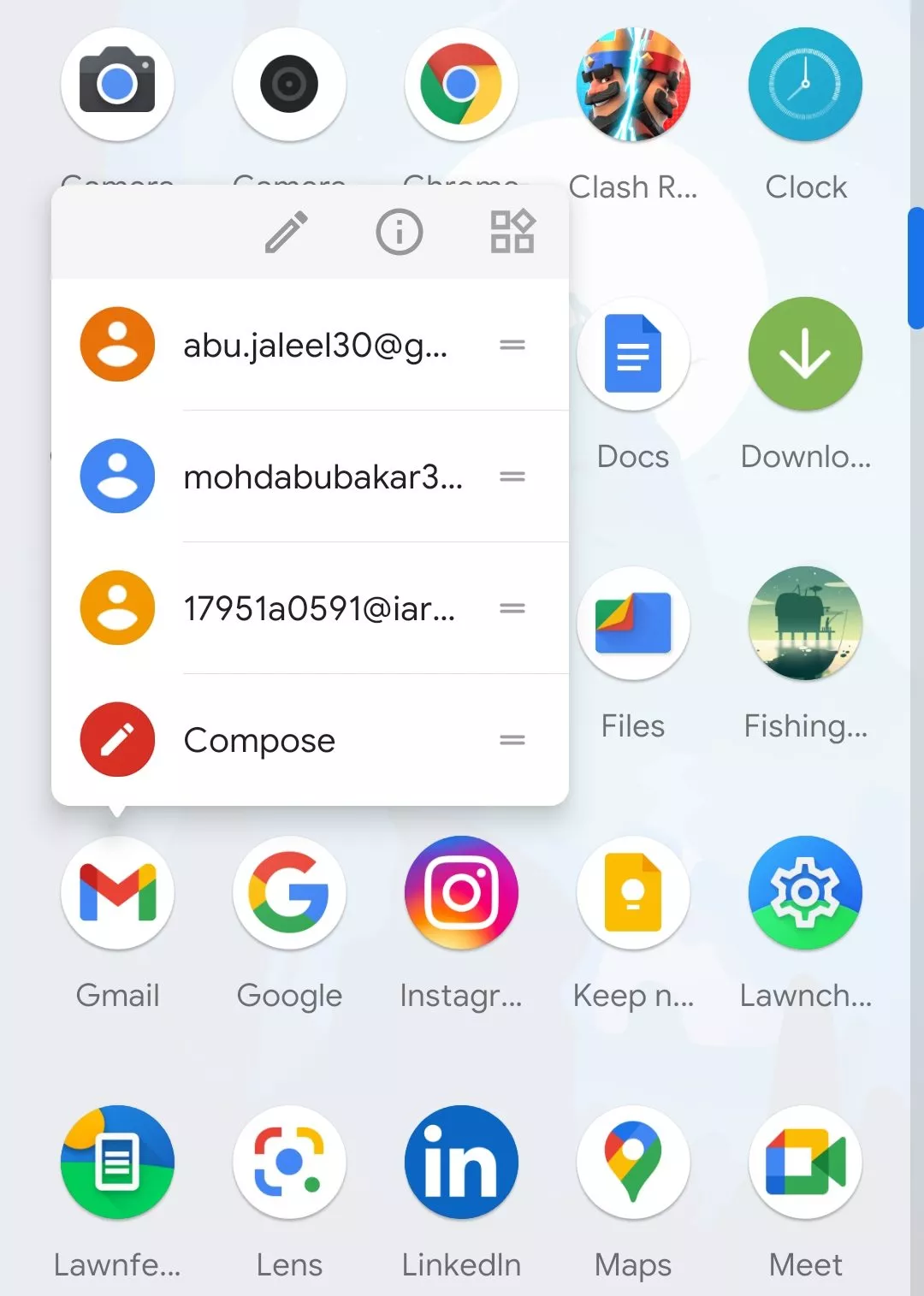
    Let’s change the Gmail icon. Long press on the Gmail app and click on the little pencil icon at the top.
    new gmail icon - how to get the old google icons back if you dont like the new ones

  5. Change the icons – Step 2

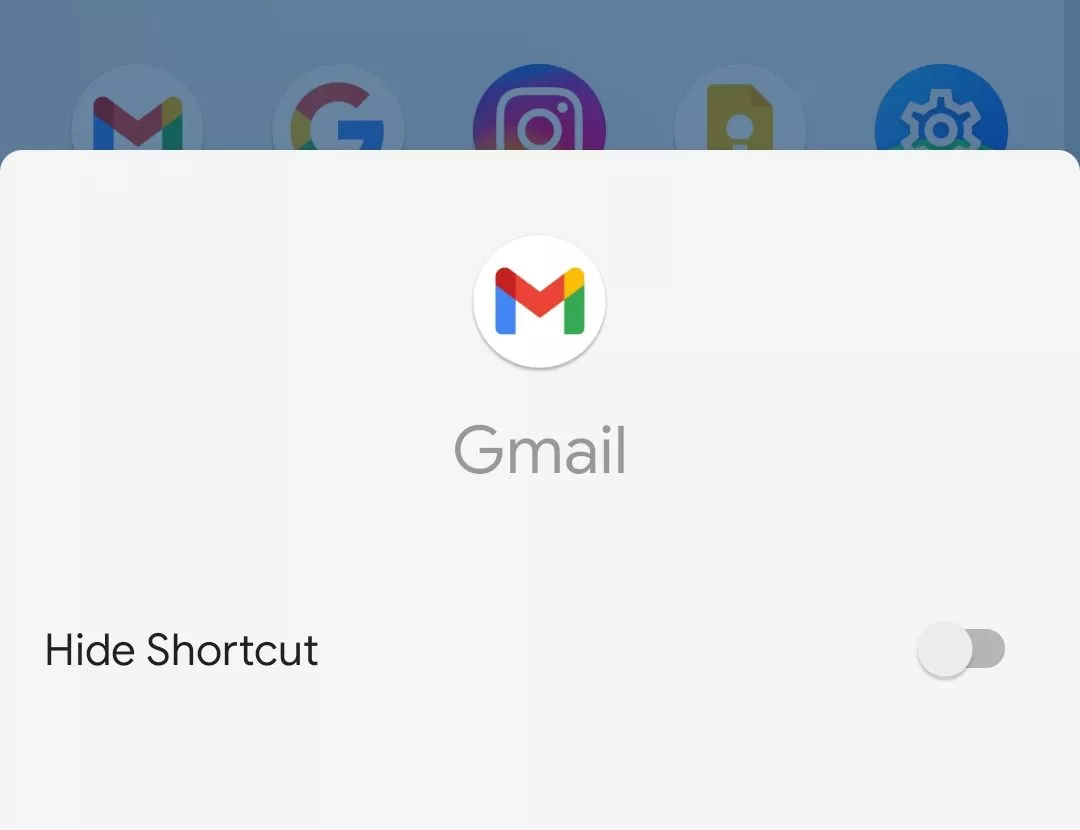
    Click on the new Gmail icon.
    click on the gmail icon

  6. Change the icons – Step 3

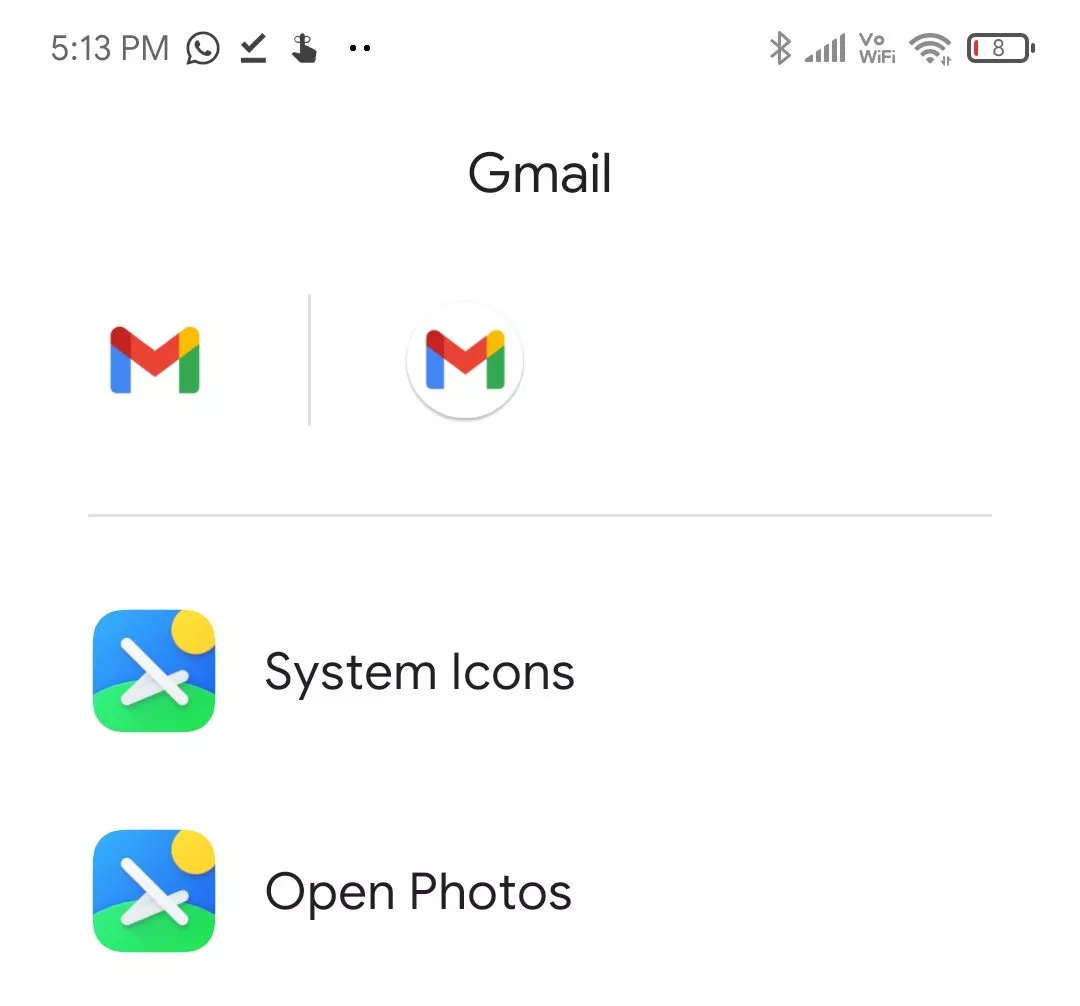
    From the icon options that appear, click on the Open Photos option. This will open up your default Android file manager.
    select open photos lawnchair

  7. Change the icons – Step 3

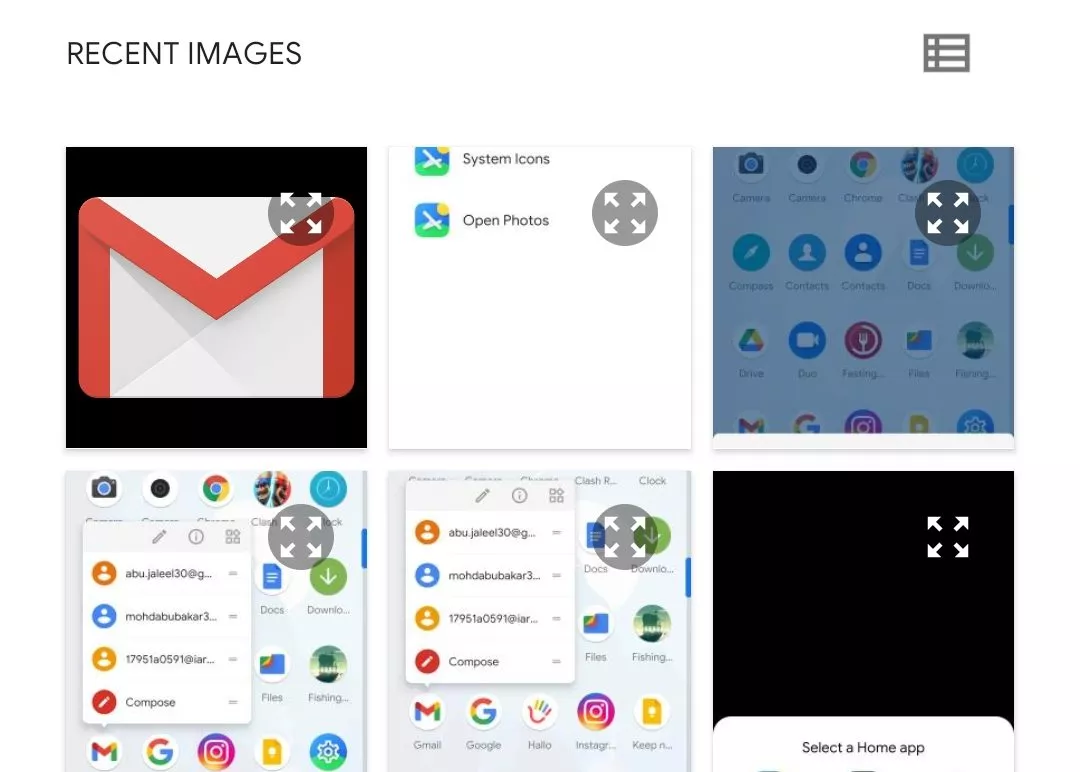
    Now, navigate to the folder where you saved the icons and choose the app’s respective icon.select old gmail icon

  8. Follow same steps to change all the icons

    Click on OK, and you’ll see the new Gmail with the old Google Icon. Easy peasy, right? Now, do the same for the remaining apps, and you’re good to go. old gmail icon lawnchair

Revert To Old Icons On iOS Using Shortcuts

You can get the old icons back on iOS using the Shortcuts app, but the process is quite time-consuming.

  1. Install the Shortcuts app

    Head over to the App Store and install the Shortcuts app.

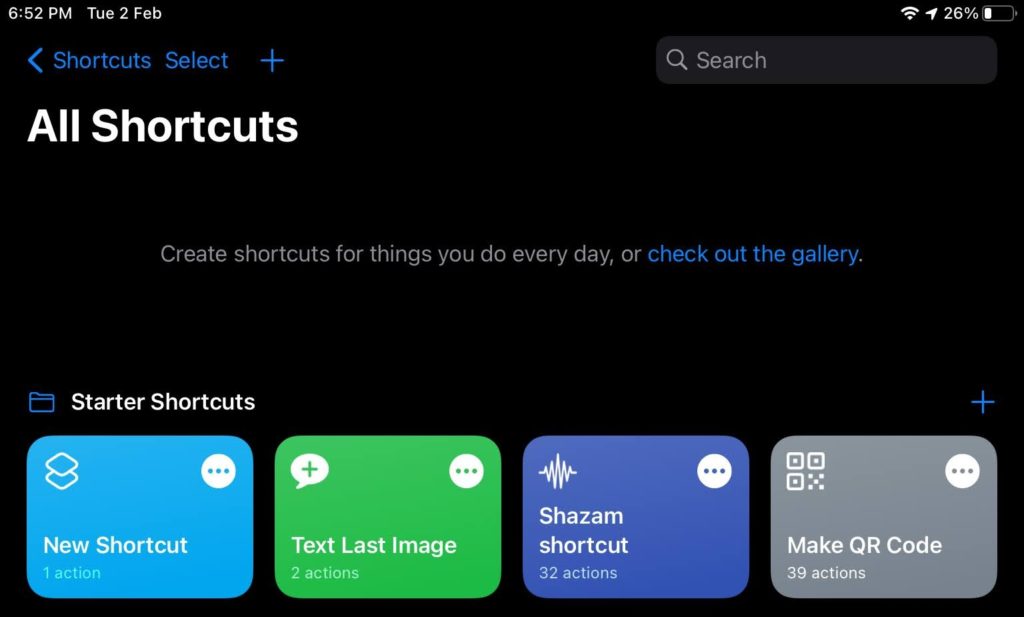
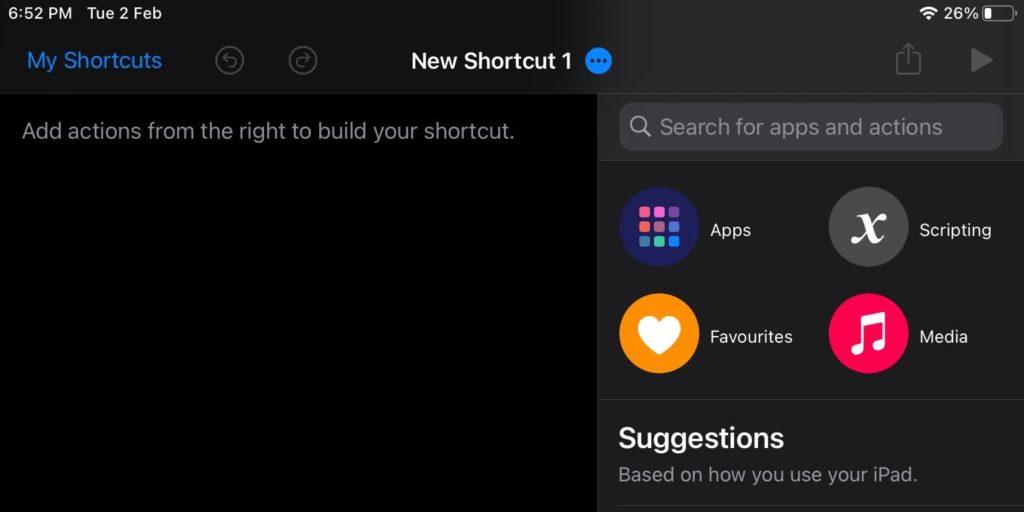
  2. Add a new shortcut

    Fire up the app and tap on the + icon to add a new shortcut.

  3. Tap on Scripting

    Tap on the “Scripting” icon and select the Open App option. This will create a new app shortcut but wait; we're not done yet!

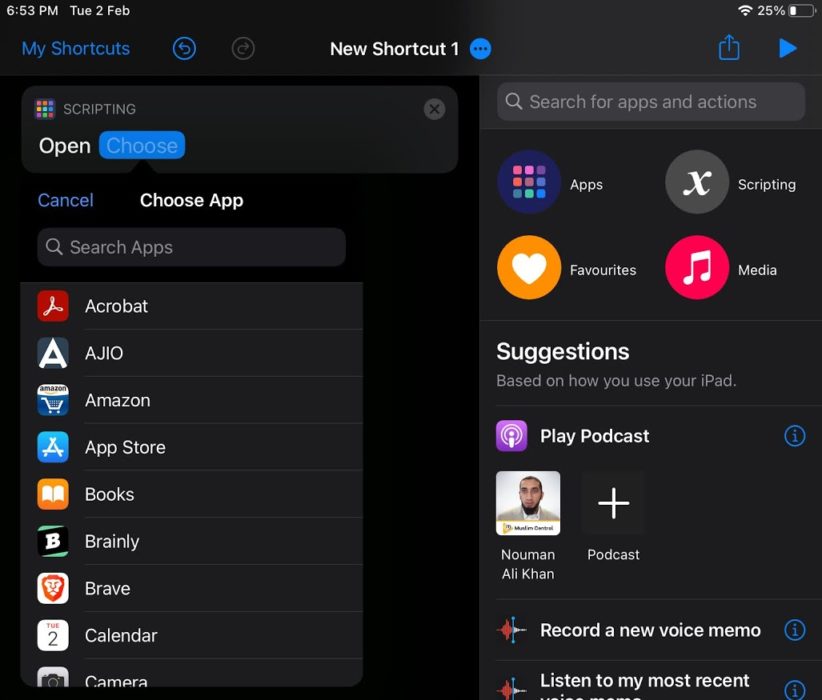
  4. Choose the app

    Near the newly created app shortcut, click on Choose. From the dropdown app menu, select the Google app, which, in our case, is Google Drive.

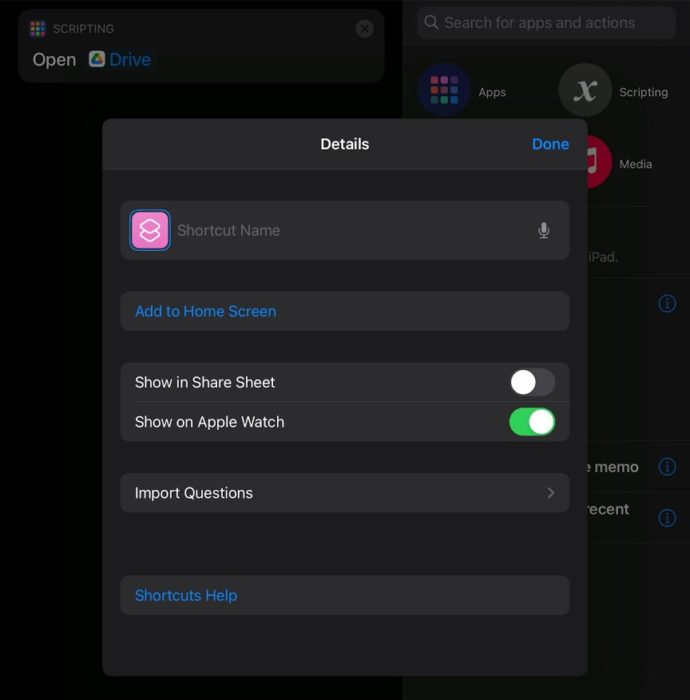
  5. Rename the shortcut and add an icon

    In the top bar, find and click on the three-dot icon to reveal the shortcuts details menu. Rename the shortcut and tap on Add to Home Screen.

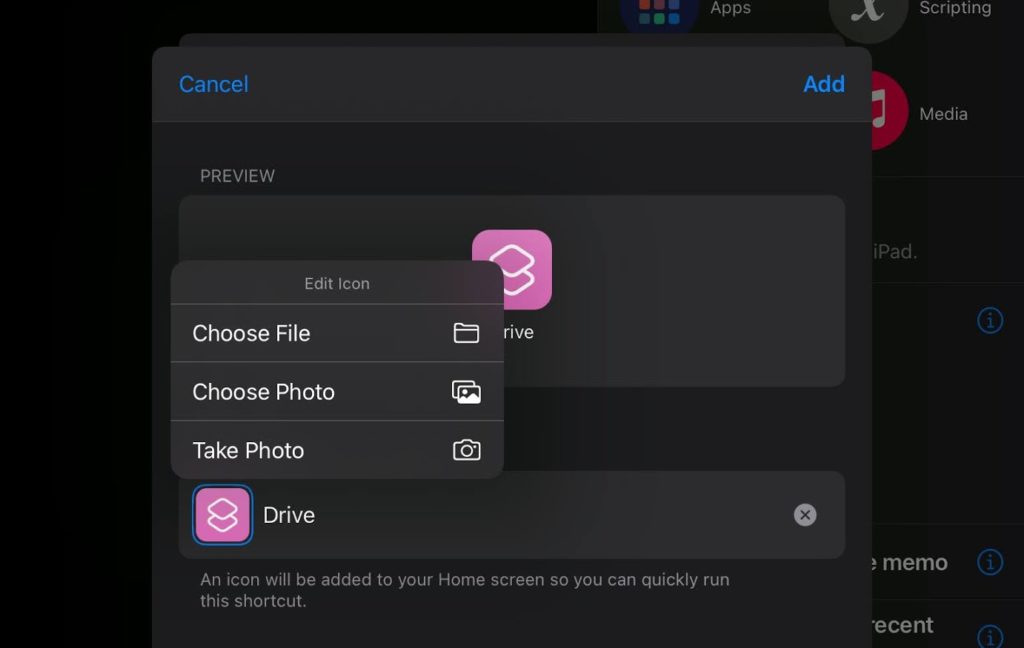
  6. Set the app icon

    Tap on the shortcut icon to reveal the Edit Icon menu. Download and select the appropriate icon.

  7. Finally, click on Add, and the app shortcut will be created.

Phew! That was pretty hectic wasnt it? What do you think of Googles New app icon designs? Let us know in the comments section below.

Do let us know in the comments section if you face any issues in this tutorial.

The post How To Get Old Google Icons Back If You Don’t Like The New Ones? appeared first on Fossbytes.


How To Get Old Google Icons Back If You Don’t Like The New Ones?
read more

The Witcher Season 2: Release Date, Cast, Trailer, Anime & More

The Witcher Season 2 Release Date, Cast, Trailer, Anime & More

After the insane popularity of CD Projekt Red’s Witcher video games, Netflix decided to tell the story of Geralt of Rivia on the OTT platform. Witcher Season 1 was released in 2019 and became one of the best Netflix Originals. Now, Fans who loved the first season are desperately waiting for the release of The Witcher Season 2.

Throughout 2020, Netflix teased the fans through pieces of information on The Witcher series’ future. Well, in this post, we have mentioned everything we know about The Witcher Season 2. So, if you want to learn about The Witcher Season 2 release date, cast, etc., go ahead and read the entire post.

The Witcher Season 2 Release Date

The-Witcher-Season-2-images
The Witcher Season 2

The Witcher Season 2 is expected to release by the end of 2021. However, as of now, there is no exact release date for the second season from Netflix.

Netflix confirmed that the cast of the Witcher Series started filming the second season in August 2020. Unfortunately, the filming was put on halt twice because of the COVID-19 pandemic and Henry Cavill’s leg injury.

Nevertheless, Platige Image, a special effects company, announced that its work for The Witcher Season 2’s all eight episodes is due in July 2021. So, we might get the Witcher Season 2 release date in the same or the following month.

The Witcher Season 2 Trailer: When Are We Getting One?

Unfortunately, right now, there isn’t any trailer for The Witcher Season 2. However, considering the high chances of Season 2 releasing in 2021, we might get a trailer in a couple of months, possibly before August 2021.

The Witcher Season 2 First Look

If you want to get the first look at The Witcher Season 2, you’re in luck. Last year in October, Netflix released a few first-look photos of Geralt, Ciri, and Yennefer in Season 2.

Yennefer is all bruised up in the photos, so it’s safe to say her journey isn’t full of roses. Also, Ciri is holding a sword, which means in the coming season, Geralt of Rivia will train Ciri.

Other than that, Netflix also teased some sneak peeks from the sets of The Witcher Season 2 in December 2020.

The Witcher Season 2 Story

As already stated, in The Witcher Season 2, we’ll see Geralt training Ciri. So, Ciri’s journey to survive in the unknown and bloodthirsty world will take the spotlight. We also expect to witness the life of humans and monsters under the Nilfgaardian rule.

It’s hard to say if Yennefer and Geralt will reunite in Season 2. That’s because Geralt will be under the impression that Yennefer died during the Battle of Sodden.

Interestingly, we’ll get to see Kaer Morhen in The Witcher Season 2. For those unaware, Kaer Morhen is an old keep in the mountains where Witchers of the School of the Wolf used to train. Kaer Morhen is the first thing players see when they start playing The Witcher 3: Wild Hunt. There, we see a flashback of Geralt and Vesemir training Ciri in her childhood. So, we’ll possibly see the same sight in The Witcher Season 2.

The Witcher Season 2 Cast

Ciri-in-The-Witcher-Season-2
Image Credit: Netflix

Of course, Henry Cavill, Anya Chalotra, and Freya Allan will resume their roles in The Witcher Season 2. Other than that, several new faces have been confirmed for the upcoming season of The Witcher. Here’s the complete list:

  • Geralt Of Rivia (Henry Cavill)
  • Yennefer (Anya Chalotra)
  • Ciri (Freya Allan)
  • Jaskier (Joey Batey)
  • Triss (Anna Shaffer)
  • Cahir (Eamon Farren)
  • Tissaia (MyAnna Buring)
  • Filavandrel (Tom Canton)
  • Stregobor (Lars Mikkelson)
  • Artorius (Terence Maynard)
  • Sabrina (Therica Wilson Read)
  • Murta (Lilly Cooper)
  • Yarpen Zigrin (Jeremy Crawford)
  • Istredd (Royce Pierreson)
  • Lambert (Paul Bullion)
  • Coën (Yasen Atour)
  • Eskel (Basil Eidenbenz)
  • Vesemir (Kim Bodnia)

The Witcher Anime

Netflix already confirmed that it is working on ‘The Witcher’ anime movie that might release for The Witcher Season 2. Kim Bodnia, the actor who signed up for playing Vesemir in The Witcher Season 2, will possibly do the voice in the anime movie.

The Witcher: Nightmare Of The Wolf will tell the story of Geralt’s mentor, Vesemir. The movie will show the journey of Vesemir when he started as a Witcher. Netflix’s description of the upcoming Witcher anime movie says, “Long before mentoring Geralt, Vesemir begins his own journey as a witcher after the mysterious Delgan claims him through the Law of Surprise.” 

So, that’s all you need to know about The Witcher Season 2. Nevertheless, we’ll update this post if there’s any other news on the second season.

The post The Witcher Season 2: Release Date, Cast, Trailer, Anime & More appeared first on Fossbytes.


The Witcher Season 2: Release Date, Cast, Trailer, Anime & More
read more

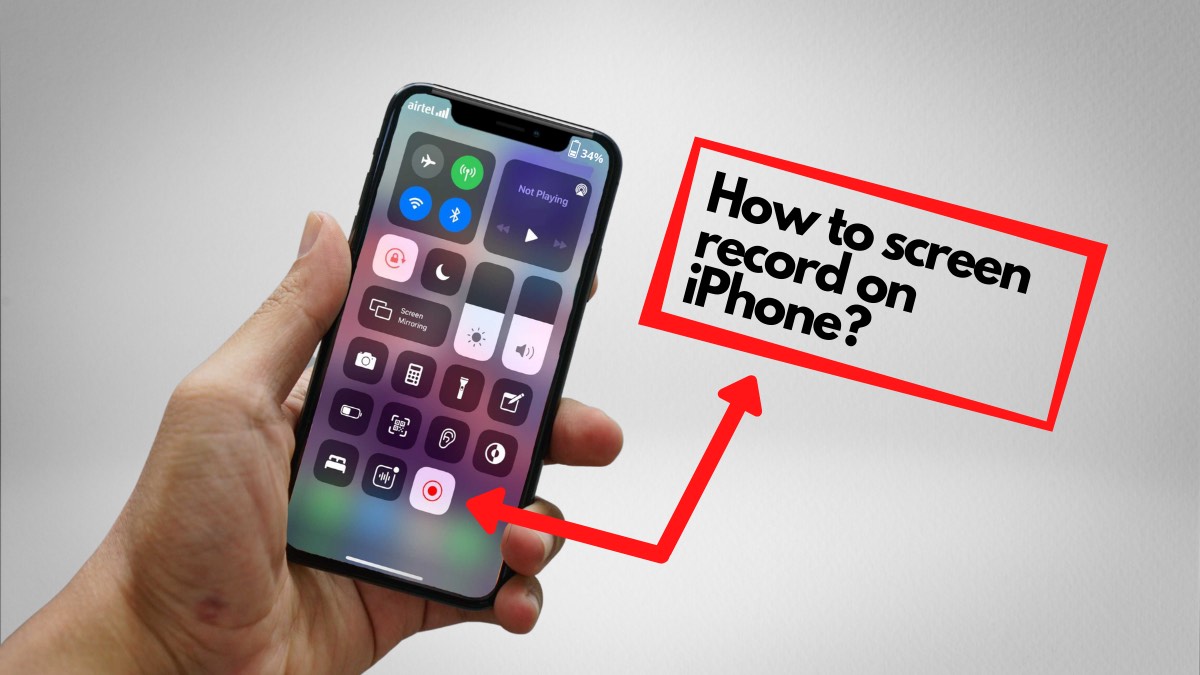
How To Screen Record On iPhone 11 (Internal Audio/External Audio/Both)?

How to screen record on iPhone (12)

Just bought the iPhone 11? One of the cool things about having an iPhone is that you can easily screen record on your iPhone 11 without needing to download a third-party app. Once the video is recorded, you can edit the video in the Photos app and send it to your friends.

The option to screen record on the iPhone 11 will prove handy if you want to capture gameplay, create a tutorial video, record a Facebook video, etc.

Whatever your reason may be, here’s how to get a screen recording done on your iPhone 11.

How to screen record on iPhone 11?

Note: This method to screen record on the iPhone 11 works on all iPhone and iPad models running iOS 11 or later

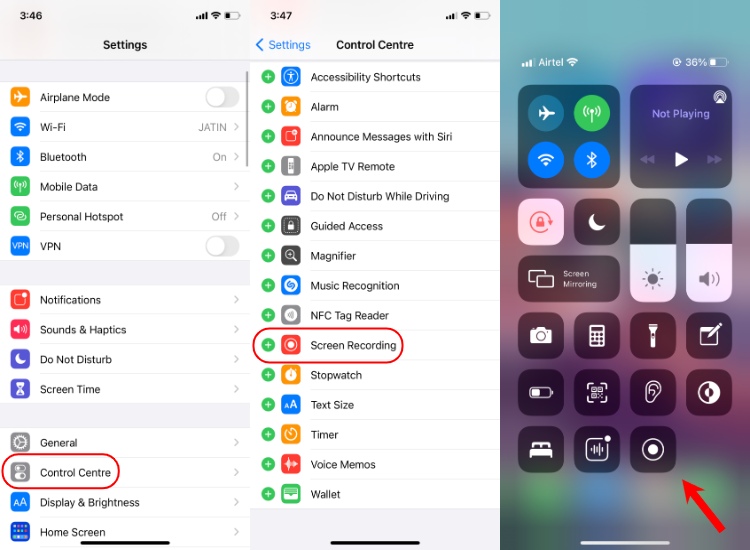
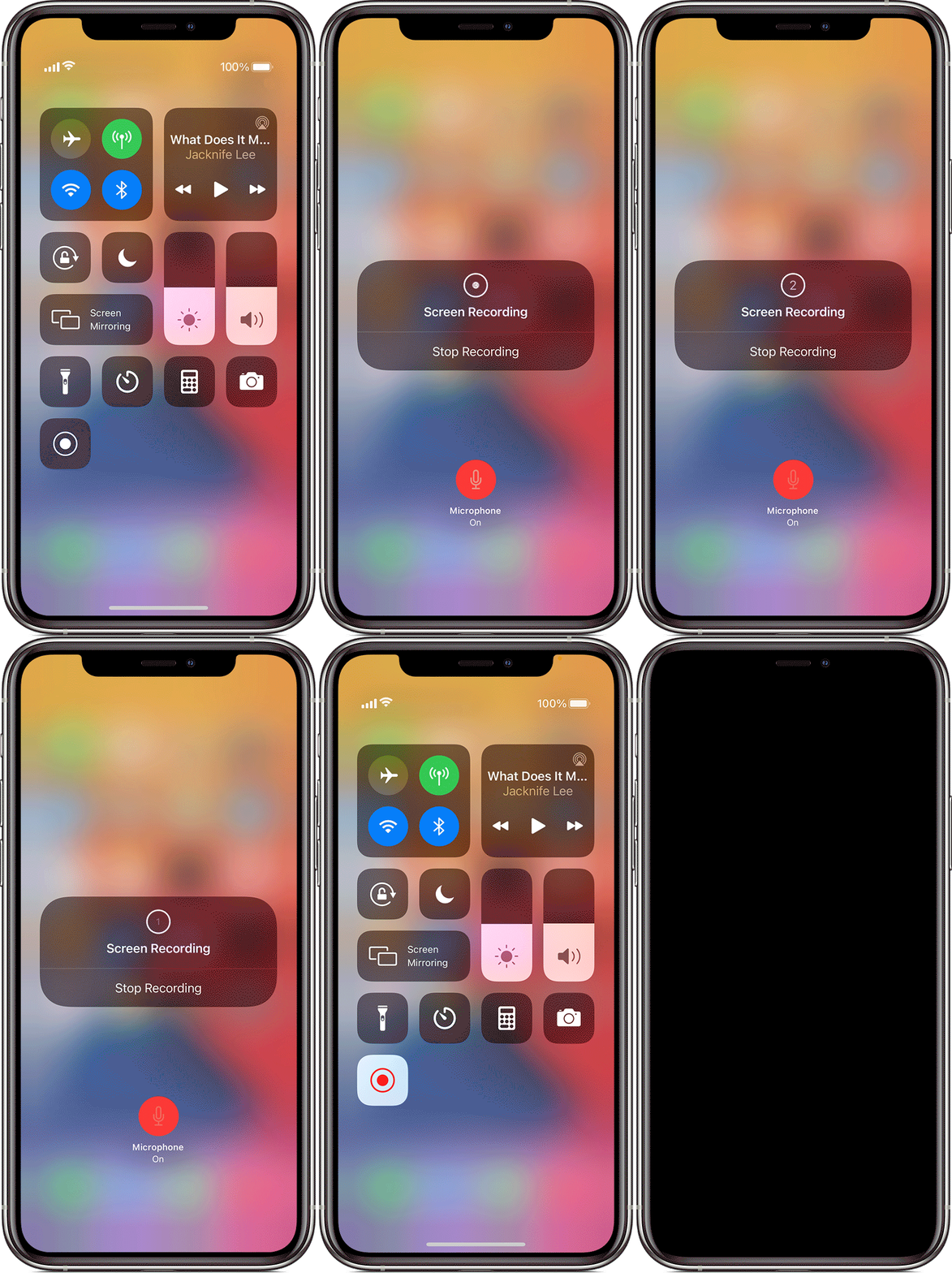
  1. Add the screen recording feature to the iPhone Control Center.

    Go to iPhone Settings > Control Center > Scroll down and tap on the + icon next to the Screen Recording.How to add screen record iPhone

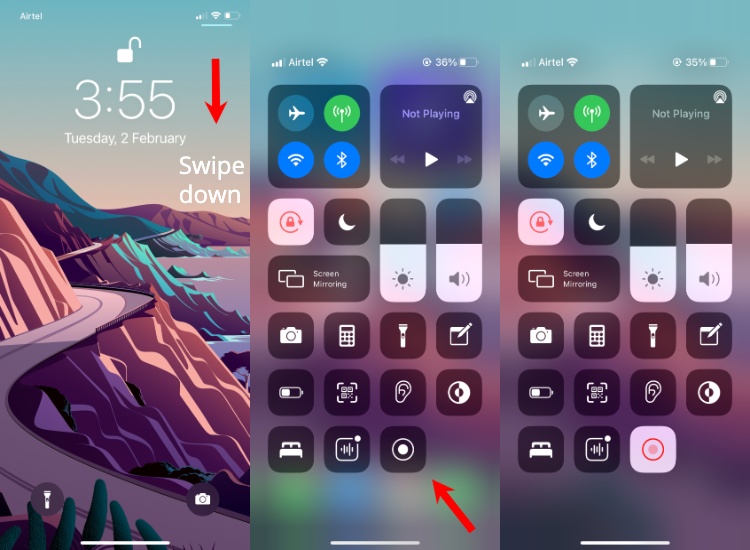
  2. Enable screen recording on iPhone in the Control Center.

    Swipe down from the top-right edge of the screen to go to the Control Center. Tap on the record button (Solid circle within a circular outline). The screen recording will begin after a 3-second countdown.how to enable screen record iphone

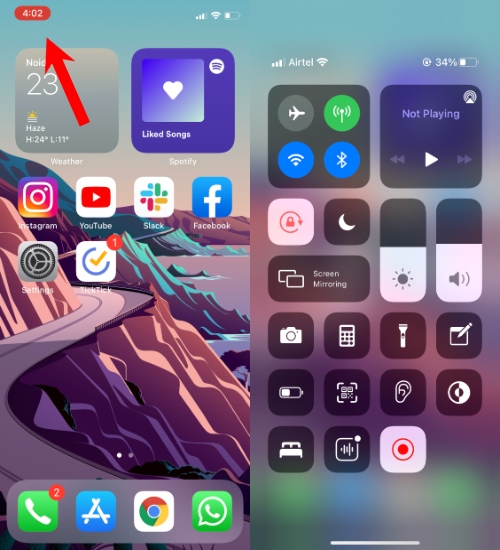
  3. Stop the recording by tapping on the red icon on the left edge of the home screen.

    You can also stop the screen recording by going back to the Control Center and tapping on the now-blinking red record button.how to stop iphone screen record

Once you have stopped the screen recording, it can be viewed in the Photos app.

How to screen record on iPhone 11 with external audio?

If you want to make a tutorial video that should include your voice, use the below method to record screen on an iPhone 11. Before proceeding, make sure you have added the screen recording button to the Control Center.

  1. Go to the iPhone Control center
  2. Long-press the screen record button
  3. Tap on the Microphone button to turn it on
  4. Tap on Start Recording

You will now be able to get screen recordings done on your iPhone with external audio. If you want the iPhone to screen record only with internal sound, again long press on the record button in the Control Center and tap on the Microphone button to turn it off.

That’s all! You can use these methods to screen record on your iPhone. Note that some streaming services like Netflix don’t allow users to screen record. However, you can use it to record YouTube videos or videos played on a browser.

FAQ

1. How to screen record on iPhone 11 with sound (internal and external)?

If you want both phone audio and ambient sounds in your screen recording, just make sure your iPhone is set to Ring mode and the media volume is turned to 100%. Also, the microphone is toggled on in the screen record settings.

2. How to screen record on iPhone 11 with only external sound?

If you only want your voice on the screen recording and no other sounds, just put the iPhone to silent mode and turn the media volume to zero.

3. How to screen record on iPhone 11 with no sound?

There are two ways to do this — 1) Keep the phone on silent mode and the microphone button toggled off before recording. 2) Once the video is recorded, you can remove the audio while editing the video in the Photos app.

The post How To Screen Record On iPhone 11 (Internal Audio/External Audio/Both)? appeared first on Fossbytes.


How To Screen Record On iPhone 11 (Internal Audio/External Audio/Both)?
read more

Who Is The New Amazon CEO? Everything We Know About Andy Jassy

Andy Jassy, new Amazon CEO at 2012 reInvent day

Andrew R. Jassey or Andy Jassy will replace Jeff Bezos as the new Amazon CEO. Andy is one of the long-term Amazon employees and currently the CEO of Amazon Web Services (AWS).

“I’m excited to announce that this Q3 I’ll transition to Executive Chair of the Amazon Board and Andy Jassy will become CEO,” Jeff Bezos announced in a letter to employees. It means Jassy will replace Bezos later in 2021. So here is everything we know about Andy Jassy, the new Amazon CEO.

Who Is Andy Jassy?

Andy Jassy at Talk at GS
A screenshot from Andy Jassy Talk at GS

Andy is a Harvard Business School graduate who joined Amazon in 1997. His career growth became prominent when he founded Amazon Web Services (AWS) in 2003. He started the service with a team of 57 people and built a $6 billion business model in less than a decade.

He was promoted from Senior VP to the CEO of AWS in April 2016. Following this, he made a total of $35.61 million in 2016, which was way higher than the $1.7 million made by Jeff Bezos, the current Amazon CEO. No wonder he is now Jeff Bezos’ successor.

Andy Jassy’s Life Outside Amazon

Aside from his life at Amazon, Andy Jassy is a commissioner for the National Security Commission on Artificial Intelligence (NSCAI). He also holds the chair at the board of directors at Rainier Prep, which is a middle school with a focus on college preparation for students.

The new Amazon CEO is also a sports fan and one of the owners of an ice hockey team, Seattle Kraken. Andy has often taken it to social media in support of LGBTQ and BLM. He has also been vocal about police brutality in cases like that of Breonna Taylor.

Company’s Future Under The New Amazon CEO

Andy Jassy the new Amazon CEO
A Screenshot from Jassy’s Recode interview

Andy Jassy’s track record for explosive profits isn’t hidden from anyone. He made AWS the most profitable arm of Amazon’s business model in less than a decade. Here is an excerpt from Mr. Jassy’s December 2020 speech that’ll help you better understand his take on the business.

You want to be reinventing when you are healthy, you want to be reinventing all the time. You have got to be manancial and relentless and tenacious about getting to the truth… You have to know what’s working and what’s not working.”

Andy Jassy, AWS CEO

We might see a series of changes in the way Amazon does business as Jassy transitions to Amazon CEO.

FAQ’s About Andy Jassy

  1. What Is Andy Jassy Net Worth?

    As per estimates from November 2020, Andy Jassy's net worth is $394 million. He owns over 2,791 units of Amazon stock worth over $280 million.

  2. What do we know about Andy Jassy's personal life?

    Andy Jassy is married to Elana Rochelle Caplan, a fashion designer. He lives in Seattle with his wife and two children.

  3. What Is AWS?

    AWS or Amazon Web Services is a cloud-computing solution from Amazon. It currently offers 200 fully-featured services around the world.

  4. When Will Andy Jassy Replace Jeff Bezos As Amazon CEO?

    According to a letter from Bezos to Amazon employees, Andy Jassy will replace Jeff Bezos as Amazon CEO in the third quarter of 2021.

  5. What Will Be Jeff Bezos' New Position At Amazon?

    Jeff Bezos will step down from the position of Amazon CEO and assume the position of Executive Chairman of Amazon's board.

Sources: 1, 2, 3, 4, 5, 6

The post Who Is The New Amazon CEO? Everything We Know About Andy Jassy appeared first on Fossbytes.


Who Is The New Amazon CEO? Everything We Know About Andy Jassy
read more

How To Get Faster Internet Connection Speed – The Complete Guide

speed up internet connection

You can use various methods and hacks to get a faster internet connection speed on your machine. There are a number of software tweaks, hardware tricks, or some basic security fixes that can help you increase internet speed at your end.

To be very honest, there isn’t a single way to avoid the slow connection. So, in this in-depth tutorial, I’m going to tell you multiple possible ways to check and increase your internet connection speed. And, this article should be able to provide solutions for making the Wi-Fi speed faster and increasing the internet connection speed. Please note that these are general tips and your actual connection speed will largely depend on your plan, hence, you should choose your ISP wisely.

Software fixes for increasing internet speed

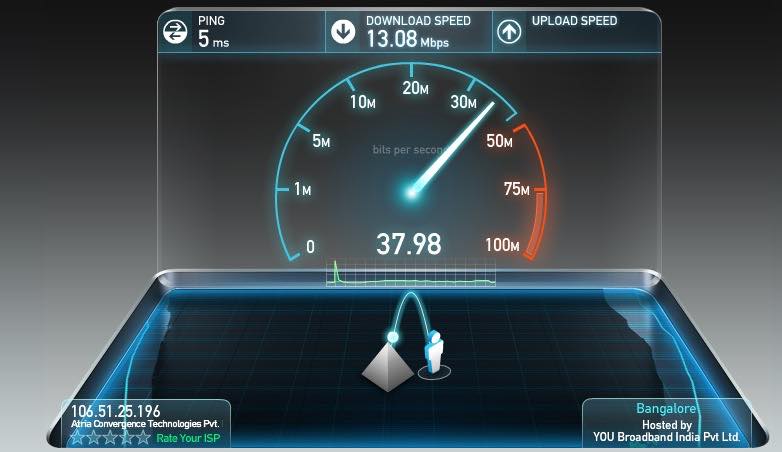
1. Take your internet speed test

The problem of slow internet can be due to issues with your DNS settings, placement of your WiFi router, wrong selection of Wi-Fi channel, or some security reasons. So, I will try to resolve each and every problem one by one and tell you about the tweaks to improve your internet speed and get an amazing browsing experience.

The very first step that we are going to take here is to do the internet speed test and ping test. I think most of you have already heard about the world’s best internet speed test by Ookla i.e. Speedtest.net. You can also check out websites to analyze the internet speed.

Using Ookla’s Speedtest to test your speed is very simple. All you need to do is visit the Speedtest.net website and click on the BEGIN TEST button.

ookla speedtest

Okla’s Ping Test has been discontinued so you use some other tool to do the same. For instance, you can do the ping test using CMD with the following command:

ping websiteaddress  -t  For Example, ping google.com -t

or

ping IPaddress  -t  For Example, ping 201.58.217.174 -t

2. Make sure your browser and OS is updated

We often receive comments from our visitors saying “My internet speed is so slow, what to do?”, “Why my Internet is slow in Windows”, “Why my Internet is slow on my Mac/ Linux system?”

An old and outdated browser/OS also hinders your internet speed and thus makes you stuck in the middle of web browsing, downloading/uploading files, etc. Make sure that your browser, as well as operating system, is up to date in order to get a better speed. If you are finding it hard to update your browser, you can download the latest version directly:

  • Download the latest version of Mozilla Firefox here.
  • Download the latest version of Google Chrome here.
  • Download the latest version of Safari here.
  • Download the latest version of Internet Explorer here.
  • Download the latest version of Edge Chromium here.’

To update your operating system, you are advised to find the suitable update settings on your computer and move to the latest version of OS.

3. Check for background activities

Background activities are the number one culprit when it comes to slowing down your internet speed. To ensure a better internet speed, you need to check and kill those unnecessary background activities on your machine.

Windows users can check the background activities by pressing CTR+Shift+ESC, whereas macOS users can search for “Activity Monitor” in Spotlight search.

Similar commands can also be used for Linux systems. For example, you can go ahead and use gnome-system-monitor command to fire up the system monitor app on your Ubuntu PC.

These background activities also involve system updates. It might be possible that you are experiencing slow internet speed temporarily. So, as soon as the update is completed, your internet speed will be back to normal. Although you can always turn off the system update, that would not be recommended.

4. Browser tweaks for faster internet surfing

Users can also enhance their internet surfing experience by doing some tweaks in the browsers. Make sure to clear your cache and other junks regularly as sometimes they are the major cause of slowing down your browsing speed. Also, you should delete the browser extensions you don’t use regularly.

To name a few tricks, tweaking some flags in Chrome Chrome and changing some settings in Mozilla Firefox might add a little difference. But there could be a significant impact if the browser manages to max out your RAM. In that case, you can go for the Chrome extension called The Great Suspender.

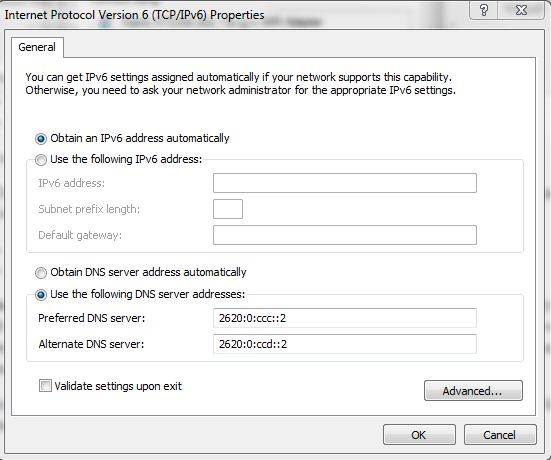
5. DNS hack for speeding up the internet

If you are a regular visitor of fossBytes, you might have come across my article on DNS Hack for faster internet. You can choose either Google DNS, Cloudflare DNS, or OpenDNS according to your needs. Generally, Google DNS is recommended for faster and secure internet.

For Google DNS configuration, use these IP addresses:

  • For IPv4: 8.8.8.8 and/or 8.8.4.4.
  • For IPv6: 2001:4860:4860::8888 and/or 2001:4860:4860::8844

For Open DNS configuration, use these IP addresses:

  • For IPv4:
    • Preferred DNS server: 208.67.222.222
    • Alternate DNS server: 208.67.220.220
  • For IPv6:
    • Preferred DNS server: 2620:0:ccc::2
    • Alternate DNS server: 2620:0:ccd::2
DNS-hack-faster-browsing

6. Stop torrent downloading and uploading

Downloading and uploading torrents can sometimes take a big toll on your internet speed. And the worst part is, most of the time, these apps start automatically whenever you turn on your computer. Maybe, someone else at your home wanted to download stuff.

So, if you are having trouble getting a good internet speed, check and make sure that your torrents are paused. You can also uncheck the “Start xyzTorrent on system startup” while installing the software.

7. Free up the unnecessarily used space

Although I won’t exactly call it a method, there is no harm in cleaning up the unnecessarily used space on your old PC. The programs that are installed on your PC and need the internet to operate, hinder your speed even if you aren’t using them. So, you should uninstall the programs that are of no more use to you. Also, do not forget to delete temporary internet data created by these programs.

8. Scan and remove adware

Adware are a curse to your PC as well as the internet. I’ve explained the adverse effect of adware, how to scan and remove them in the security fixes section that’ll be discussed further.

Hardware fixes for faster internet

1. Find problems with your Wi-Fi

It’s not that only your software slows down your internet speed, your hardware can affect it too. Previously, we wrote about the Ofcom Wi-Fi checker app that runs on your smartphone or tablet and checks the quality of your WiFi signal. So, my advice to you is to download and install Ofcom or any similar Wi-Fi checker app to detect the problem and improve your Wi-Fi connection.

Read the following points to know small fixes to boost internet speed on your machine.

2. Wi-Fi router placement to get good connection

The position of your WiFi router could play a crucial role in boosting your Wi-Fi signal strength and hence getting better internet speed. According to research, your router should be placed at the central location and at some elevation. Keep your router away from the Microwave oven and direct your antenna upwards for better horizontal reach and sideways for better vertical reach.

If you want to know how you can enhance Wi-Fi signal by choosing the right place in detail, read our dedicated article on the same topic here. This post contains some important points based on physics.

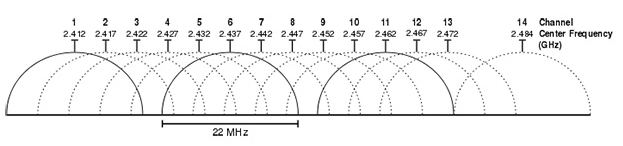
3. Choose the correct Wi-Fi channel

Channel overlapping also obstructs the Wi-Fi signal and tones down your internet speed. Choosing the correct Wi-Fi channel reduces the interface and improves your Wi-Fi performance. The overlapping is done mostly with nearby channels, so, choosing channels 1, 6, and 11 is the best option as they are spaced far enough and do not overlap (as shown in pic).

If you are willing to know more about choosing the correct channel to get a better Wi-Fi speed, read our in-depth article here.

wifi-channel

4. Boost your Wi-Fi with beer can

To some, this method might seem funny, but it actually works. Cut and place the beer can around the antenna in such a way that your devices are facing the concave and shine side of the beer can. As a result, the Aluminium can reflect the signal — that was earlier getting wasted in other directions — towards you and give you a strong Wi-Fi signal.

But this method has its own limitations as one side would get blocked. So, you would have to adjust it every time. If you are willing to know more about this method visit this link.

5. Best practices to increase your Wi-Fi speed

It’s not that only little hacks work while talking about getting faster internet speed. One should follow these best practices to get a better and faster internet speed:

  • Check and update your router’s firmware.
  • Password protect your internet router.
  • Disconnect old devices.
  • Check for the signal interference from devices like cordless phones, microwaves, baby monitors, etc.

6. Use repeater to strengthen signal

If you are using a Wi-Fi router in a large house and your router isn’t powerful enough, you might face the problem of a slow Wi-Fi signal. It’s generally advised to use a repeater for extending your Wi-Fi network. You can either use an old router and use it as a repeater or use a new repeater for bridging the existing router.

A newer technology that exists nowadays is mesh networking where multiple small mesh routers are placed in different rooms. They all can talk to each other to seamlessly switch and provide faster internet in all the corners of your home.

7. Use Ethernet over Wi-Fi if possible

Although Wi-Fi is more convenient, we must admit that wired connections are way better than wireless ones. So, if possible, use a wired connection as it’s more secure, faster, has lower latency, and no wireless interference problems.

But again, it’s up to you to choose which type of connection you want. We have already told you about the speed test and the ping test at the starting of the article — take the tests and decide what kind of connection would be suitable for you. Read more about Wi-Fi vs Ethernet comparison.

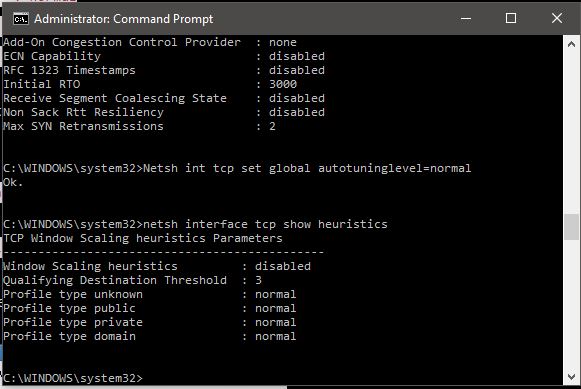
8. Speed up internet using CMD

Command Prompt in Windows works at the very abstract level. Using CMD, you can directly interact with the ports, Flush DNS table and can even set your TCP receive window, one of the key factors in downloading from the internet. Besides, you can also define the way Microsoft Windows interacts with the internet (in the background, Microsoft also limits the internet connection).

Use the below command in CMD to check if ‘Receive Window Autotuning level’ is ‘Normal’:

 netsh interface tcp show global

This command will show you a list of TCP global parameters and if you see the result that ‘Receive Window Autotuning level’ is not ‘Normal’ then go for this command to set the receive windows to normal.

netsh int tcp set global autotuninglevel=normal

Another command which could of help is

netsh interface tcp set heuristics disabled

This command will disable the heuristic algorithm by Microsoft which limits the internet speed.

Windows scaling heuristics disable to speed up internet using cmd

9. Clean up hardware, don’t let it heat up

This method does not come directly under speeding up your internet, but keeping your CPU cool is always a good thing. Overheating slows down your system and can harm your hardware. The cooling system of the computer consists of components like fans, heat sinks, vents, etc. and any type of malfunctioning can cause problems. If you are looking for general fixes, here’s an article on how to prevent your computer from overheating.

If you are wondering how to make internet faster, here’s how to monitor overheating issue in Linux and Windows 10 computers.

Security fixes for high internet speed

1. Scan for malware and adware and remove them

If you take a look at different surveys and reports, realize that malware and adware risks are on the rise. To deal with these risks, you are advised to use an effective antivirus product and regularly scan your computer for malware, virus, adware, ransomware, etc.

Make sure that along with your operating system, your antivirus solution is up-to-date and offers the best protection.

2. Check and protect your router from hacking attacks

We have seen in past researches how WiFi routers are vulnerable to cyberattacks. A major flaw was discovered in the widely used WPA2 security protocol as well. The purpose of hacking into your Wi-Fi can be anything from stealing sensitive information to just using your Wi-Fi bandwidth for the internet. If goes undetected, this can harm you big time. So, I will advise you to check for the vulnerability in your router first and take the necessary precautions.

In the next point, I’ll be explaining more about network security that will also cover some steps to protect your router from getting hacked.

3. Set Network Security

Prevention is better than cure. Setting up network security could be a great way to avoid any unwanted intrusion. Make sure that your network devices like routers and switches are properly configured and password protected.

Below are a few steps to protect your Wi-Fi router from getting hacked. You can also visit this link to read the in-depth article on the same.

  1. Turn on the firewall.
  2. Enable WPA2 or newer WPA3 (Wi-Fi protected access).
  3. Change the default SSID network name.
  4. Use a strong password or passphrase maybe.
  5. Disable remote administration.
  6. Enable MAC filter and logging feature.

Those were all the methods on how to speed up internet that I had to share with you. Go ahead and try them out and let us know if you found any method helpful. Also, if you have some other tricks to boost the internet speed, tell us in the comments below.

The post How To Get Faster Internet Connection Speed – The Complete Guide appeared first on Fossbytes.


How To Get Faster Internet Connection Speed – The Complete Guide
read more

Best YouTube-Approved Smartphones For Binge-Watching Videos On YouTube

best smartphones to watch youtube videos

Every smartphone, be it Android, iOS, or any other OS, can play YouTube videos. But as someone who’s more of a binge-watcher, have you ever thought about the best smartphones to watch YouTube videos. Apparently, there is a list of devices that you can check out that has been released by the video-sharing platform itself.

List of YouTube Certified Smartphones (For The Best Experience)

The YouTube certified devices include a varying range of smartphones from Android OEMs. For the uninitiated, YouTube frequently updates its Device Report page where you can see the latest smartphones that according to the company offer the best-in-class YouTube experience. Of course, there are many feature-packed smartphones that are not on this list.

YouTube Devices Specifications Release
LG Wing 6.8-inch (1080p), Snapdragon 765G Oct 2020
OnePlus Nord 6.4-inch (1080p), Snapdragon 765G Aug 2020
Motorola One Fusion+ 6.5-inch (1080p), Snapdragon 730 Jun 2020
Motorola Edge+ 6.7-inch (1080p), Snapdragon 865 Apr 2020
Motorola Edge 6.7-inch (1080p), Snapdragon 765 Apr 2020
OnePlus 8 Pro 6.8-inch (1440p), Snapdragon 865 Apr 2020
OnePlus 8 6.5-inch (1080p), Snapdragon 865 Apr 2020
Oppo Find X2 Pro 6.7-inch (1080p), Snapdragon 865 Mar 2020
LG V60 ThinQ 5G 6.8-inch (1080p), Snapdragon 855 Feb 2020
LG G8X ThinQ 6.4-inch (1080p), Snapdragon 855 Nov 2019
Google Pixel 4XL 6.0-inch (1440p), Snapdragon 855 Oct 2019
Google Pixel 4 5.7-inch (1080p), Snapdragon 855 Oct 2019
OnePlus 7T 6.5-inch (1080p), Snapdragon 855+ Sep 2019
Asus ROG Phone II 6.6-inch (1080p), Snapdragon 855+ Sep 2019
OnePlus 7 Pro 6.7-inch (1440p), Snapdragon 855 Jun 2019
OnePlus 7 6.4-inch (1080p), Snapdragon 855 Jun 2019
LG V50 ThinQ 6.4-inch (1440p), Snapdragon 855 May 2019
Google Pixel 3a XL 6.0-inch (1080p), Snapdragon 670 May 2019
Google Pixel 3a 5.6-inch (1080p), Snapdragon 670 May 2019
LG G8 ThinQ 6.1-inch (1440p), Snapdragon 855 Apr 2019
Huawei P30 Pro 6.5-inch (1080p), HiSilicon Kirin 980 Mar 2019
Huawei P30 6.1-inch (1080p), HiSilicon Kirin 980 Mar 2019
Samsung Galaxy S10+ 6.4-inch (1440p), SD855/Exynos 9820 Mar 2019
Samsung Galaxy S10 6.1-inch (1080p), SD855/Exynos 9820 Mar 2019
Samsung Galaxy S10e 5.8-inch (1080p), SD855/Exynos 9820 Mar 2019
Huawei Honor View20 6.4-inch (1080p), HiSilicon 980 Jan 2019

The official list of YouTube Signature Devices further goes on to include smartphones launched in 2017, you can check out the names if you have an older device.

One surprising thing to note here is that there isn’t a single iPhone model in the list of best smartphones to watch YouTube, despite the fact that Apple smartphones provide a top-notch video experience with HDR and sound quality. Also, while the list populates Android devices, the company chose not to include the 2020 Samsung flagship Galaxy S20 series.

How does YouTube decide which smartphones to pick?

The video-sharing platform has provided brief details on what factors it considers while picking smartphones for its signature devices list. The following factors are taken into consideration for best smartphones to watch YouTube videos.

Support High Dynamic Range: The device should support HDR content so it displays better contrast and realistic colors. Common HDR formats include HDR10+ and Dolby Vision which we usually find on smartphones.

Play 360 videos: Thanks to tons of affordable 360-capable cameras like GoPro Max and Insta360, YouTube is home to a lot of videos that give a 360-degree 3D view of the surroundings. These videos are a treat to VR users and users can interact with them as well. Hence, a certified device should be able to play them.

High FPS and 4K decoding: The picture quality we are getting these days is improving as we speak. You can find many YouTube videos shot in 4K60fps or even 8K. These videos are smoother than what you see when running a 30fps video. Hence, the device should pack powerful SoC that can handle 4K decoding without any pain.

DRM Performance: With the ever-increasing content on YouTube, the need to protect the rights of the copyright holders has also increased. So, YouTube checks whether the device it’s picking comes equipped with necessary DRM technologies to prevent unauthorized use, copy, and distribution of the video content.

Anyway, these were the best smartphone to watch YouTube videos which would enhance your bingewatching experience. We’ll update this list once the 2021 smartphones popup on the device report page.

The post Best YouTube-Approved Smartphones For Binge-Watching Videos On YouTube appeared first on Fossbytes.


Best YouTube-Approved Smartphones For Binge-Watching Videos On YouTube
read more

Playing Grand Theft Auto Inside A Neural Network’s Hallucination? It’s Possible!

Ever imagined what a Neural Network's hallucination would look like? The post Playing Grand Theft Auto Inside A Neural Network’s Halluc...